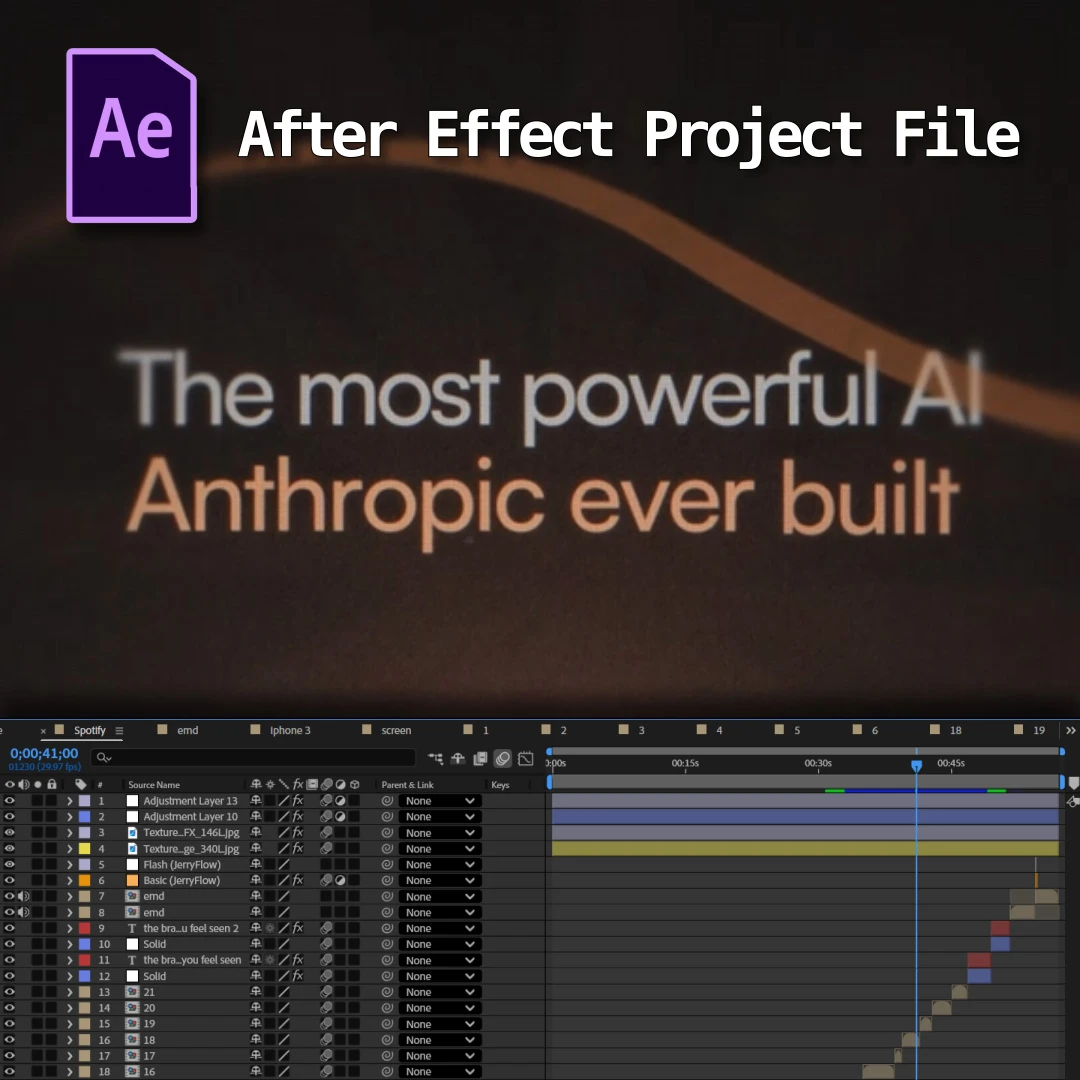
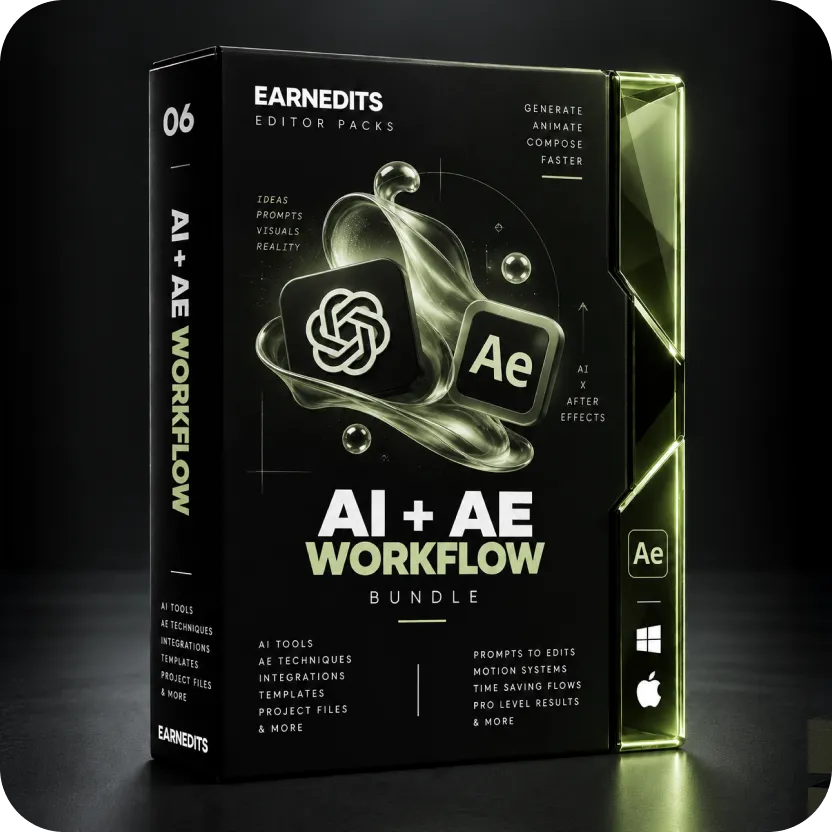
Learn how to integrate AI into your animation workflow without replacing your creativity.
This tutorial doesn’t require any project files. However, if you’d like to follow along, download the sample assets provided with this lesson.
What You’ll Learn
By the end of this tutorial, you’ll know how to use AI throughout the entire animation process—from brainstorming ideas to generating assets, improving compositions, writing expressions, and speeding up repetitive tasks.
Rather than relying on AI to create everything, you’ll learn how professional motion designers use it as a creative assistant.
Before We Start
AI should enhance your workflow, not replace your design skills.
The best animations still come from good storytelling, strong motion principles, and thoughtful design decisions. AI simply helps you get there faster.
Throughout this tutorial, we’ll focus on practical ways AI can improve your workflow while keeping you in complete creative control.
1. Brainstorm Better Ideas
One of the biggest creative bottlenecks is figuring out what to animate.
Instead of staring at a blank composition, use AI to generate ideas in seconds.
Ask it to help with:
- Visual metaphors
- Storytelling ideas
- Animation concepts
- Scene transitions
- Camera movement
- Design directions
Demonstration
Show how a simple prompt can generate multiple visual ideas for the same script, then explain how to combine the strongest ideas into a final concept.
2. Break Down Your Script
Before opening After Effects, paste your script into an AI assistant.
Instead of asking it to animate the script, ask it to analyze it.
For example:
- Which words deserve emphasis?
- Which sentence should have the biggest visual impact?
- Where should the pacing slow down?
- Which ideas could be explained visually instead of with text?
This creates a clear animation plan before any design work begins.
Demonstration
Take a short script and let AI divide it into individual scenes.
3. Create a Storyboard
Once the script is broken down, use AI to help organize each scene.
For every sentence, define:
- Main visual
- Supporting elements
- Camera movement
- Transition
- Duration
- Animation notes
A good storyboard saves hours during production.
4. Generate Better Assets
Instead of searching for stock images for hours, AI can generate custom assets that match your project.
Examples include:
- Illustrations
- Icons
- Backgrounds
- Characters
- Objects
- Textures
The key is maintaining a consistent style throughout the project.
Demonstration
Generate several versions of the same object and compare which one works best.
5. Improve Existing Assets
AI can also improve assets you’ve already created.
Use it to:
- Remove backgrounds
- Upscale images
- Extend artwork
- Replace objects
- Remove unwanted distractions
- Generate transparent PNGs
Small improvements like these can save significant production time.
6. Plan Better Animations
AI is surprisingly useful when you’re unsure how something should move.
Instead of asking it to animate, ask questions like:
- Which object should move first?
- Where should anticipation happen?
- Which elements should overlap?
- What makes this transition feel smoother?
Think of AI as another designer reviewing your work.
7. Write Expressions Faster
Need an After Effects expression?
Instead of searching forums, describe exactly what you want.
Examples:
- Wiggle animations
- Random movement
- Responsive layouts
- Counting numbers
- Auto-scaling text
- Looping animations
Always review and understand the generated code before using it.
8. Get Design Feedback
Once your scene is complete, ask AI to critique it.
Questions you can ask include:
- Is the composition balanced?
- Is the motion distracting?
- Does the hierarchy feel clear?
- Is there too much happening?
- Where is the viewer’s attention focused?
Fresh feedback often reveals improvements you may have missed.
9. Speed Up Repetitive Work
Many production tasks don’t require creativity.
AI can help with:
- Writing project documentation
- Naming layers
- Organizing folders
- Generating color palettes
- Creating prompt variations
- Writing tutorials
- Drafting client emails
Saving a few minutes on repetitive tasks quickly adds up across larger projects.
Final Thoughts
AI isn’t here to replace motion designers.
It’s here to remove repetitive work, accelerate creative exploration, and help you make better decisions throughout the animation process.
The strongest motion designers won’t be the ones who rely entirely on AI—they’ll be the ones who know when to use it and when to trust their own creative instincts.
Treat AI as a creative partner, continue learning the fundamentals of animation, and you’ll be able to produce higher-quality work in less time.




 Back