Introducing Frame War
Submit your best edit, make it into the Top 3, and compete for the monthly Frame War reward. The winner receives cash plus exposure across EarnEdits community channels.

PRODUCT CATEGORIES
Submit your best edit, make it into the Top 3, and compete for the monthly Frame War reward. The winner receives cash plus exposure across EarnEdits community channels.
 Back
Back

 Aug 10, 2026
 Muhammad Sikandar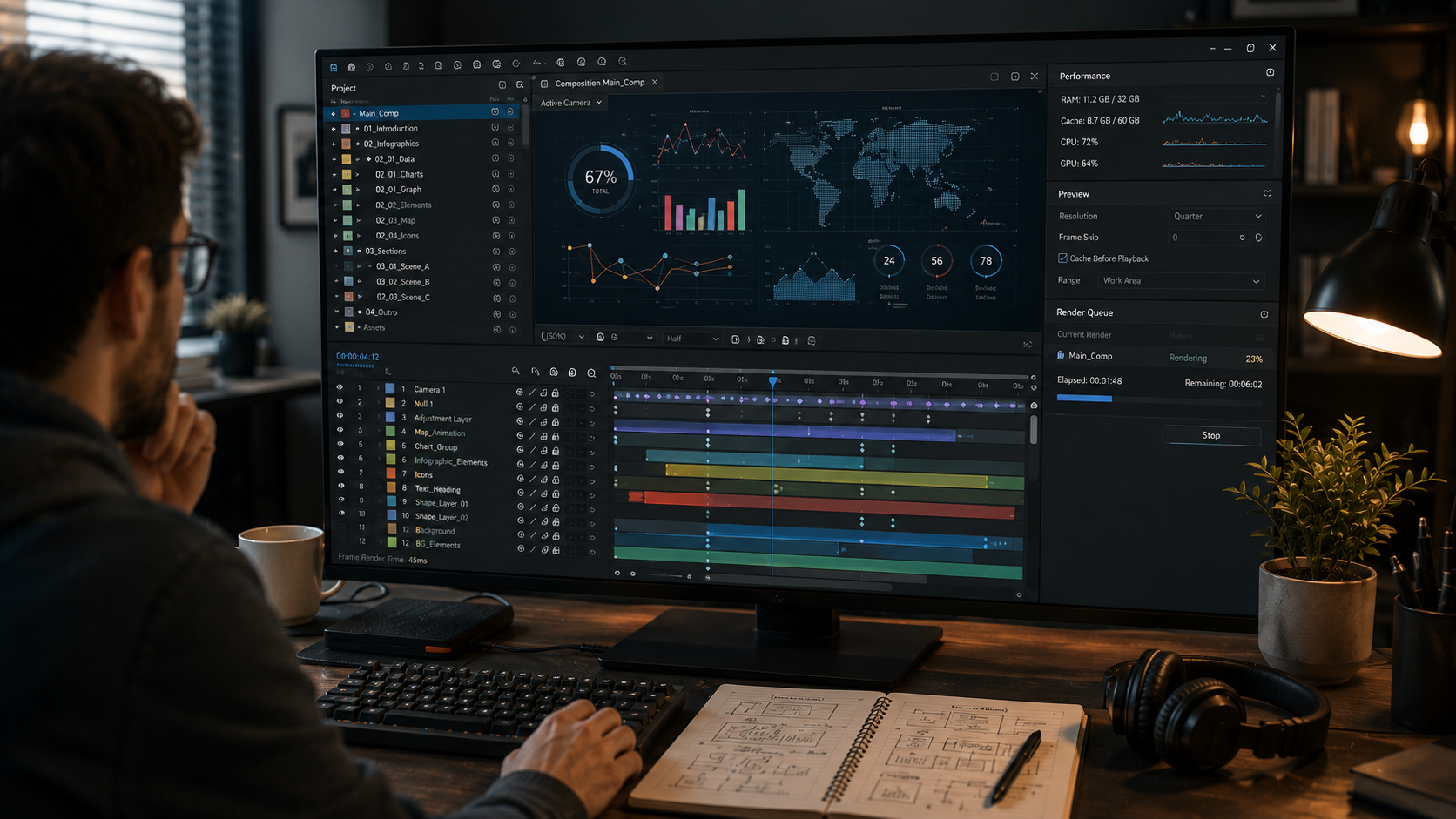
After Effects renders slowly mostly because of project structure, not hardware: deep precomp nesting, full-resolution previews, and stacked effects cost more render time than a slower computer does. We open project files every day, and the slow ones share structural patterns, not weak machines. Hardware sets a ceiling. Project structure decides how close a render runs to that ceiling. This guide covers the structural causes first, because they are the ones an editor controls, then the settings and hardware factors that finish the picture
A well-built project renders fast on modest hardware, and a poorly-structured project renders slowly on a powerful machine. The order of causes matters, because most render guides start with hardware and skip the part the editor controls directly.
Three structural factors set most of the render load. Precomp nesting depth, preview resolution, and effect stacking on each layer carry the weight. An editor who fixes these three sees a larger speed gain than a RAM upgrade delivers. The same structural discipline runs through every file in our library of After Effects project files. The sections below take each one in order.
Every precomp layer After Effects renders adds a full render pass, so deeply nested compositions multiply the work. Precomps organize a project, and stacking them many levels deep forces After Effects to render each level before the one above it.
A composition nested five levels deep renders all five levels for every frame. The fix is not removing precomps, which keep a project readable. The fix is collapsing transformations where possible and pre-rendering heavy nested comps into a single asset once they are final.
A finished precomp that no longer changes belongs as a rendered file, not a live nested composition. Packaging those rendered assets cleanly matters at handoff, covered in our guide on how to collect files in After Effects.
Previewing at full resolution renders every pixel, and dropping to half or quarter resolution cuts the work dramatically. Full resolution is rarely needed while building an edit.
The resolution dropdown at the bottom of the composition panel controls this directly. Half resolution renders a quarter of the pixels. Quarter resolution renders a sixteenth. The preview looks softer, and the timing, motion, and structure stay perfectly readable. Full resolution belongs to the final render and the occasional detail check, not the working session.
Some effects cost far more render time than others, and stacking many effects on one layer compounds the load. Blurs, glows, and third-party plugin effects are among the heaviest.
The order of effects on a layer also changes the cost. A blur applied after a glow renders differently than the reverse. The fixes are direct. Apply heavy effects to an adjustment layer once rather than to many layers separately. Pre-render a layer whose effects are final.
Disable effects during the build that only matter at export. A file with organized, purposeful effects renders faster than one with redundant stacked effects. File structure matters when studying a project for the same reason. The selection standards for well-built files sit in our guide to the best After Effects project files for beginners.
A stuck or slow RAM preview often speeds back up after toggling multiprocessing off and on once. This is a known workaround editors confirm across versions.
The steps are simple. Open Preferences, then Memory and Multiprocessing, and disable Render Multiple Frames Simultaneously. Run one RAM preview. Re-enable the setting. The preview frequently returns to normal speed. The exact reason varies, and the fix is fast enough to try before deeper troubleshooting.
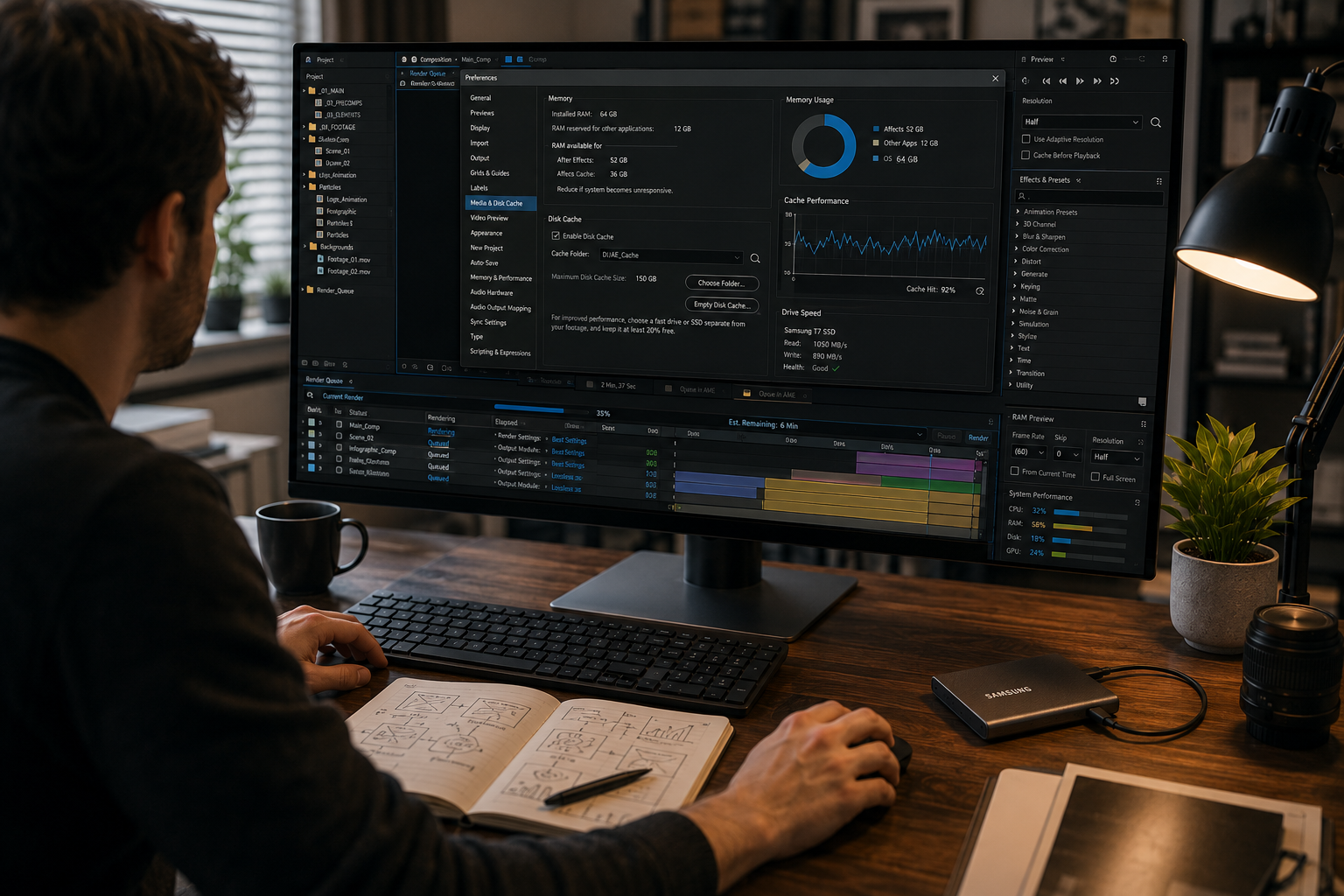
Reserving too little memory for other applications and running a full disk cache both slow After Effects down. The memory and cache settings carry real weight.
Two settings matter most. In Memory and Multiprocessing, reserve enough RAM for the operating system and other apps, because starving them forces slowdowns. In Media and Disk Cache, point the cache to a fast drive and clear it when it fills. A full or fragmented cache on a slow drive drags preview and render speed on any hardware.
Some After Effects 2026 releases rendered dramatically slower than the 2025 version, and rolling back resolved it for many editors. This is a real, reported issue rather than a structural one.
Editors reported render times several times slower after updating to the 2026 release, with the 2025 version restoring normal speed. Later patch releases appear to have addressed it. A person hitting sudden slowness right after a major version update checks the version itself as the cause before rebuilding the project. Confirming the build version is also a standard step in any project handoff, covered in our guide on how to open AEP files.
Hardware sets the maximum render speed, and RAM, CPU cores, GPU, and drive speed each play a part. Structure decides how close a render runs to that ceiling, and hardware decides where the ceiling sits.
Hardware upgrades help, and they help most on a project that is already structured well. Upgrading hardware to rescue a poorly-built project treats the symptom, not the cause.
Full-resolution previews and deeply nested precomps are the most common causes. Dropping the preview resolution to half or quarter and pre-rendering finished precomps produces the fastest improvement.
More RAM raises the ceiling, and project structure decides how close a render runs to it. A poorly-structured project renders slowly even with high RAM, so structure comes first.
Some 2026 releases carried a render regression that ran several times slower than 2025. Rolling back to the previous version restored normal speed for many editors, and later patches addressed it.
Drop preview resolution, pre-render finished precomps, apply heavy effects to adjustment layers, and clear the disk cache. These structural fixes outperform a hardware upgrade on most projects.
Yes. The order of effects on a layer changes the render cost. Stacking many heavy effects compounds it. Applying heavy effects once on an adjustment layer beats repeating them across layers

Explore more guides on After Effects project files and viral editing workflows.
Production-ready edits that teach you how they were built.