Introducing Frame War
Submit your best edit, make it into the Top 3, and compete for the monthly Frame War reward. The winner receives cash plus exposure across EarnEdits community channels.

PRODUCT CATEGORIES
Submit your best edit, make it into the Top 3, and compete for the monthly Frame War reward. The winner receives cash plus exposure across EarnEdits community channels.
 Back
Back

 Aug 16, 2026
 Muhammad Sikandar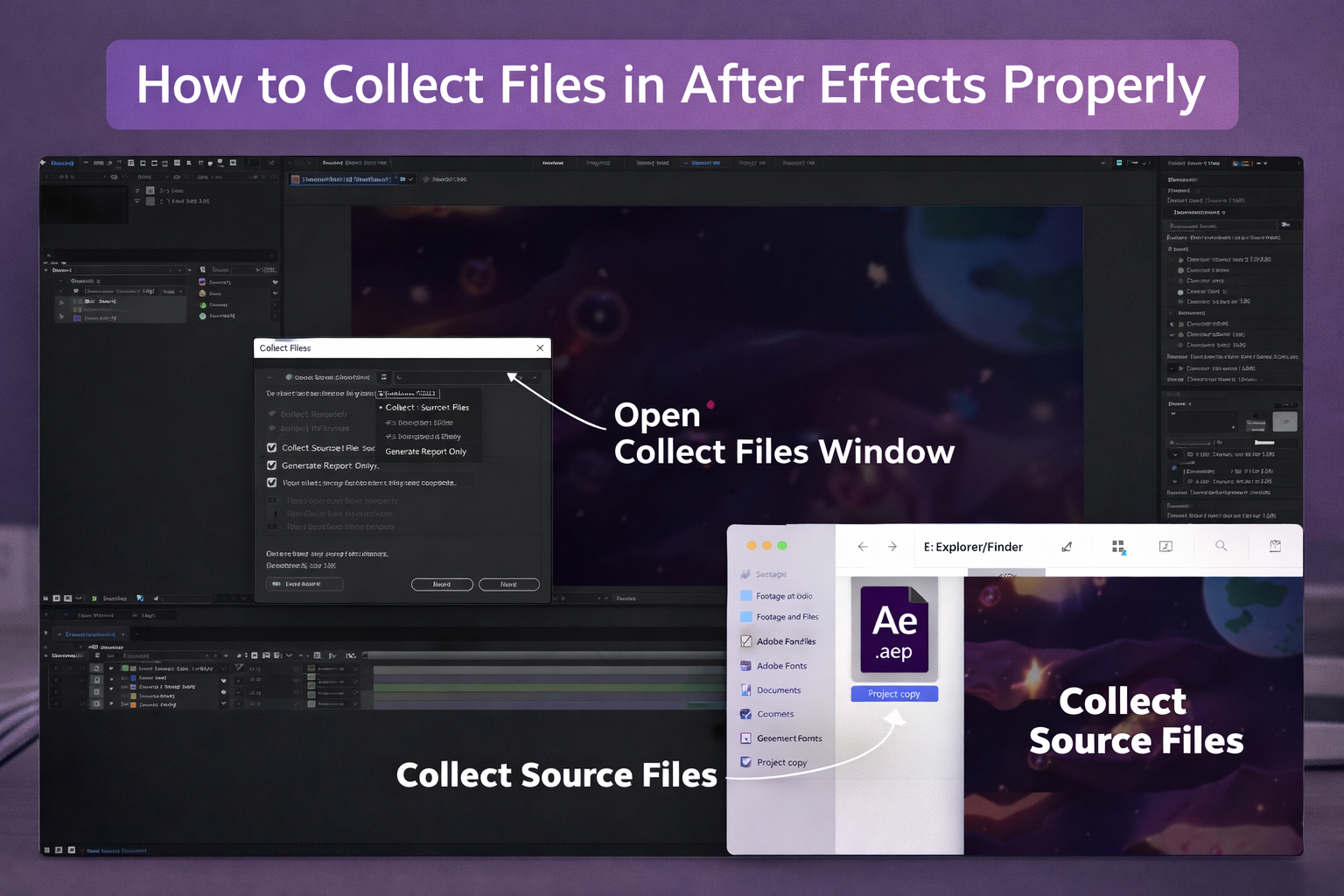
After Effects links to external assets by file path instead of embedding them inside the .aep file, so a project moved to another folder or machine opens with color bars and missing footage warnings.
Collect Files (File > Dependencies > Collect Files) packages the project and every referenced asset into one self-contained, portable folder. Collect Files does not gather fonts, third-party plugins, or external scripts, and these get packaged separately.
A professional handoff extends the Collect Files output with pre-collection cleanup, post-collection verification, a font folder, a plugin list, a preview render, and a client README.
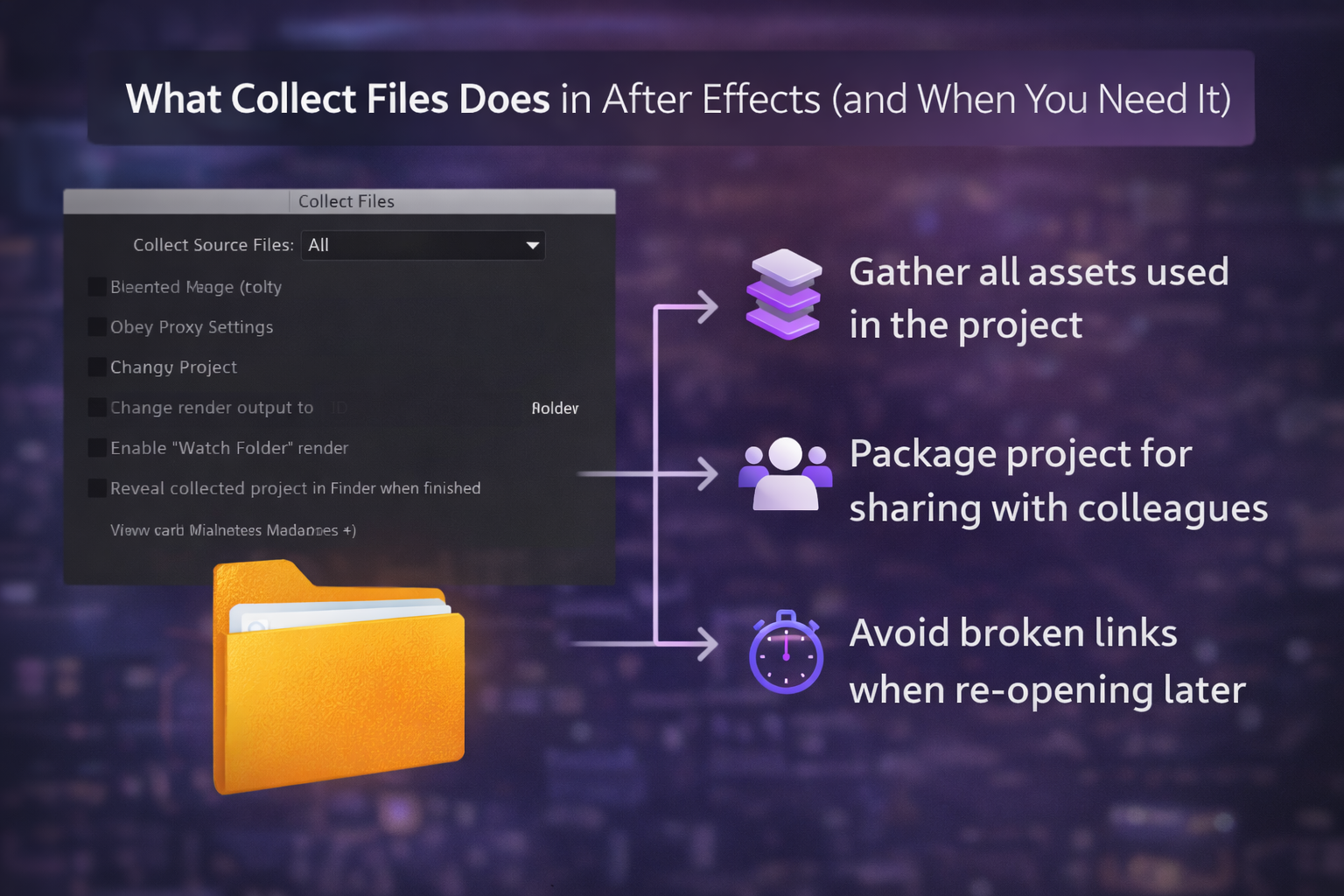
Collect Files is a dependency management function that copies every external asset a project references, including footage, audio, images, and the .aep file itself, into a single self-contained folder. The function lives under File > Dependencies > Collect Files.
After Effects creates a new folder containing the .aep project file, a (Footage) subfolder holding all linked media, and a Report.txt listing every file, effect, font, and plugin the project references. The folder moves to an external drive, uploads to cloud storage, or transfers to another editor without breaking a file link.
Collect Files becomes necessary in four situations: transferring a project to a different computer, handing off to another editor or client, archiving completed work, and submitting to a render farm. Projects built only from native shape layers, solids, and text with no imported media need no collection, since the .aep alone carries everything.
A .aep sent without its linked assets opens with missing footage errors on every machine except the one that built it. The .aep holds compositions, keyframes, effects, and expressions, while every footage clip, audio file, and image lives as a reference pointing to a location on the original drive. The moment the .aep moves to a different machine, those file paths no longer resolve, and each referenced asset displays as a bars-and-tone placeholder carrying a “Missing Footage” label.
A single project references 50 to 200 or more external files. Collect Files removes the problem by copying every referenced asset into one folder alongside the .aep, making the entire project portable to any machine.
Running cleanup commands before Collect Files strips orphaned references and unused compositions, shrinking the collected folder and removing assets the recipient does not need. A messy project produces a messy package, since unused footage, duplicate imports, and unnamed compositions all get swept into the collected folder.
The cleanup sequence follows four steps:
Save the project
(Ctrl+S on Windows, Cmd+S on Mac). After Effects refuses to collect an unsaved project.
Collect Files copies every referenced asset into a single self-contained folder alongside a new .aep and a report file. The collection takes about 30 seconds, though the dialog settings determine whether the handoff works.
Step 1. Go to File > Dependencies > Collect Files.
Step 2. Set the Collect Source Files dropdown, the setting most editors skip and the one that matters most.
Step 3. Check the Reduce Project box, which strips unused footage and compositions from the collected .aep copy. The original project on the editor’s machine stays untouched.
Step 4. Leave Generate Report Only unchecked. A checked box creates the Report.txt without copying any files, the mistake that results in sending an empty folder.
Step 5. Click Collect, then name the folder with a clear convention, such as ProjectName_Handoff_2026-02-20.
Step 6. Zip the entire folder before transferring, which prevents files from separating during upload.
After Effects places the collected .aep and the (Footage) subfolder inside the new folder, with the .aep pointing to assets using relative paths, which is the reason both pieces stay together. The process copies files, so originals remain in place and the collected folder becomes an independent duplicate.
The Collect Source Files dropdown holds four options that control which assets get copied:
For Queued Comps collects assets only for compositions sitting in the Render Queue, useful when packaging files for rendering on another machine.
Collect Files bundles every referenced media file, yet skips fonts, third-party plugins, and external scripts, since these exist as system-level installs rather than file references inside the .aep. These three categories break projects on the receiving end more often than missing footage does.
After Effects references font names from the operating system’s font library. A recipient opening the project on a machine without those fonts sees a “Missing Font” warning on every text layer, with a default typeface substituted in. The workaround creates a Fonts subfolder holding the .ttf or .otf files when the license permits redistribution. Adobe Fonts get noted in the README so the recipient activates them through Creative Cloud.
Effects from plugins such as Trapcode Particular, Element 3D, or Optical Flares get referenced by name in the .aep. A recipient without the plugin installed sees those layers render with a “Missing Effect” watermark. The workaround creates a plugins.txt file listing every plugin with version numbers and download links. Plugins require separate licenses and cannot ship inside the collected folder.
Expressions calling external .jsx files or data files such as JSON and CSV break when those files stay outside the delivery, so any referenced script gets copied into the delivery folder and noted in the README. Projects edited with low-resolution proxies need the proxy settings checked in the Collect dialog, so the package sends original full-resolution source files rather than proxies.
Missing footage after collecting traces back to one of four causes, and a search inside the collected project surfaces every broken link before the recipient opens the file.
The four causes account for nearly every missing-file problem:
Open the collected .aep from the delivery folder, not the original, which forces After Effects to resolve all paths from the new location. Typing “missing” into the Project Panel search bar auto-fills three filters for Missing Footage, Missing Fonts, and Missing Effects. Right-click any missing file, choose Replace Footage > File, then navigate to the correct file inside the (Footage) folder. The complete relinking workflow for footage, fonts, and effects appears in the guide on how to fix missing files in After Effects.
A professional delivery package extends the Collect Files output with font files, a plugin list, a preview render, and a README that tells the client how to open and use the project. Client delivery raises the standard above an editor-to-editor transfer, since the client needs the project to open correctly without troubleshooting.
The complete delivery folder follows this structure:
/ProjectName_v01_Delivery/
├── ProjectName.aep
├── (Footage)/
│ ├── Video/
│ ├── Audio/
│ └── Images/
├── Fonts/
│ ├── FontName-Regular.ttf
│ └── FontName-Bold.otf
├── Preview/
│ └── ProjectName_Preview.mp4
├── README.txt
└── Report.txt
The README.txt carries seven items: a folder structure explanation, font names with activation instructions, third-party plugin names with download links, the AE version the project was built in along with any down-saved version, render settings covering codec and resolution and frame rate, the preview file location, and editor contact information.
The preview render ranks as the most overlooked delivery item. A client opening the project sees missing font warnings and has no way to judge whether the output looks correct, so a 30-second low-resolution H.264 render of the final composition, placed in the Preview folder, gives a visual reference before the client resolves any dependencies. Down-saving the project through File > Save a Copy As protects clients running an older After Effects version, since a project saved in a newer version refuses to open on an older install.
Compressing the delivery folder into a single .zip file before uploading prevents corruption and keeps the folder structure intact during transfer. Compressing the folder preserves the hierarchy and stops files from being renamed or separated during download.
Transfer method depends on file size. Files under 2GB transfer reliably through Google Drive, Dropbox, or WeTransfer. Files over 2GB move through Google Drive or Dropbox using folder upload, since WeTransfer caps free transfers at 2GB. Email attachments break any project over 25MB, as email clients strip or corrupt large archives. Keeping a local copy of the zipped folder turns a lost file or revision request into a seconds-long resend.
A properly packaged project keeps the .aep at the root alongside the (Footage) folder, with an added Fonts subfolder and a README. The editor-to-editor version looks like this:
📁 ProjectName_Handoff_2026-02-20
📄 ProjectName.aep
📁 (Footage)
📁 Fonts
📄 README.txt
Projects organized from the start, with labeled layers and properly linked assets, turn collection into a non-issue. Every EarnEdits project file ships with localized assets, organized layers, and no plugin dependencies, so Collect Files runs clean on every AEP in the EarnEdits project files library.
Consolidate All Footage merges duplicate imports so the same file stops appearing multiple times. Collect Files copies all referenced assets into a new folder for transfer. Running Consolidate before Collect Files keeps the collected folder lean.
Collect Files copies every referenced asset into the new folder. The original files remain in their original locations, so the collected folder becomes an independent duplicate.
Yes. Select the composition in the Project Panel first, then choose "For Selected Comps" from the dropdown. After Effects collects only the assets used by that composition and its nested pre-comps.
Run Collect Files with "For All Compositions" selected and Reduce Project checked. Zip the collected folder, transfer it, then unzip and open the .aep from inside the collected folder rather than from another location.
A project saved in a newer AE version refuses to open on an older one. Before collecting, use File > Save a Copy As to down-save the project to the client's version, include the down-saved .aep in the delivery folder, and note both versions in the README.
The common causes are fonts or plugins not installed on the new machine, the .aep moved outside its collected folder, or assets offline when Collect Files ran. Resolve missing file warnings in the original project first, then collect again.
Collect Files does not gather linked Premiere Pro sequences or other Dynamic Link connections. Export those compositions as intermediate renders, then import the rendered files into After Effects before collecting.

Explore more guides on After Effects project files and viral editing workflows.
Production-ready edits that teach you how they were built.