Introducing Frame War
Submit your best edit, make it into the Top 3, and compete for the monthly Frame War reward. The winner receives cash plus exposure across EarnEdits community channels.

PRODUCT CATEGORIES
Submit your best edit, make it into the Top 3, and compete for the monthly Frame War reward. The winner receives cash plus exposure across EarnEdits community channels.
 Back
Back

 Aug 16, 2026
 Muhammad Sikandar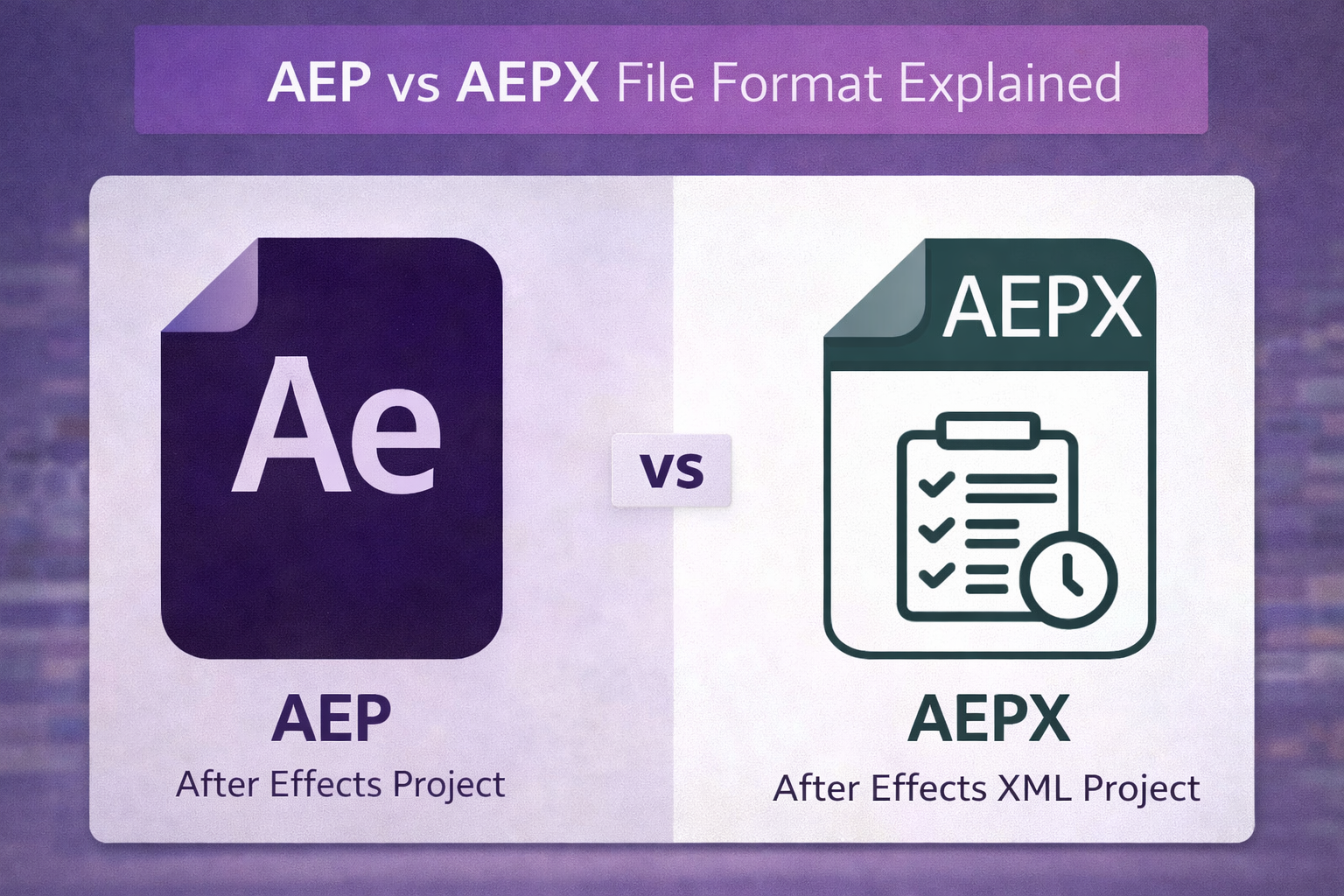
AEP and AEPX are both Adobe After Effects project file formats that store compositions, layers, keyframes, effects, and references to linked media. The .aep file uses binary encoding, while the .aepx file uses XML text encoding. The .aep is the default save format, loads faster, and produces smaller file sizes.
The .aepx opens in any text editor, supports version control, and serves automation workflows. Both formats hold identical project data and convert between each other through the After Effects Save As menu with zero data loss.
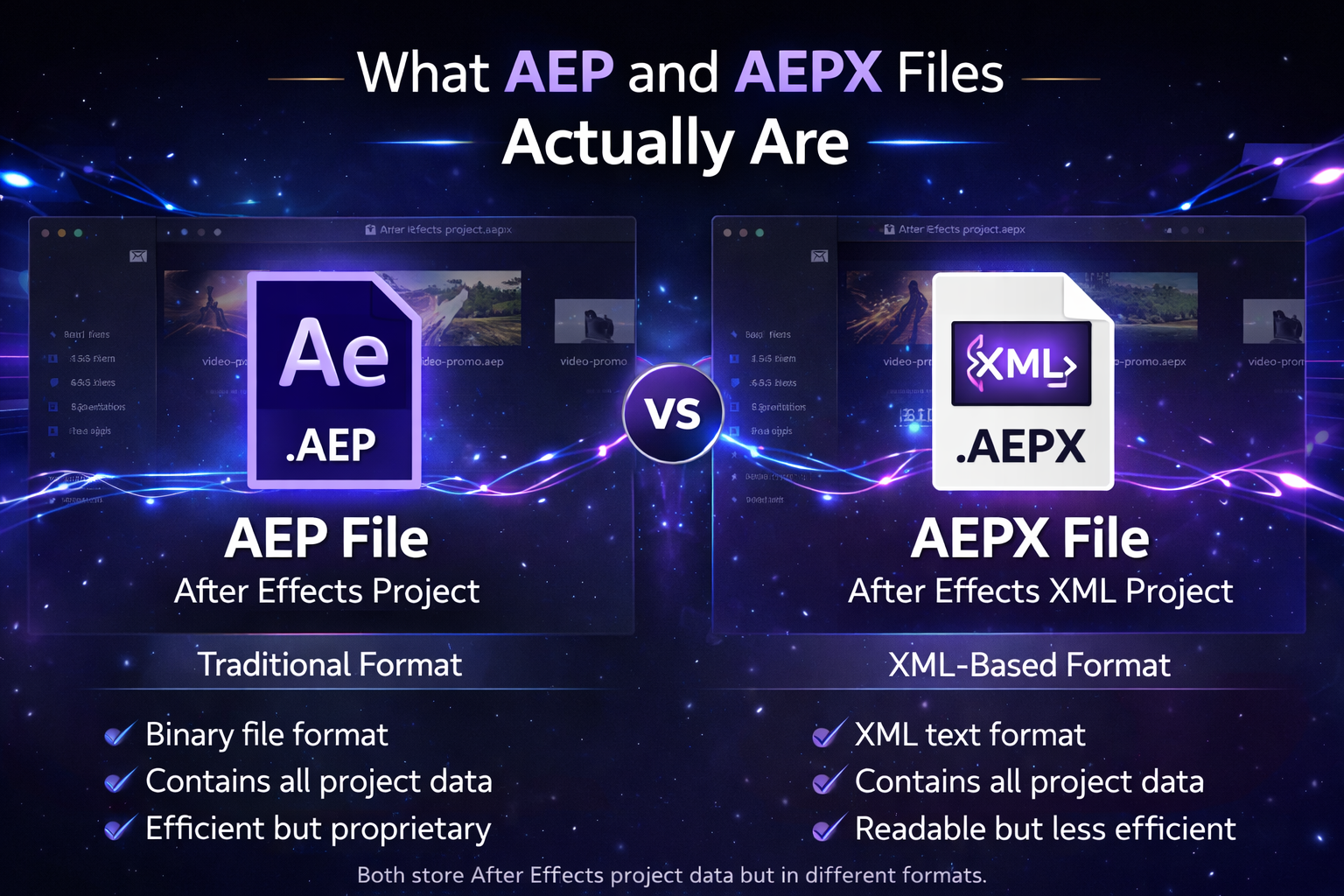
AEP and AEPX are 2 native project file formats for Adobe After Effects. Both formats encode the same project data, but use different encoding methods. The encoding difference determines file size, load speed, editability outside After Effects, and use case.
The .aep extension marks the standard binary project format. After Effects saves projects in .aep format by default when the editor presses Ctrl+S on Windows or Cmd+S on macOS. Binary encoding compresses the project data into machine-readable code that After Effects parses in seconds. No human reads .aep contents directly in a text editor.
The .aepx extension marks the XML-based project format. The format translates After Effects project data into structured text. Opening an .aepx file in a text editor such as VS Code or Notepad++ reveals XML tags for every project element. The exposed elements include composition names, layer names, keyframe values, effect parameters, and footage reference paths.
Adobe introduced the .aepx format in After Effects CS4. Most editors work with .aep daily and never encounter .aepx unless a specific automation, backup, or version control workflow calls for it.
Neither .aep nor .aepx files embed source media inside the project file. Both formats store file-path references to external assets such as video clips, audio tracks, and images. Moving the project file without its linked assets breaks the references.
The standard solution is the After Effects Collect Files command, which packages the project and every referenced asset into a single folder. The full workflow for packaging a project with all linked media sits in the guide on how to collect files in After Effects.
The core difference between AEP and AEPX is encoding: binary versus XML. The encoding difference produces 7 measurable distinctions across file size, load speed, readability, editability, version control, automation, and corruption recovery.
The table below compares the 2 formats across 8 attributes that affect daily editor workflow.
| Feature | .AEP (Binary) | .AEPX (XML) |
| File Size | Smaller, compressed | 2 to 3 times larger |
| Load Speed | Faster | Slower on complex projects |
| Readability | Machine-readable only | Human-readable in text editors |
| Edit Outside AE | Not possible | Yes, modify via text or scripts |
| Version Control (Git) | Poor, binary diffs are opaque | Excellent, trackable line by line |
| Automation | Difficult | Suited for batch scripts and pipelines |
| Corruption Recovery | Harder, binary data is opaque | Easier, XML lines are inspectable |
| Adobe Default | Primary format for daily work | Secondary, for automation and backups |
A human-readable .aepx file exposes 4 project elements as plain text: composition names, layer names, footage reference paths, and expression values. An editor opens the .aepx in a text editor, searches for a specific layer or asset, and reads the result directly.
Not every element is plain text. Some plugin data appears as hexadecimal binary inside the XML, even though the surrounding project structure is readable.
A corrupted .aep file fails to open and gives the editor nothing to inspect, since binary data is opaque. A corrupted .aepx file fails to open but exposes the project as searchable XML. The editor searches the XML for the corrupted section, identifies the malformed line, and manually removes or repairs the broken data.
Saving periodic .aepx copies as backup creates a recoverable fallback for critical projects.
Studios running Git or SVN for project tracking favor .aepx for version control transparency. The version control system shows exactly which layers, keyframes, or effect parameters changed between saves. Binary .aep files break version control diffs, since every byte changes on each save regardless of the editor’s actual modifications.
Use .aep for 95% of editing work and .aepx for 5% of specific automation or backup workflows. The 2 formats serve different production stages, and the choice depends on the workflow context.
The .aep format suits 4 standard scenarios:
The .aepx format suits 4 specific scenarios:
Adobe documents .aep as the primary working format and .aepx as the intermediate format for automation and archival backups.
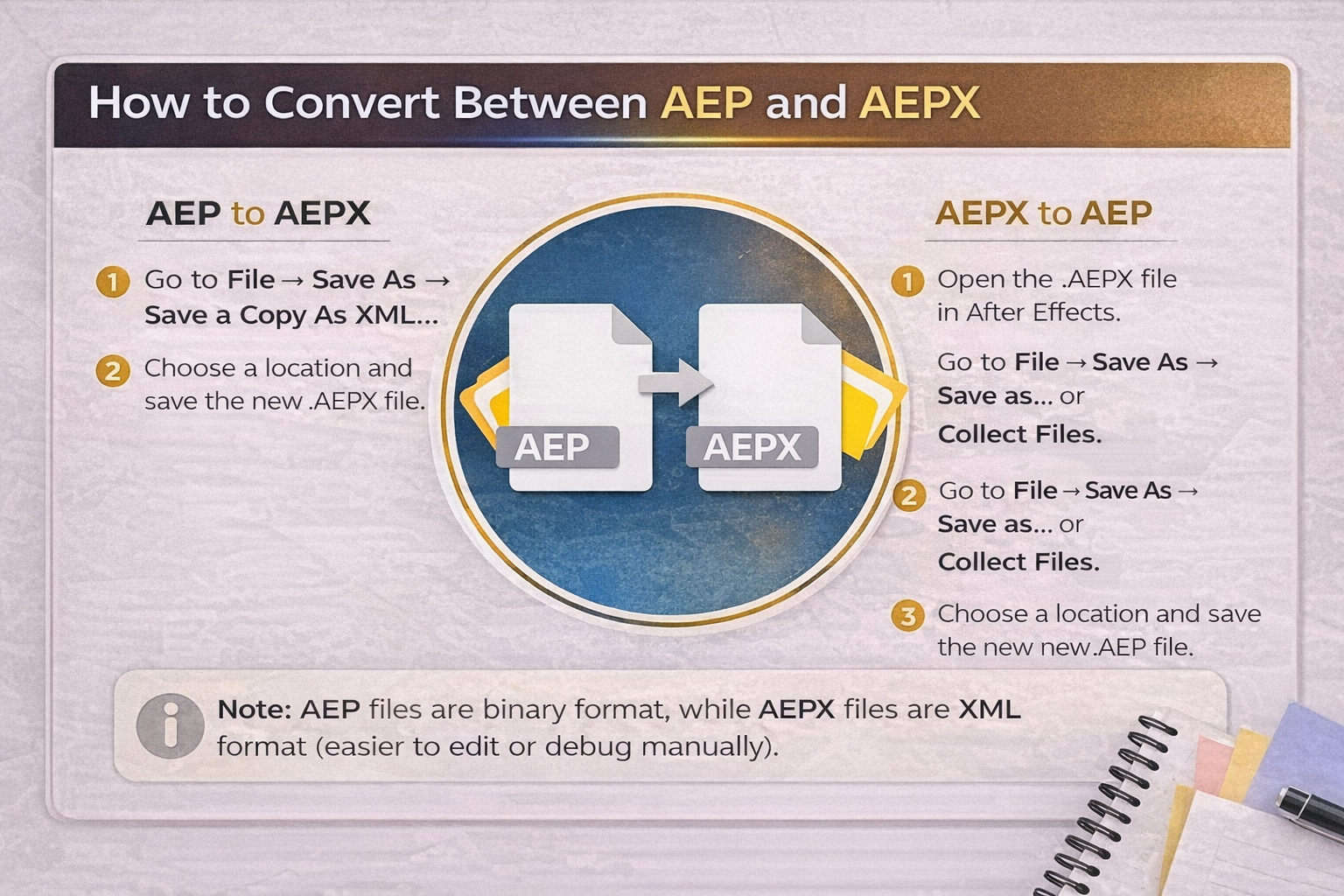
Converting between .aep and .aepx runs through the After Effects Save As menu and requires no third-party tools. Both formats store identical project data, and conversion produces zero data loss in either direction.
Open the .aep in After Effects. Go to File > Save As > Save a Copy as XML. After Effects creates an .aepx copy alongside the existing .aep file. The original .aep stays unchanged.
Open the .aepx in After Effects. Go to File > Save As. Select the .aep format from the dropdown. After Effects saves the project as a standard binary file.
The File > Dependencies > Collect Files command packages a project with all its linked media into one folder. Selecting XML during the Collect Files process produces a “packaged AEPX,” which is the .aepx project file plus all referenced assets bundled together. Editors receiving a packaged AEPX from a client or collaborator open it the same way as any other .aepx file inside After Effects.
3 project elements stay identical across both formats: compositions and layer hierarchies, keyframe values and timing, and effect parameters with applied presets. No motion data, no asset references, and no expressions get lost during conversion.
The .aep extension indicates the file’s encoding format, not the quality of the project inside. Every major After Effects marketplace and project file library delivers files in .aep format. The binary format produces smaller downloads and faster open times than .aepx.
Marketplaces ship .aep files for 3 reasons:
The .aep extension reveals nothing about 5 quality indicators that determine if the project is usable:
The full guidance on vetting downloaded .aep files before opening lives in the guide on download After Effects project files safely.
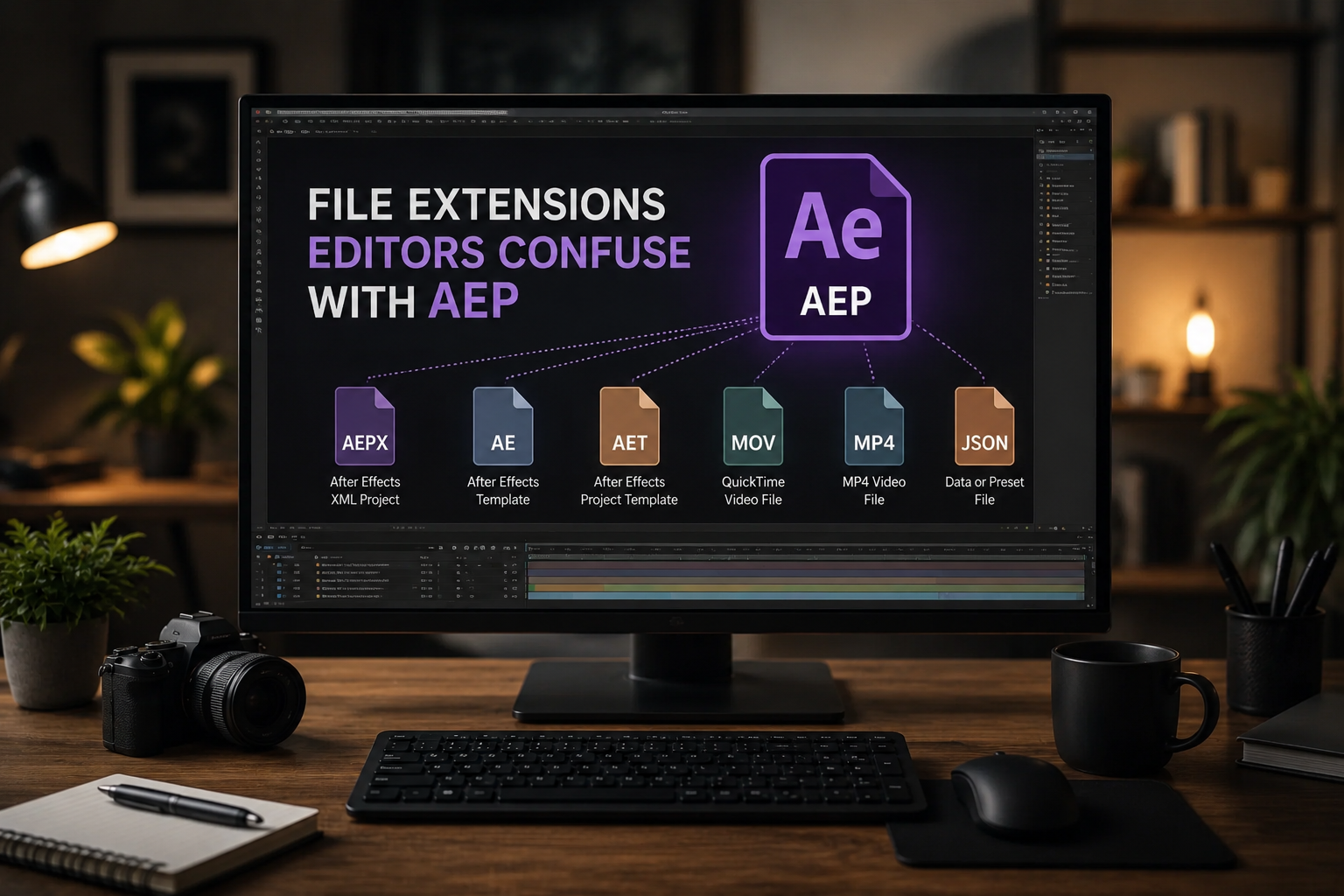
5 file extensions sit close to .aep in After Effects workflows: .aep, .aepx, .aet, .mogrt, and .aex. Confusing these extensions produces workflow problems, since each serves a different function inside the Adobe ecosystem.
The .aet extension marks an After Effects Template file. The format appears primarily on Adobe Stock and select marketplaces. Functionally, .aet matches .aep, but the file opens as an untitled project to prevent accidental overwriting of the original template.
The .mogrt extension marks a Motion Graphics Template designed for Adobe Premiere Pro’s Graphics Panel. Premiere Pro loads .mogrt files, not After Effects. The editor adjusts the template through simplified controls inside the Graphics Panel, without access to individual layers or keyframes. Full editing control requires an .aep file opened in After Effects.
The .aex extension marks an After Effects plugin file. The format has nothing to do with project files. The .aex installs into the After Effects plugin folder and adds effects or tools to the application. Editors sometimes confuse .aex with .aepx because the names look similar, but the 2 formats serve completely different purposes.
The .ffx extension marks an After Effects preset file. The format stores saved effect or animation configurations that apply to individual layers or properties, not entire projects.
All 5 extensions share one behavior: After Effects displays missing-file warnings when the project references assets it cannot locate. The full troubleshooting workflow for missing fonts, plugins, and footage lives in the guide on how to fix missing files in After Effects.
No third-party application opens an .aep file with full editing access. The .aep format is proprietary to Adobe Systems and uses binary encoding that no free viewer or online editor parses for editing. Some third-party tools extract limited metadata, but full layer and keyframe access requires Adobe After Effects on Windows or macOS. The complete workflow for opening .aep files sits in the guide on how to open AEP files.
An .aep file converts to MP4 through the After Effects Render Queue or Adobe Media Encoder. Open the .aep in After Effects. Send the composition to Media Encoder through Composition > Add to Adobe Media Encoder. Select H.264 codec, then render to MP4. The .aep itself is a project file, not a video, and requires rendering to produce a playable output.
An .aep file imports into Premiere Pro through Adobe Dynamic Link, not direct open. Dynamic Link connects an After Effects composition to a Premiere Pro timeline as a live reference. Changes made to the .aep inside After Effects update in Premiere Pro automatically. A direct file open of .aep inside Premiere Pro is not supported.
No. The .aep format is Adobe-only and does not open in DaVinci Resolve. The workaround runs through render output. Open the .aep in After Effects. Render the project as ProRes, DNxHR, or an image sequence. Import the rendered output into DaVinci Resolve as standard footage.
No. Both formats store identical project data, encoded differently. Converting through File > Save As preserves every composition, keyframe, effect parameter, and media reference. The only difference is encoding method.
A Packaged AEPX is an .aepx project file bundled with all its linked assets through the Collect Files command. Clients sometimes request a Packaged AEPX when they need the full project plus every referenced media file in one folder. The format opens in After Effects the same way as any other .aepx file.
Adobe documents .aep as the primary format for daily work and .aepx as a secondary format for automation and backups. The recommendation has held since After Effects CS4. The .aepx format suits specific workflows but does not replace .aep as the standard save format.

Explore more guides on After Effects project files and viral editing workflows.
Production-ready edits that teach you how they were built.