Introducing Frame War
Submit your best edit, make it into the Top 3, and compete for the monthly Frame War reward. The winner receives cash plus exposure across EarnEdits community channels.

PRODUCT CATEGORIES
Submit your best edit, make it into the Top 3, and compete for the monthly Frame War reward. The winner receives cash plus exposure across EarnEdits community channels.
 Back
Back

 Mar 01, 2026
 Muhammad Sikandar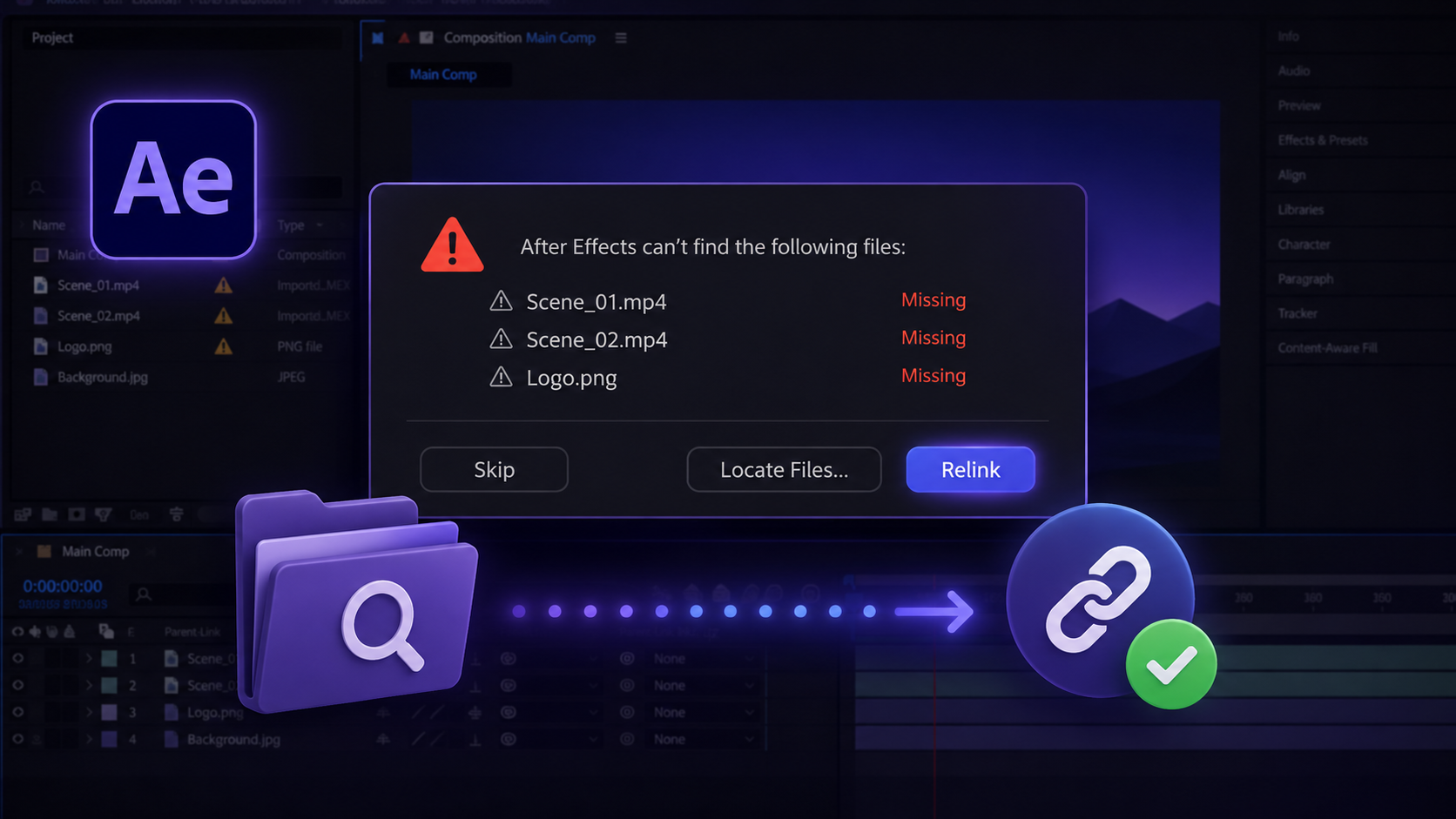
After Effects displays color bars and a missing-file warning when the stored file path no longer matches the actual location of an asset. The 3 asset types that trigger missing-file warnings are footage, fonts, and plugins. The primary fix is Replace Footage > File from the Project Panel right-click menu, which repoints the broken link to the correct location. Missing footage requires relinking through the file path.
Missing fonts require font installation or per-layer substitution through the Character Panel. Missing plugins require plugin installation or manual effect replacement. File > Dependencies > Collect Files prevents future broken paths by packaging every linked asset into one folder.
After Effects stores file-path references to source media, not the media itself. Any change to a file’s name, location, or drive breaks the stored link. The .aep project file holds animation data, keyframes, effects, and expressions, but holds zero embedded media. The encoding structure that makes this true sits in the guide on AEP vs AEPX file format explained.
6 causes account for nearly every missing-file warning inside After Effects.
3 project elements stay intact inside the .aep when source files break: keyframes and animation timing, applied effects and parameter values, and expressions and scripts. Only the source media link breaks. No animation data gets lost inside the project file itself.
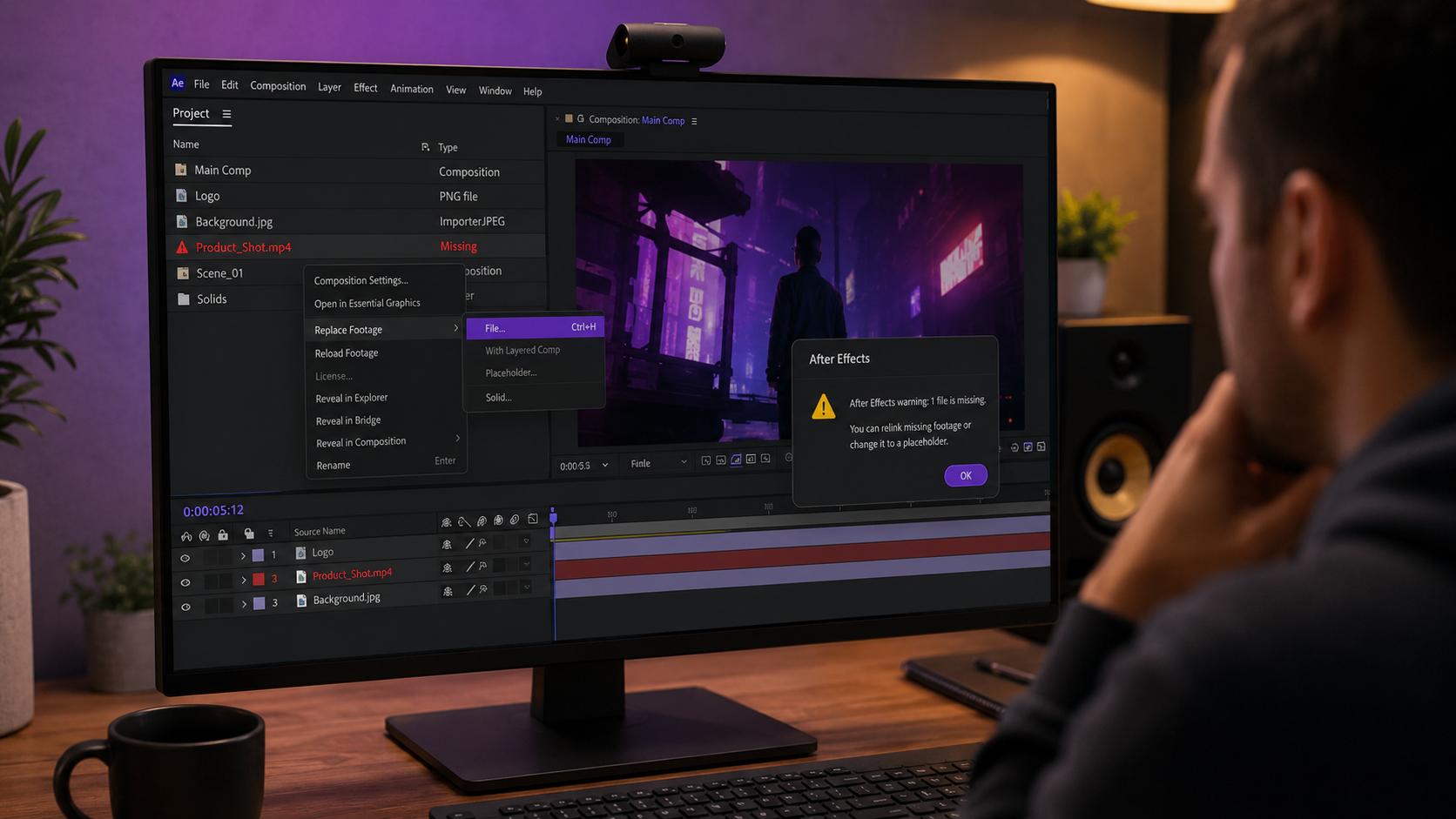
Missing footage appears as multi-color bars in the composition and a Color Bar icon next to the item name in the Project Panel. The full relink workflow runs in under 2 minutes once the correct menu path is followed.
Type “missing” in the Project Panel search bar. Select “Missing Footage” from the auto-suggest dropdown. The panel filters to show only unlinked items, regardless of how deep they sit inside nested folders or pre-compositions.
Right-click any missing item in the Project Panel. Select Replace Footage > File. Navigate to the correct file on the drive. Click Open.
After Effects reconnects the asset and updates every composition that references it. No keyframes, expressions, or effects get lost during the relink.
After relinking one file, After Effects automatically scans the containing folder for other missing items. A dialog confirms the result: “X additional missing items have been found.”
The batch-relink works only when filenames match the originals. After Effects matches by name, not by content or file size. Renamed files require individual relinking through Replace Footage > File.
2 relink options sit in the right-click menu, and they serve different scenarios.
A file accidentally deleted and recovered to the same folder with the same name reconnects through Reload Footage without opening a file browser.
After Effects shows “Missing” in the File Path column when an asset breaks, but the original path data still exists inside the .aep project file. 2 methods retrieve the original filename and path.
Click the missing footage item once inside the Project Panel. The file properties bar above the panel displays the original filename, even when the file itself is unlinked. The filename helps locate the asset across the system through Spotlight on macOS or Windows Search on Windows.
Save a copy of the project as .aepx through File > Save As > Save a Copy as XML. Open the .aepx file in any text editor. Search for the asset filename. The full original file path appears in the XML as text, including the drive letter, folder hierarchy, and filename.
The XML method is the most reliable retrieval option for archived projects where the original asset location was forgotten over time.
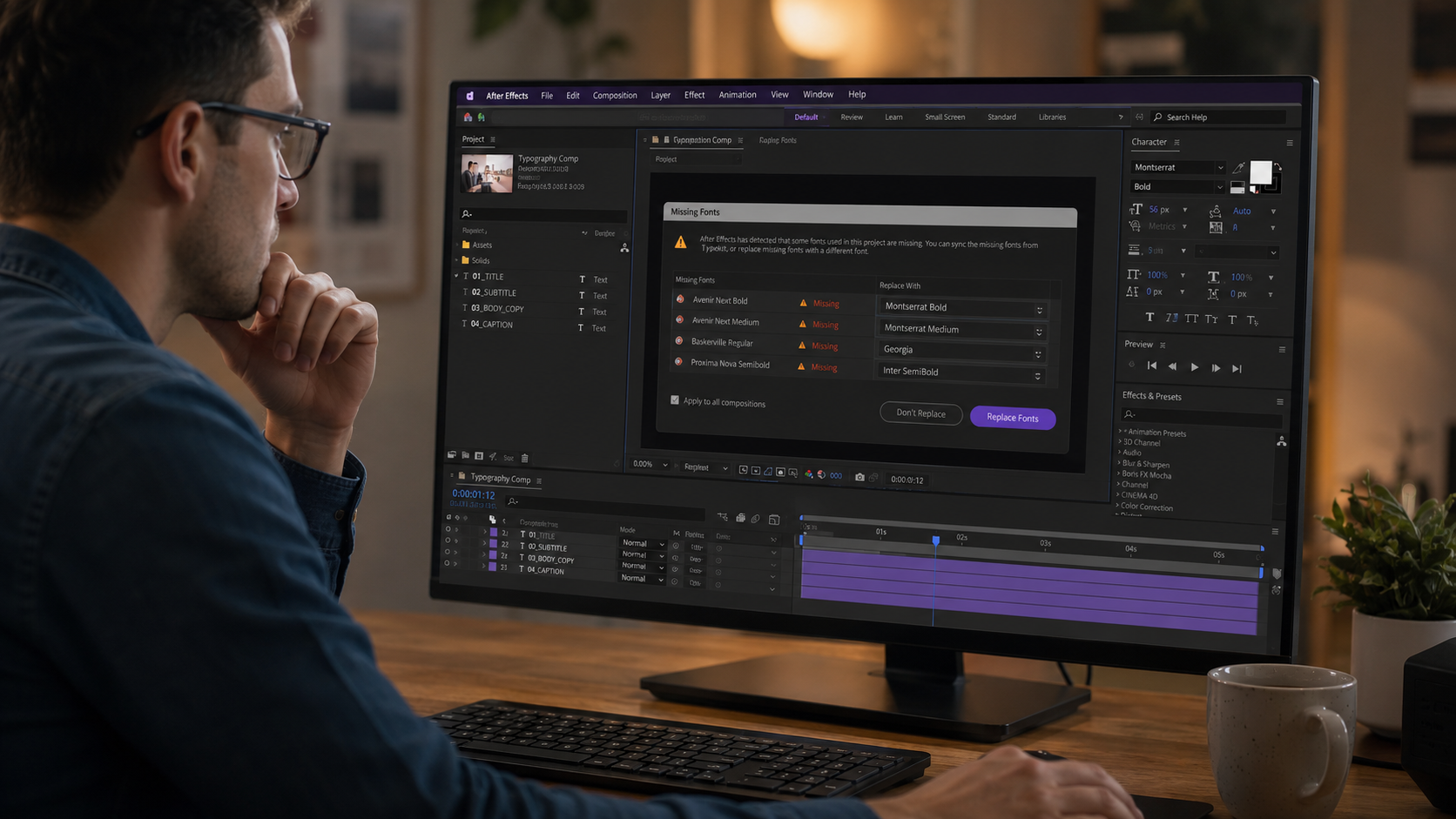
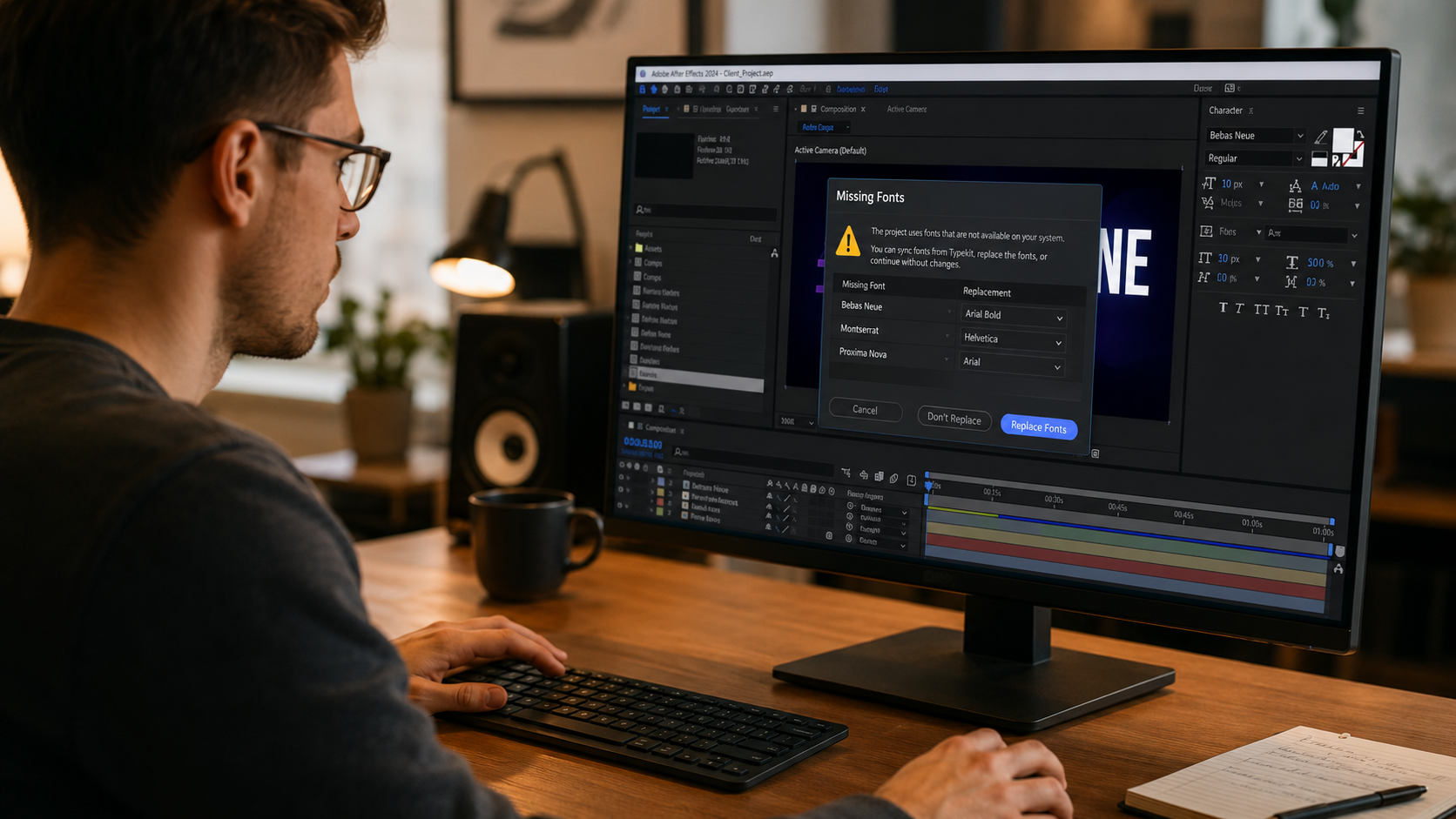
Missing fonts produce placeholder substitution that breaks text sizing, spacing, and design intent. The fix runs through 2 standard approaches: install the missing font, or substitute the font through the Character Panel.
Type “missing” in the Project Panel search bar. Select “Missing Fonts” from the dropdown. The Project Panel filters to compositions that contain missing fonts.
After Effects also displays a notification on project open listing the missing font names. The list specifies the exact typeface required by each text layer.
3 font sources cover most missing-font cases.
Restart After Effects after installing fonts so the application registers the new typefaces.
A missing font that cannot be installed gets replaced through the Character Panel. Select the text layer in the timeline. Open the Character Panel through Window > Character. Click the font name dropdown and select a replacement typeface. The substitution updates the text layer immediately.
Missing plugins display “Missing:” next to the effect name in the Effect Controls panel. The missing plugin causes disabled effects, visible watermarks, or render failures depending on the plugin’s role in the project.
Run File > Dependencies > Find Missing Effects. After Effects isolates every composition that contains a missing plugin and lists the plugin names. The list specifies the exact third-party effect each composition requires.
3 plugin installation paths cover the standard cases.
Close After Effects completely before plugin installation. Reopen the project after the plugin install completes. The effect restores with its original parameter settings intact.
A missing plugin that cannot be installed has 2 alternative fixes.
4 habits eliminate most missing-file errors before they occur. The habits cover dependency collection, master folder structure, filename discipline, and transfer packaging.
Go to File > Dependencies > Collect Files. Set “Collect Source Files” to All. After Effects creates a new folder containing a copy of the .aep and a Footage subfolder with every linked asset. The original project stays untouched. The full walkthrough of the Collect Files workflow sits in the guide on how to collect files in After Effects.
Organize all project media inside a single root folder before importing anything into After Effects. The standard structure uses 5 subfolders.
Project-Name/
Project-Name.aep
Footage/
Audio/
Images/
Exports/
Import all media from within this structure. Avoid importing directly from Desktop, Downloads, or scattered external drives. When every asset lives inside one root folder, After Effects maintains relative paths that survive moves between machines.
Renaming a file in Finder or Windows Explorer breaks the stored path without any warning inside the project. Renaming through the Project Panel inside After Effects updates the internal reference automatically and keeps the link intact.
Send a project to another editor by zipping the entire master folder, not the .aep file alone. The .aep contains path references, not media. Sending the project file without its linked assets guarantees missing-file errors on the other end.
Downloaded .aep files frequently trigger missing-file errors when the ZIP extraction separates the project file from its asset folder. 3 extraction mistakes account for nearly every download-related missing-file issue.
ZIP archives display files for preview but do not extract them to a usable location. Double-clicking the .aep inside the archive opens it from a temporary system folder where no linked assets exist. The fix is full extraction to a dedicated folder before opening.
Some editors extract the .aep alone while leaving the assets folder inside the ZIP. After Effects then opens the project with every linked asset showing as missing. The fix is selecting the entire archive contents during extraction.
Extracting to Dropbox, OneDrive, or iCloud Drive triggers automatic file path rewriting during sync. After Effects then loses the link to assets that the cloud service moved or renamed. The fix is extracting to a local-only drive directory.
3 troubleshooting steps cover the remaining edge cases.
The full sourcing checklist for downloaded project files sits in the guide on download After Effects project files safely.
Color bars appear when After Effects cannot locate the source file at its stored path. The file moved, the filename changed, or the file was deleted from its original location. Right-click the missing item in the Project Panel and select Replace Footage > File to reconnect it.
No. Keyframes, expressions, effects, and layer settings stay intact inside the .aep file. Only the source media link breaks. Relinking the footage through Replace Footage restores the full animation exactly as it was.
Replace Footage repoints the link to a new file location on the drive. Reload Footage re-checks the original stored path. Reload Footage applies when a file has been restored to its previous location and name rather than moved somewhere new.
Relink one file, then After Effects scans the containing folder and auto-relinks any other missing items with matching filenames. Files scattered across different folders or files with changed names require individual relinking through Replace Footage > File.
Run File > Dependencies > Collect Files before transferring. The command packages a copy of the .aep and every linked asset into one folder. Zip the entire folder and send the full archive so the receiving editor opens a complete, self-contained project.
Yes. Click the missing item in the Project Panel and check the file properties bar above the panel. The filename displays even when the file is unlinked. For the full original path, save the project as .aepx and search the XML text for the filename.
No default keyboard shortcut maps to Replace Footage in After Effects. The action runs through the right-click menu in the Project Panel. Custom shortcuts assign through Edit > Keyboard Shortcuts on supported After Effects versions.
Downloaded .aep files break when the ZIP extraction separates the project file from its asset folder. The fix runs through 3 steps. Extract the full archive into a dedicated local folder. Avoid opening the .aep directly from the ZIP archive. Avoid extracting to a cloud-synced directory.

Explore more guides on After Effects project files and viral editing workflows.
Production-ready edits that teach you how they were built.