Introducing Frame War
Submit your best edit, make it into the Top 3, and compete for the monthly Frame War reward. The winner receives cash plus exposure across EarnEdits community channels.

PRODUCT CATEGORIES
Submit your best edit, make it into the Top 3, and compete for the monthly Frame War reward. The winner receives cash plus exposure across EarnEdits community channels.
 Back
Back

 Aug 10, 2026
 Muhammad Sikandar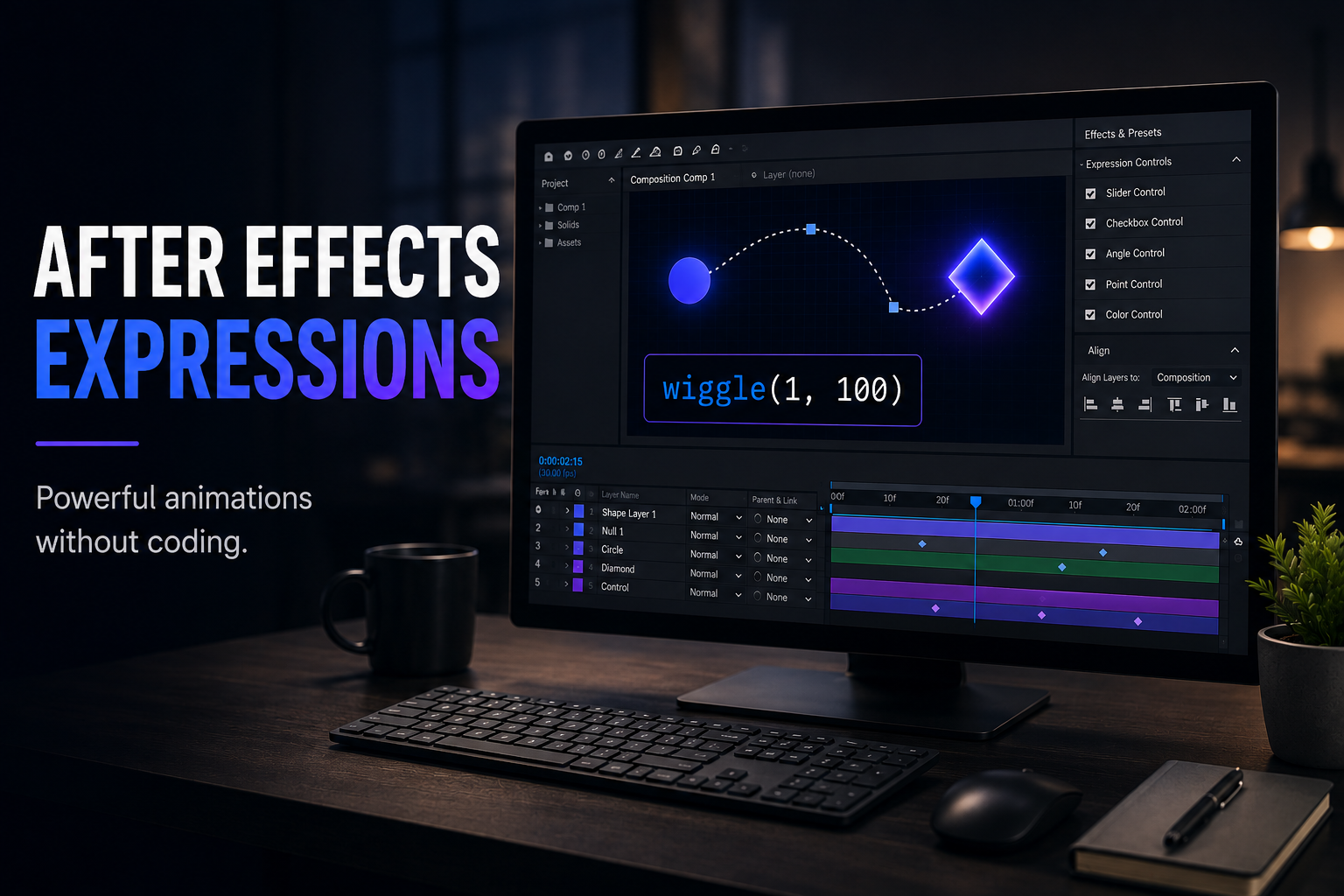
An After Effects expression is a rule that tells a property how to behave, not a program, which is why editors who do not code use them every day. We teach expressions by opening files, because an expression read inside a real timeline explains itself in a way a code snippet on a blog never does. Five expressions cover most real work, and each one is copy-paste ready below. The important shift is conceptual: an expression tells a property to do something, while a script tells the whole application to do something. That single distinction removes most of the intimidation.
An expression is a small instruction attached to a single property that replaces manual keyframing. The property follows the rule continuously, frame by frame, with no keyframes required.
Adobe frames the difference clearly: an expression tells a property to do something, unlike a script, which tells the application to do something. A person adds an expression by Alt-clicking (Windows) or Option-clicking (macOS) the stopwatch next to a property, then typing the rule. The result is smaller projects, smoother motion, and global changes made in one place instead of across dozens of keyframes.
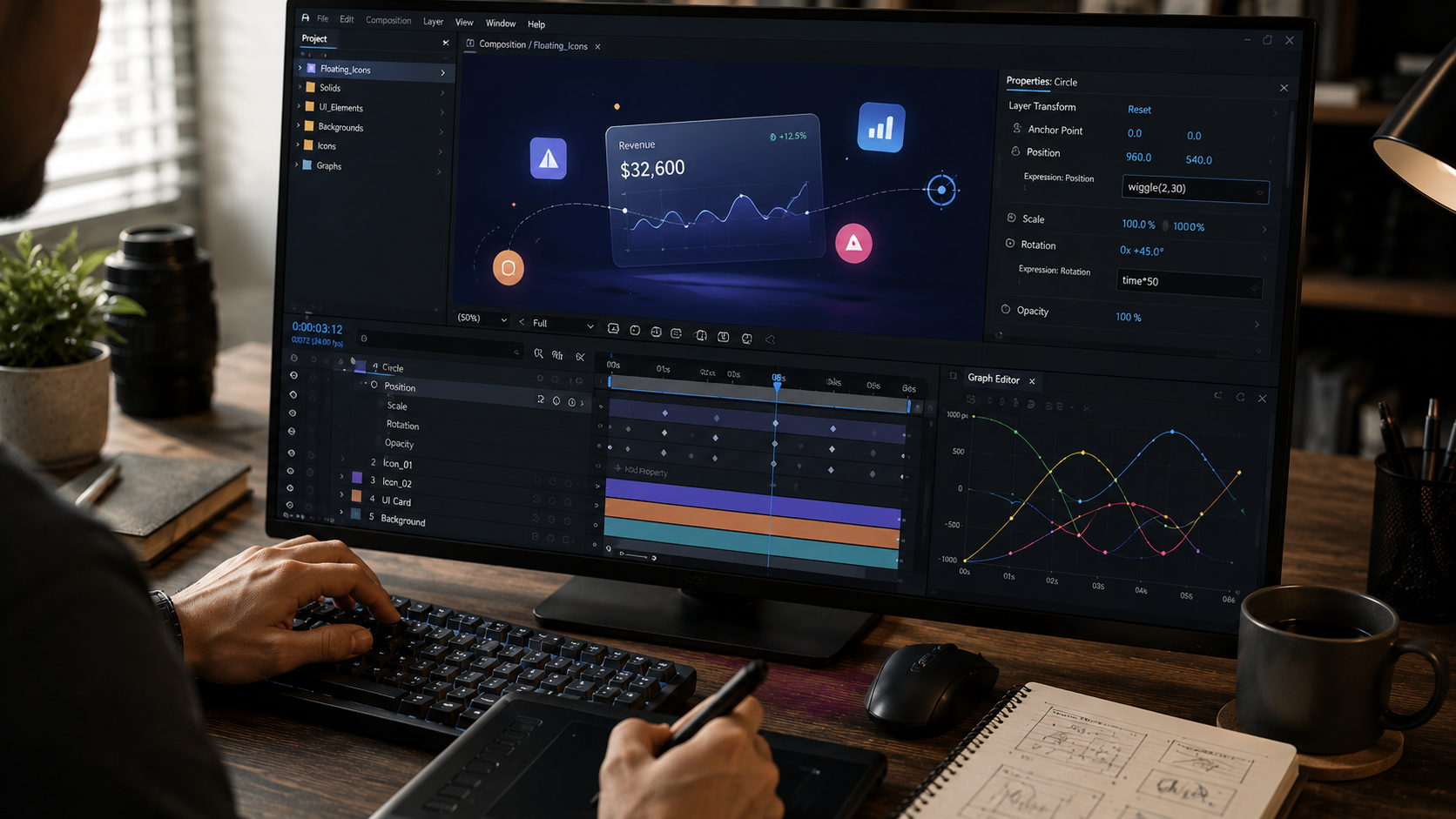
Five expressions handle most day-to-day motion work: wiggle, loopOut, time, linear, and random. Each one solves a specific, common problem.
The wiggle expression adds organic, random movement to any property. The syntax is wiggle(frequency, amplitude).
Copy this onto a Position property:
wiggle(2, 30)
The layer moves 2 times per second, up to 30 pixels in any direction. Frequency is the first number, amplitude the second. The expression works on rotation, scale, and most effect values too, anywhere a number drives motion. Handheld-camera shake, floating elements, and living backgrounds all run on wiggle.
The loopOut expression repeats a set of keyframes indefinitely without copying them. The syntax is loopOut(“cycle”).
Set two or three keyframes, then add this to the animated property:
loopOut(“cycle”)
The animation cycles forever from the last keyframe. Four loop types exist: cycle repeats cleanly, pingpong runs back and forth, offset builds on the previous value, and continue extends the motion. A spinning icon, a pulsing element, or a looping background needs one short keyframe set plus this expression.
The time expression drives perpetual movement based on the composition clock. The syntax multiplies time by a speed value.
Add this to a Rotation property:
time * 50
The layer rotates 50 degrees per second, forever, with zero keyframes. Change 50 to 100 for double speed. The time expression suits anything that moves at a constant rate: rotating logos, scrolling backgrounds, endless loaders.
The linear expression converts a value from one range into another, which links properties cleanly. The syntax is linear(input, inputLow, inputHigh, outputLow, outputHigh).
The expression connects one property to another. A common use links opacity to position, or a slider to any value. The linear expression is the first step from single-property rules toward properties that respond to each other.
The random expression returns a varying value, useful for staggering and natural variation. It produces a number inside a range each time.
Random suits offsetting the start of many similar layers, so a grid of elements does not animate in perfect unison. The variation reads as organic rather than mechanical.
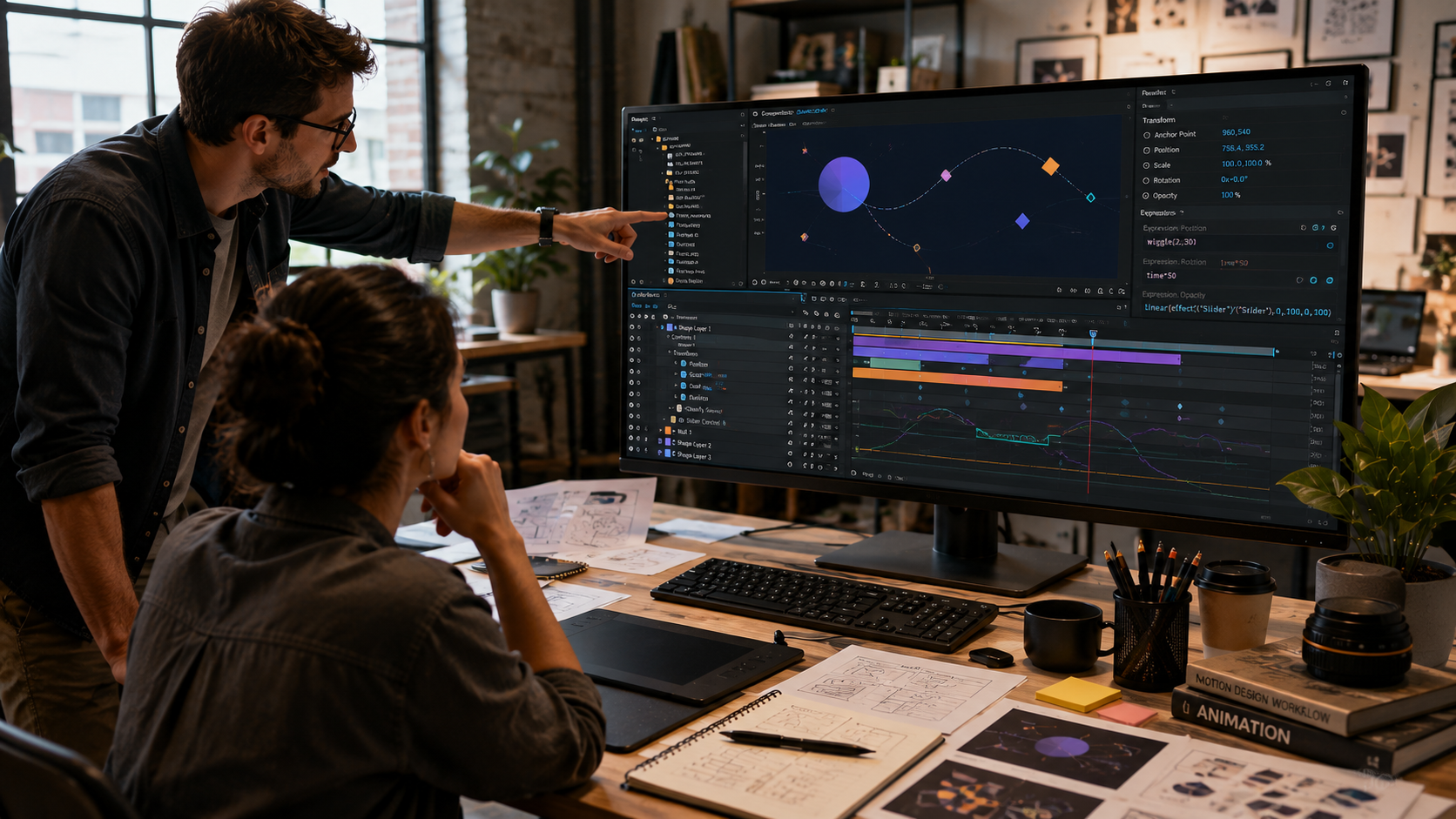
Copy-paste expressions work once, and reading expressions inside a real project file builds the understanding to change them. This is the difference between using an expression and knowing it.
A blog snippet gives the code with no context. An open project file shows the expression attached to a property, driving a result visible in the timeline. The editor changes a number, sees the motion change, and learns the rule through cause and effect. Expressions stop being intimidating code the moment they are read where they run. Every file in our library of After Effects project files keeps expressions readable and attached to visible results, which is what makes them learnable.
The fastest way to learn expressions is opening a file that uses them and reading each one in context. Recognition comes from seeing the rule work, not from a reference list.
Press EE on any layer to reveal every expression on it. Read the expression, look at what the property does, then change one number and watch the result. Expressions are one of the skills the learning timeline accounts for, mapped in our guide on how long learning After Effects takes. The four-stage study method that turns this into lasting skill sits in our guide to learning After Effects with real project files. Beginner-structured files keep expressions simple and labeled, and the selection standards sit in our guide to the best After Effects project files for beginners.
No. Expressions are rules attached to properties, not programs. The common ones are copy-paste ready. Editors who never write code use wiggle, loopOut, and time daily.
Alt-click on Windows or Option-click on macOS the stopwatch next to a property, then type the expression. The property follows the rule immediately, with no keyframes required.
wiggle and loopOut are the two most used. wiggle adds natural random motion, and loopOut repeats keyframes forever without copying them. Both solve extremely common animation needs.
An expression tells a single property how to behave, and a script tells the whole application to perform an action. Expressions live on properties, and scripts automate tasks across the program.
Press EE on a layer to reveal every expression applied to it. Reading the expression next to the result it produces is the fastest way to learn how it works.

Explore more guides on After Effects project files and viral editing workflows.
Production-ready edits that teach you how they were built.