Introducing Frame War
Submit your best edit, make it into the Top 3, and compete for the monthly Frame War reward. The winner receives cash plus exposure across EarnEdits community channels.

PRODUCT CATEGORIES
Submit your best edit, make it into the Top 3, and compete for the monthly Frame War reward. The winner receives cash plus exposure across EarnEdits community channels.
 Back
Back

 Feb 26, 2026
 Muhammad Sikandar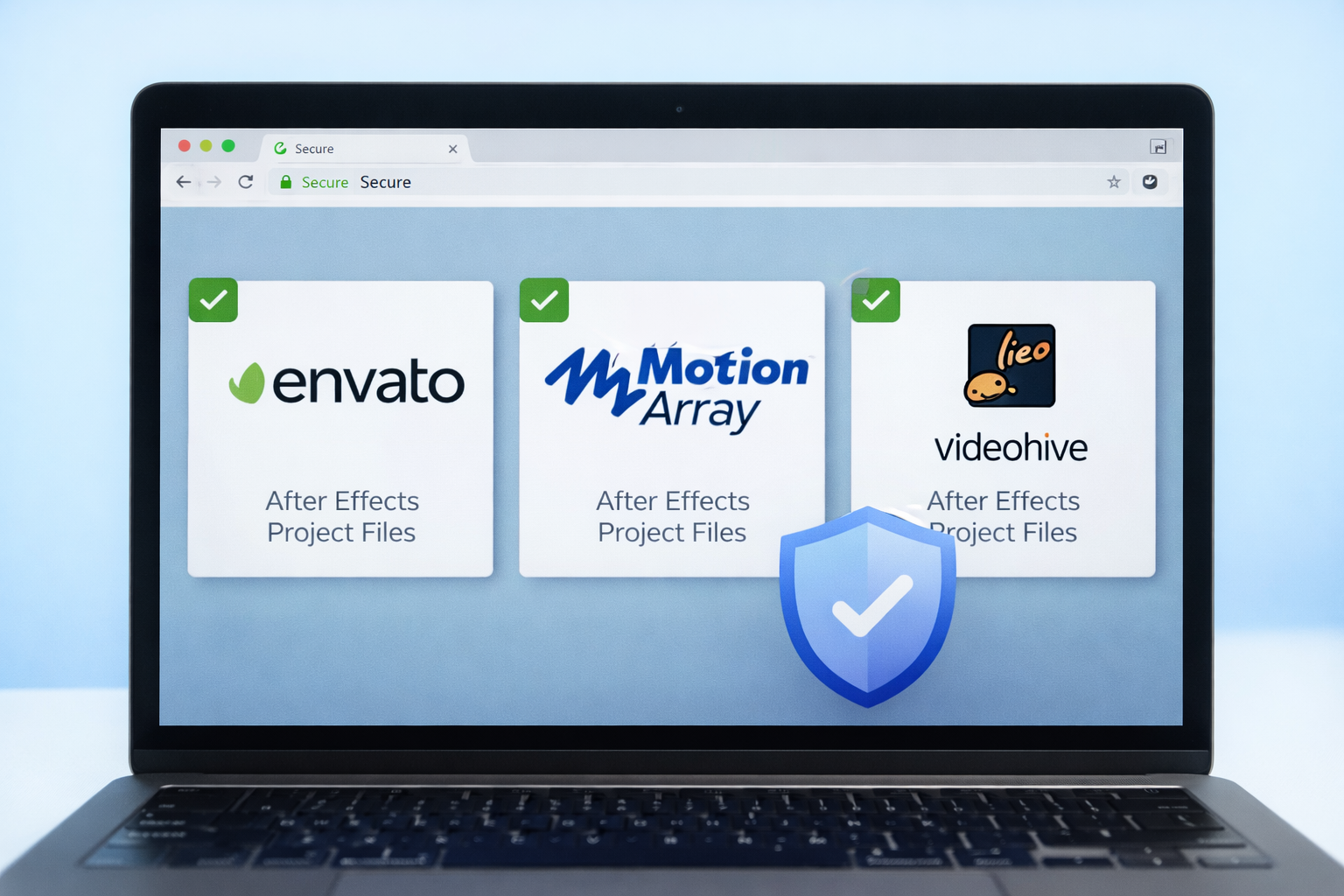
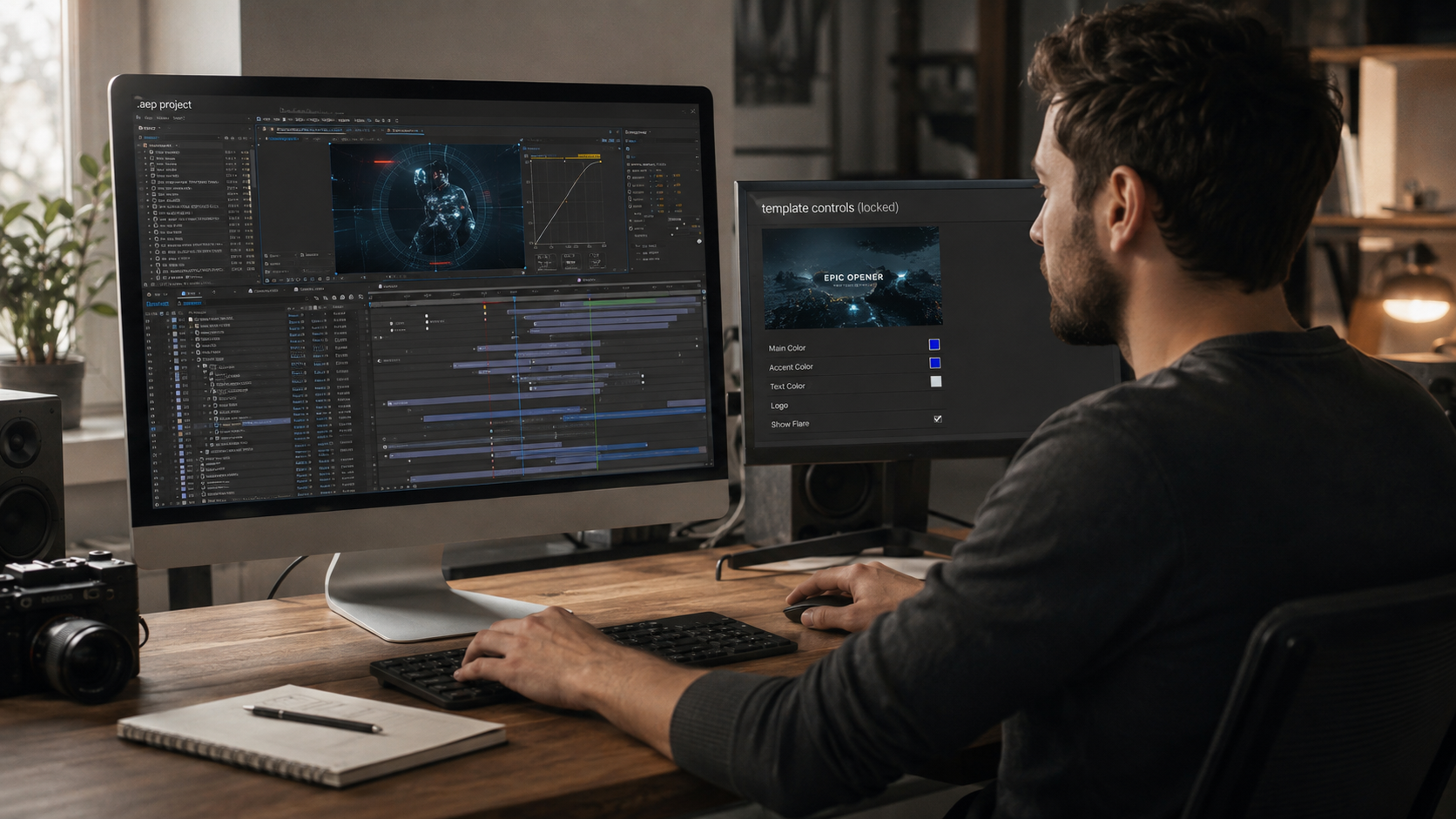
Safe After Effects project file downloads come from sources that vet uploads before listing them, state clear licensing terms, and deliver organized .aep files with properly linked assets.
The risk of unverified sources extends past malware to poorly packaged files with missing media, unlicensed assets, broken expressions, and incompatible plugin dependencies, all of which waste more editor time than building from scratch. Knowing where to download, what to check before opening, and how to extract the archive correctly separates productive editors from editors troubleshooting broken projects. EarnEdits removes the guesswork on the sourcing side, since every .aep file is production-tested, organized with labeled layers, dependency-listed, and licensed for commercial use.
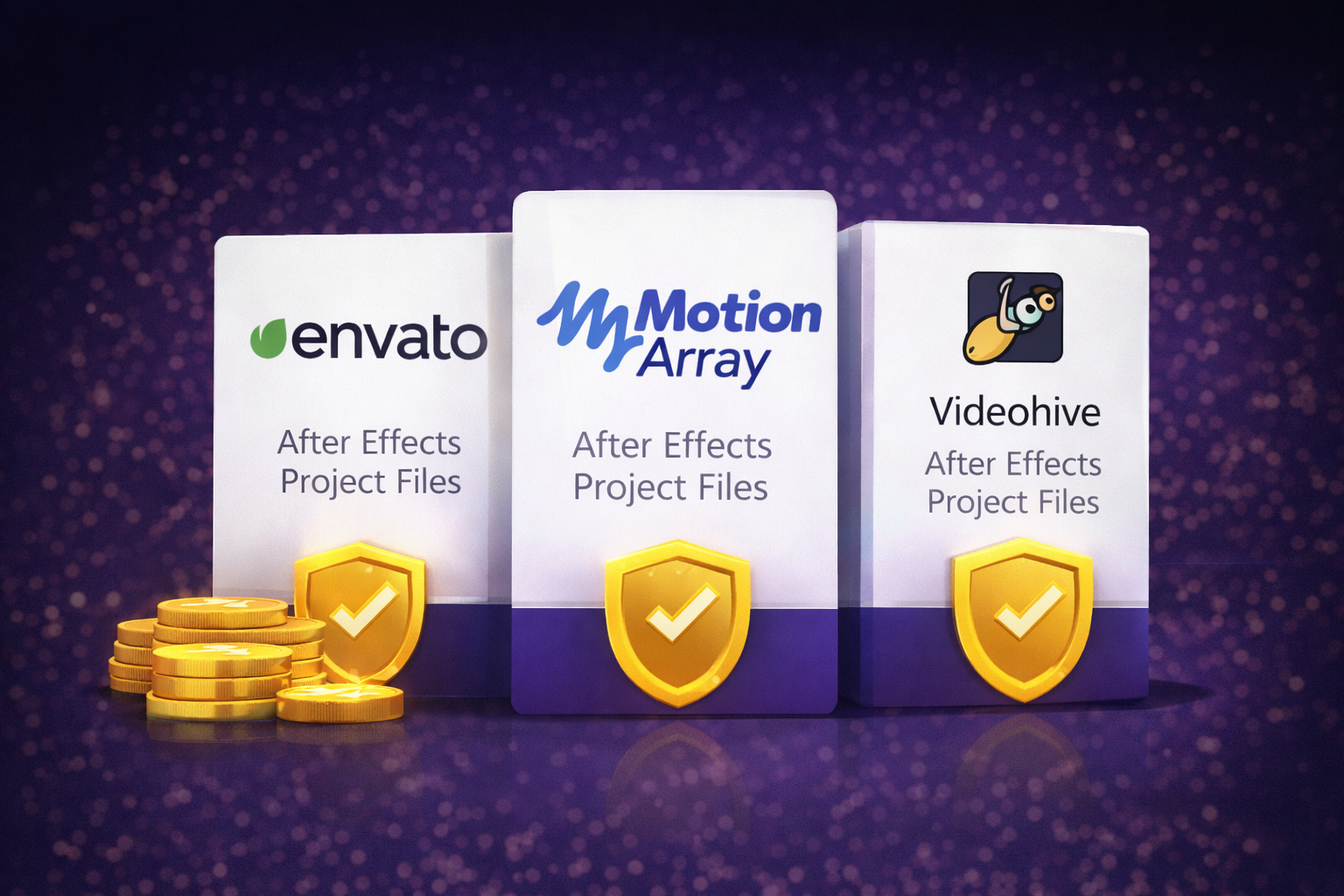
Paid marketplaces review submissions before listing them, reducing the risk of malware, corrupted files, and unlicensed assets. The trade-off is cost, though verified files with clear licensing save legal and production headaches on client work.
Pond5. A per-asset marketplace with a curated After Effects selection alongside a larger stock library, suited to editors who prefer buying individual files without a subscription.
Free project files carry higher risk than paid sources through less editorial review, inconsistent organization, and sometimes unclear licensing. The platforms below maintain quality standards that make their free offerings usable.
Videezy. A community-driven platform where quality varies because uploads come from individual contributors, so download counts and user comments deserve a check before downloading.
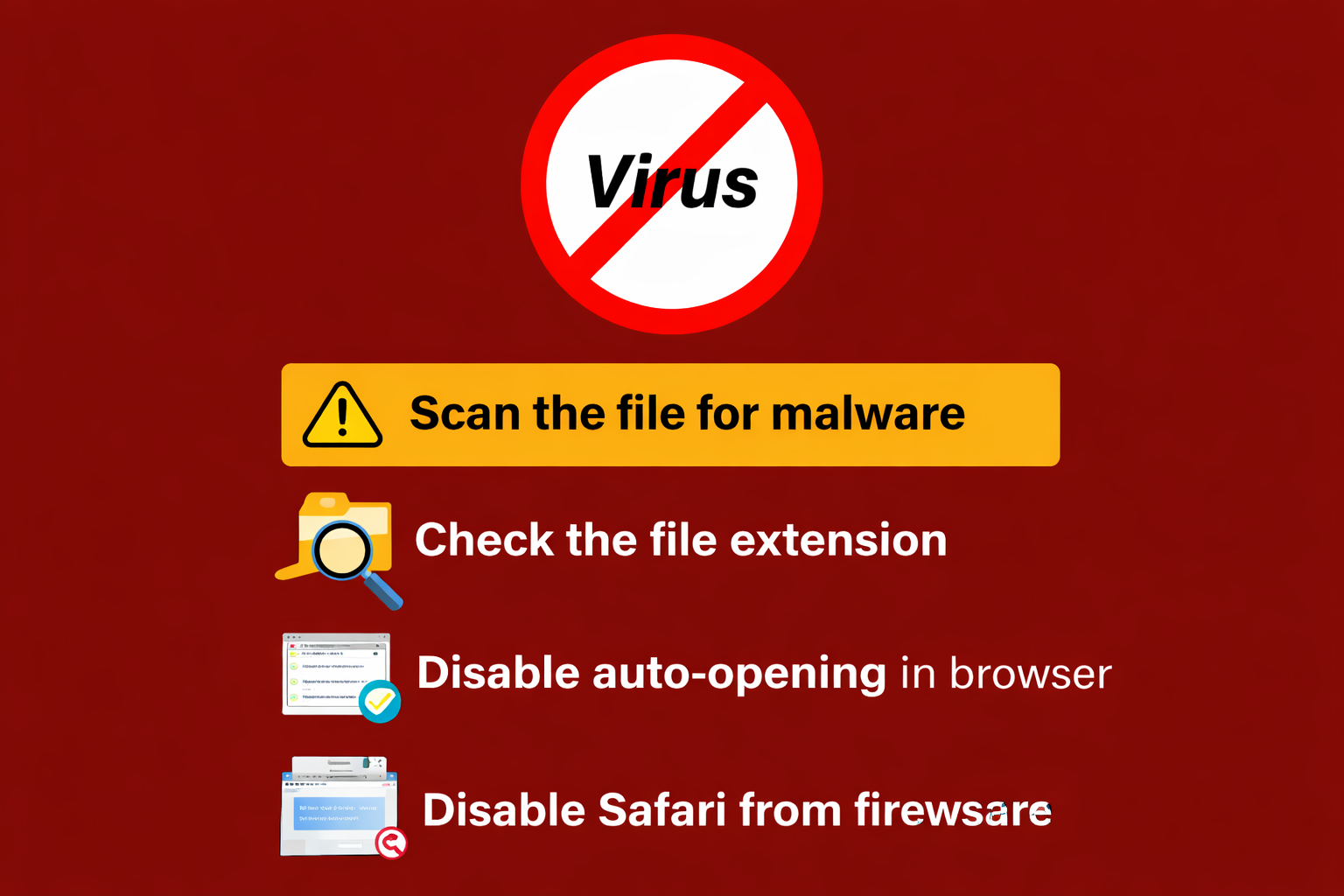
Five checks before opening any .aep file from an unfamiliar source catch malware, version conflicts, and missing dependencies before they cost editing time.
Inspect the file structure after opening. A well-organized file has named layers, labeled compositions, and a logical folder hierarchy. A file showing “Layer 1, Layer 2, Layer 3” with no structure costs significant time to understand and customize. The full list of what goes wrong appears in the guide on common mistakes when using After Effects project files.
After Effects stores absolute file paths for every linked asset, so incorrect archive extraction breaks those paths before the .aep ever opens. The .aep does not contain the actual media.
The file holds path references pointing to where each asset sits in the local file system, and extracting to the wrong location, pulling out only the .aep, or opening the file from inside the archive produces color bars and a “missing files” warning in the Project panel.
Windows 11 extracts RAR, ZIP, and 7Z archives natively since version 23H2, while macOS requires The Unarchiver for RAR support. Extraction tool choice matters less than extraction method, since every tool below produces the same result when the workflow runs correctly.
macOS: The Unarchiver (free, App Store). The native Archive Utility extracts ZIP natively but does not support RAR, while The Unarchiver opens RAR, 7Z, and most other formats.
The correct workflow moves the archive into a dedicated project folder, extracts all contents while preserving the internal folder hierarchy, then verifies the structure before opening After Effects.
Step 1. Create a dedicated project folder on a local drive, not on the Desktop, in Downloads, or inside a cloud-synced directory like Dropbox or OneDrive. Name it clearly, such as “ClientName_ProjectTitle,” and move the archive into the folder before extracting.
Step 2. Right-click the archive and select Extract Here or Extract All. The extraction creates a subfolder containing the .aep and its asset folders. Dragging individual files out manually strips the folder hierarchy After Effects relies on.
Step 3. Check for nested archives. Some marketplace downloads package a RAR inside a ZIP. A .rar or .zip file inside the extracted folder instead of a visible .aep gets extracted into the same project folder before proceeding. For split multi-part archives, keep all parts in the same directory and extract only the first part.
Step 4. Verify the folder structure before launching After Effects, confirming a .aep or .aepx file exists, an assets or footage subfolder sits alongside it, no media files sit loose outside the hierarchy, and any included readme noting required fonts or plugins gets reviewed.
Step 5. Launch After Effects, go to File > Open Project, and navigate to the extracted .aep. A “project must be converted” dialog gets an OK, then File > Save As locks the working project to the correct extraction location. A clean open with zero warnings gets a final File > Dependencies > Collect Files, which consolidates all linked assets into one folder. The full walkthrough appears in the guide on how to collect files in After Effects
Color bars in the composition preview with a “files are missing” warning mean the file path references broke, and the relink process takes under two minutes. Type “missing” into the Project panel search bar to filter the panel to files After Effects cannot locate.
Right-click one missing file, select Replace Footage > File, and navigate to the assets folder inside the extracted project folder. After relinking a single file, After Effects scans the same folder and reconnects the remaining missing assets automatically.
The deeper walkthrough covering missing fonts, missing effects, and version-specific steps appears in the guide on how to fix missing files in After Effects
Licensing determines where and how a downloaded file gets used legally, and using a file outside its terms creates liability, especially in client work where the deliverable is commercial.
Extended license. Covers merchandise, resale, or broadcast beyond standard web and social use, relevant when a deliverable involves broadcast television or physical packaging.
Five warning signs separate legitimate download sources from sites distributing pirated or malicious files.
No HTTPS. A download site without HTTPS encryption fails basic security standards, and a browser security warning is the signal to close the tab.
EarnEdits removes the verification friction on the sourcing side. Every project file is production-tested, organized with labeled layers and named compositions, shipped as a single-layer ZIP with no nested archives, and licensed for commercial use with no attribution required. Each listing states the AE version, plugin requirements, and font dependencies upfront, so the five pre-opening checks are already handled before download. Browse the full library through the EarnEdits project files collection
EarnEdits delivers production-tested files organized with labeled layers, listed dependencies, and commercial-use rights, removing verification guesswork. For free files, Mixkit (owned by Envato) provides curated, commercially licensed templates.
Scan the ZIP archive before extracting from any source. While .aep files are project data rather than executables, archives can carry embedded threats, so scanning any download stays good practice.
No. After Effects requires extracted files on disk with stable folder paths. Opening an .aep from inside an archive viewer creates a temporary reference that breaks the moment the archive window closes, disconnecting every linked asset.
No. Windows 11 version 23H2 and later extracts RAR, ZIP, and 7Z files natively through File Explorer. Password-protected or split multi-part RAR archives need 7-Zip or WinRAR.
The most common cause is a nested archive, a RAR packaged inside a ZIP or a second compressed folder inside the first extraction. Check the extracted folder for any remaining .rar or .zip files and extract those before opening the .aep.
Only when the license explicitly permits commercial use. Mixkit and MotionElements offer free files with commercial licenses, while other free sources may restrict files to personal use, which violates the license when used in paid work.
Third-party plugin dependencies. A project using effects from plugins not installed on the machine, such as Deep Glow, Twixtor, or Sapphire, displays missing effect warnings until the plugins get installed.

Explore more guides on After Effects project files and viral editing workflows.
Production-ready edits that teach you how they were built.