Introducing Frame War
Submit your best edit, make it into the Top 3, and compete for the monthly Frame War reward. The winner receives cash plus exposure across EarnEdits community channels.
PRODUCT CATEGORIES
Submit your best edit, make it into the Top 3, and compete for the monthly Frame War reward. The winner receives cash plus exposure across EarnEdits community channels.
 Back
Back

 Apr 18, 2026
 Muhammad Sikandar
Illustrator files appear blurry in After Effects because AE renders imported .ai vectors as fixed-resolution raster images by default, stretching pixels instead of recalculating paths when the layer scales above 100%. Fixing this requires preparation inside Illustrator (RGB color mode, named layers, matched artboard dimensions), the correct import method (Composition – Retain Layer Sizes), and enabling Continuously Rasterize in the Timeline panel. For path-level animation control, converting .ai layers to native Shape Layers produces resolution independent results without the render overhead. When Continuously Rasterize fails, the cause is usually a 3D layer conflict, raster effects baked into the Illustrator file, or a missing Collapse Transformations toggle on a parent pre-comp.

Illustrator files appear blurry in After Effects because AE treats every imported .ai file as a fixed-resolution raster image by default, not as a live vector.
Illustrator stores artwork as mathematical paths, coordinates, curves, and anchor points that redraw at any size without losing quality. After Effects is a raster-based compositor that displays everything as pixels. When you import an .ai file, AE converts the vector data into a pixel grid at the file’s original resolution. Scale that layer above 100%, and AE stretches existing pixels rather than recalculating paths. The result is blur, soft edges, or visible pixelation.
The Illustrator file isn’t damaged. AE is displaying it as a static pixel image rather than reading the vector math. This same behavior applies to .eps and .pdf vector imports.
The fix starts inside Illustrator, before you even open After Effects.
Preparing .ai files correctly inside Illustrator before importing prevents the majority of blur, color shift, and layer issues editors encounter in After Effects.
Run through these five steps before saving and importing:
File → Document Color Mode → RGB Color. After Effects operates in RGB color space. If your Illustrator document is set to CMYK, colors render muddy or shifted in AE, and no amount of Continuously Rasterize fixes a color mode mismatch.
Every element you want to control separately in AE needs its own named Illustrator layer. AE imports layers, not groups. If your entire design sits on a single layer, AE imports it as a single flat object.
Set your Illustrator artboard dimensions to match your After Effects composition, 1920×1080 for HD, 3840×2160 for 4K. Mismatched artboards force AE to scale or crop on import, introducing blur before you even start editing.
Drop shadows, Gaussian blurs, and outer glows applied inside Illustrator are raster-based. They remain pixel-based in AE even with Continuously Rasterize enabled. Delete these effects in Illustrator and rebuild them natively in After Effects, where they render at full resolution.
Complex compound paths sometimes import as flattened single layers. Release them before saving: Object → Compound Path → Release.
Importing Illustrator files with “Composition – Retain Layer Sizes” preserves individual layer separation and centers each anchor point within its object rather than on the full artboard.
The process: File → Import → File (Cmd/Ctrl+I) → Select your .ai file → Change “Import Kind” to Composition – Retain Layer Sizes.
Why this setting specifically: importing as “Footage” flattens everything into one rasterized layer with no layer access. “Composition” alone crops content to the edges of the artboard. “Composition – Retain Layer Sizes” keeps each Illustrator layer as its own After Effects layer, with anchor points centered on each object rather than the artboard center. This matters for animation; rotating a logo anchored to its own center behaves completely differently than one anchored to the middle of a 1920×1080 canvas.
If you only need a single graphic (not multiple layers), importing as Footage works. You’ll still need Continuously Rasterize for scaling.
Continuously Rasterize forces After Effects to recalculate vector path data from the .ai file on every frame, keeping edges sharp at any scale instead of stretching pre-rendered pixels.
Where to find it: In the Timeline panel, look for the sun/star icon column; this is the Switches panel. Click the empty box next to your Illustrator layer to toggle on Continuously Rasterize. If you don’t see the icon column, press F4 to switch between Switches and Modes views.
What it does: With CR disabled, AE renders the .ai file once at import resolution and stretches those pixels when you scale up. With CR enabled, AE re-reads the original vector paths and renders them fresh at the current scale, sharp at 200%, 400%, or any size because it rebuilds from the math, not from a frozen pixel grid.
Collapse Transformations, the same toggle, different context: When your .ai import creates a pre-composition (nested comp), the same sun/star icon becomes “Collapse Transformations.” You need to enable it on the pre-comp layer in the parent composition AND on the individual .ai layers inside that pre-comp. Missing either level, and the blur returns.
Performance trade-off: CR forces AE to recalculate vectors every frame during preview and render. In complex Illustrator files with hundreds of paths, this noticeably slows playback. For heavy files, converting to Shape Layers often performs better.
Skip the Troubleshooting. Start With Files That Work.
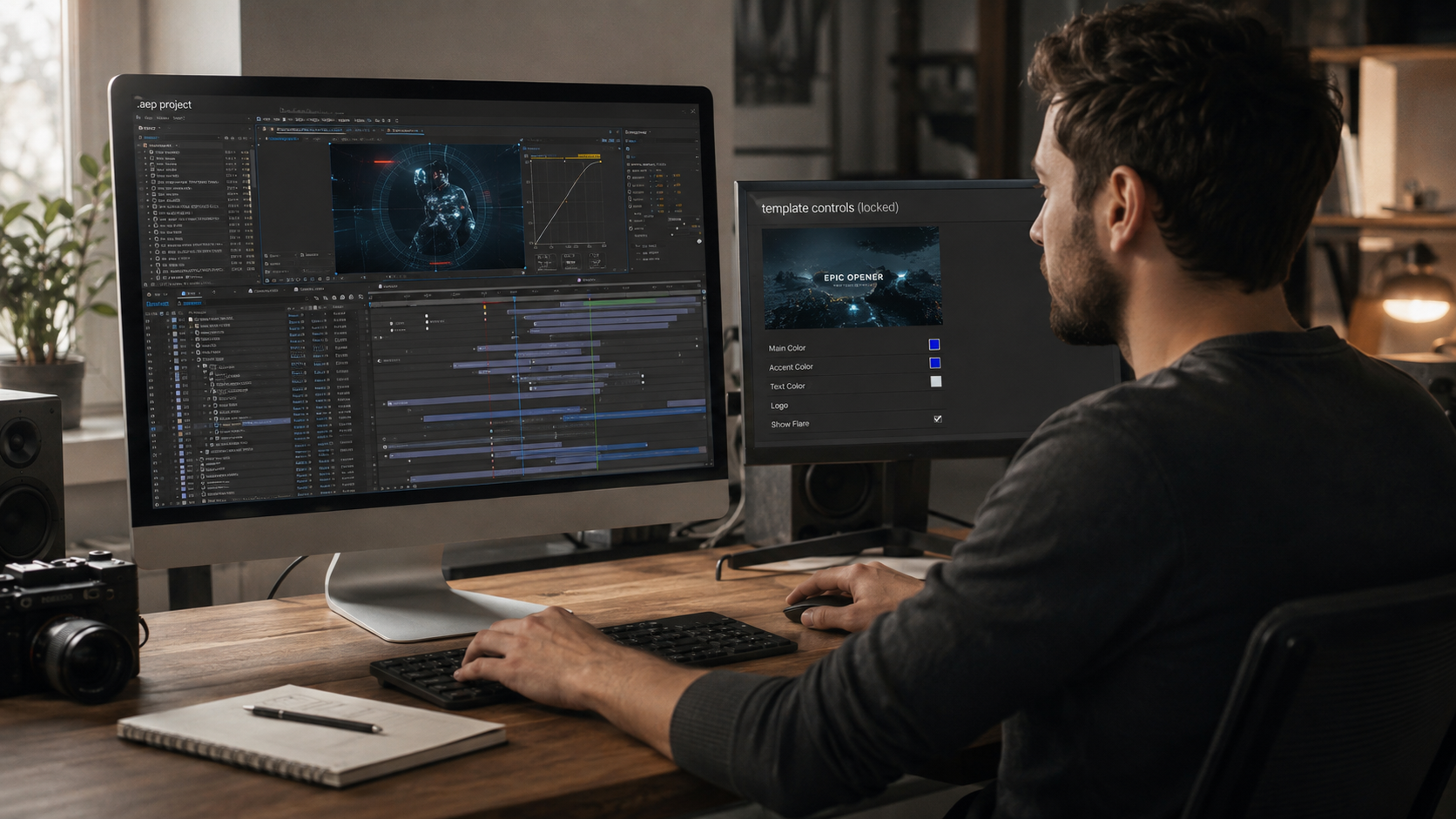
Every project on EarnEdits ships as a fully open .aep file, organized layers, correct compositions, vector assets already configured. No import headaches. Open the timeline and start working.
Browse Projects →
Converting .ai layers to native After Effects Shape Layers gives editors full path-level control for animation and eliminates the render overhead of Continuously Rasterize on complex vector files.
How to convert: Right-click the .ai layer in the Timeline → Create → Create Shapes from Vector Layer. AE generates a new layer with the suffix “Outlines”: a fully native AE shape with editable paths, strokes, fills, and trim-path access.
Use Shape Layer conversion when:
Stick with Continuously Rasterize when:
Shape Layers are resolution-independent, fully animatable, and render faster than CR on dense vector compositions. For editors who regularly animate Illustrator assets, this is the more reliable workflow.
Continuously Rasterize fails to fix blurry vectors in specific scenarios involving viewer settings, 3D layers, Illustrator raster effects, and nested compositions that editors commonly overlook.
If your Composition Panel is set to “Fit” or zoomed to 50%, the preview looks soft, but the actual render is sharp. Set magnification to 100% and the Resolution/Downsample dropdown to Full before diagnosing blur. This eliminates false positives.
Enabling 3D on an .ai layer with Continuously Rasterize active causes blur because AE processes the layer through the 3D renderer, which rasterizes differently. If you don’t need depth positioning or camera interaction, disable the 3D toggle and the vector sharpness returns.
Drop shadows, blurs, and glows applied inside Illustrator are pixel-based. Continuously Rasterize can’t sharpen raster data; it only recalculates vector paths. Remove these effects in Illustrator, save, and re-import. Rebuild the effects natively in After Effects, where they render at composition resolution.
If your .ai layers sit inside a pre-composition, enabling CR on the layers alone isn’t enough. You also need to toggle Collapse Transformations on the pre-comp layer in the parent composition. Without both, AE rasterizes the pre-comp at its internal resolution and scales the pixel result, reintroducing blur.
The Overlord plugin by Battle Axe skips the traditional .ai file import, pushing shapes directly from Illustrator to After Effects as native vector data with one click.
Select shapes in Illustrator, click “Push,” and they appear in your AE composition as native Shape Layers, no import dialog, no rasterization, no Continuously Rasterize toggle needed. Layer names, colors, and grouping transfer cleanly.
It’s a paid plugin, not built into Adobe’s workflow. But for motion design pipelines where Illustrator integration is a daily task, Overlord is the standard tool.
Open Project Files. Clean Timelines. Zero Import Friction.
EarnEdits project files are built with clean vector integration, organized layers, and fully open timelines you can study and re-edit. Skip the import headaches, start from files designed for editors who learn while they produce.
Explore the Library →
After Effects renders .ai files as raster images by default. Scaling the layer above 100% stretches pixels instead of recalculating vector paths. Enable Continuously Rasterize, the sun/star icon in the Timeline Switches panel, to force AE to re-render from the original vector data at any scale.
Yes. Use File → Import → File, select your .ai file, and set Import Kind to "Composition - Retain Layer Sizes." This preserves each Illustrator layer as a separate After Effects layer with anchor points centered on each object.
After Effects is a raster compositor; it displays all content as pixels. With Continuously Rasterize enabled, AE recalculates vector data from .ai files every frame, producing sharp, resolution-independent results at any scale. Converting to Shape Layers gives full native vector control.
Common causes: viewer magnification is set below 100%, 3D is enabled on the layer, the .ai file contains raster effects (drop shadows or blurs applied inside Illustrator), or Collapse Transformations is missing on a parent pre-comp layer. Check all four before assuming the toggle is broken.
Text created natively in AE is vector-based and stays sharp at any scale. If it looks soft, check that your Composition Panel resolution is set to "Full" and magnification is at 100%. For text imported from Illustrator, enable Continuously Rasterize on the layer. If you're running into repeated quality issues, this guide on common mistakes when using After Effects project files covers the most frequent causes.

Explore more guides on After Effects project files and viral editing workflows.
Production-ready edits that teach you how they were built.