Back
Back

 Apr 25, 2026
 Muhammad Sikandar
After Effects templates are pre-built project files that require extraction, opening, and dependency resolution before they function correctly inside After Effects. An AEP template file opens through File > Open Project, while a MOGRT file installs through the Essential Graphics panel. Most template errors (missing fonts, missing effects, missing footage) appear immediately after opening and resolve in 2 to 5 minutes each when addressed in the correct order.
The setup process for an After Effects template depends entirely on the file format inside the downloaded folder.
AEP files (.aep) are full After Effects project files containing every layer, keyframe, effect, and composition. They open directly through File > Open Project and give editors complete control. This is the format most marketplace templates use.
MOGRT files (.mogrt) are packaged Motion Graphics Templates. They install through the Essential Graphics panel (Window > Essential Graphics) and are designed primarily for Premiere Pro. Customization is restricted to the controls the creator exposed: text fields, color pickers, and sliders.
If your extracted folder contains a .aep file, follow the AEP setup steps below. If it contains a .mogrt file, skip to the MOGRT section later in this article.
Setting up an AEP template in After Effects follows seven steps, from extracting the download to previewing the final composition.
Step 1: Extract the ZIP file to a permanent folder:
Right-click the downloaded ZIP and select Extract All (Windows) or double-click to unarchive (Mac). Extract to a location you will not move later. After Effects stores file paths relative to the project location, so moving files out of the extracted folder breaks every asset link inside the template. If your download is a RAR file, follow the guide to opening RAR After Effects projects safely.
Step 2: Install fonts before opening the project:
Check the extracted folder for a fonts document, help text file, or fonts subfolder listing the typefaces the template uses. Download and install each font on your system: double-click the .ttf or .otf file and click Install (Windows) or Install Font in Font Book (Mac). Installing fonts before opening the AEP prevents the missing font warning entirely.
Step 3: Open the AEP file in After Effects:
Go to File > Open Project and select the .aep file from the extracted folder. You can also double-click the .aep file directly from your file explorer. If After Effects displays a project conversion dialog for an older version, click OK. This conversion is automatic and safe.
Step 4: Check for missing fonts:
If a missing font dialog appears, note every font name listed. Close the dialog and type “Missing” into the search bar at the top of the Project panel to filter affected compositions. Install the listed fonts, restart After Effects, and reopen the project.
Step 5: Check for missing effects or plugins:
If a missing effects dialog appears, note the effect names. Unrecognized names are third-party plugins that the creator used. Search each name online, purchase and install the plugin, then restart After Effects. Native After Effects effects never trigger this warning. Templates built with only native effects skip this step entirely.
Step 6: Relink any missing footage:
If the Project panel shows items with a color bars icon, After Effects cannot find those media files. Right-click any missing item and select Replace Footage > File. Navigate to the correct file inside the extracted folder. Relinking one file often reconnects other missing items in the same directory. For a deeper walkthrough, read the complete guide to fixing missing files in After Effects.
Step 7: Locate the render composition and preview:
In the Project panel, look for a composition labeled “Final Comp,” “Render Here,” or “Main.” Drag it into the timeline if not already open. Press 0 on the numpad to trigger a RAM Preview. Confirm all text, media, and effects display correctly before customizing.
With the template open and dependencies resolved, the next step is customization. For the full editing workflow (media replacement, text editing, color adjustments, audio sync, and export), follow the step-by-step guide for editing viral reels with After Effects templates.
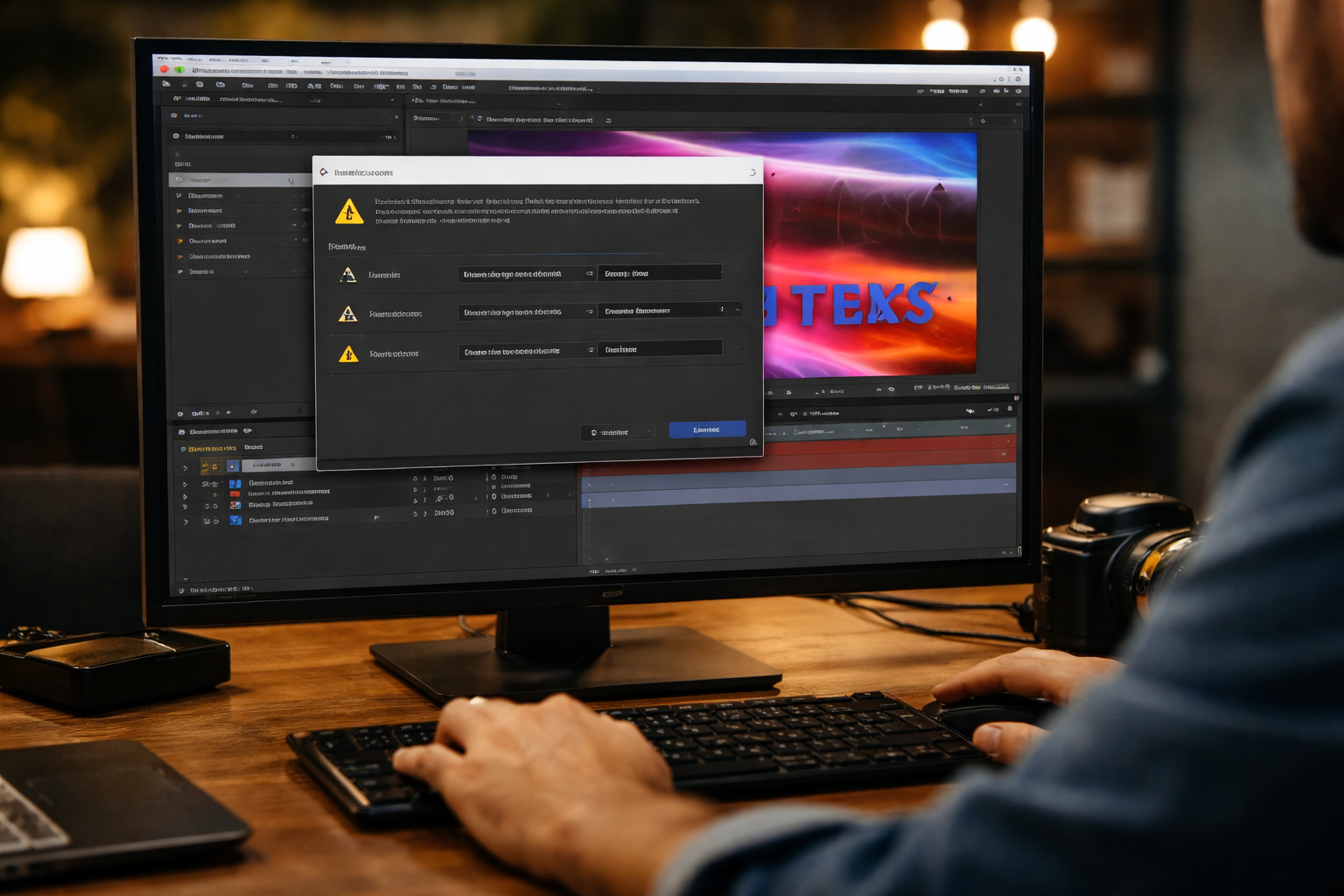
Missing fonts are the most frequent error when opening After Effects templates, and they appear because the template uses typefaces not installed on your system. The missing font dialog lists every font that After Effects cannot find. Note each name exactly as displayed, including the weight (e.g., “Montserrat Bold,” not “Montserrat”).
Download and install the font. Search the exact font name online. Many template creators include a download link in the help file or fonts folder. Install the .ttf or .otf file, restart After Effects, and reopen the project.
Activate through Adobe Fonts. If the font is available on Adobe Fonts (included with Creative Cloud), search for the font name on the Adobe Fonts website and click Activate. It syncs with After Effects automatically.
Substitute with a different font. Select the text layer, open the Character panel, and choose a replacement. Missing fonts show in brackets in the font dropdown (e.g., [OstrichSans]). Replace each bracketed entry with your preferred typeface.
To locate every affected composition at once, type “Missing Fonts” into the Project panel search bar.
EarnEdits project files require zero third-party plugins. Open the AEP, replace your content, and export.
Missing effects warnings appear when an After Effects template uses third-party plugins not installed on your system. The error dialog lists every missing effect by name.
Copy these names exactly and search each one online to find the developer’s website. Purchase, download, and install the plugin. Close After Effects before installing. Restart after the installation completes.
If you do not want to purchase the plugin, type “Missing Effects” into the Project panel search bar to locate every affected composition. Open each comp, select the layer with the missing effect, and delete it from the Effects Controls panel. The layer remains intact. Only the third-party effect is removed.
Templates built exclusively with native After Effects effects never trigger this error.
Missing footage appears in the Project panel as a color bars icon (striped placeholder) and means After Effects cannot locate the media file that the template references.
The most common cause is incomplete ZIP extraction or moving files out of the extracted folder. After Effects stores relative file paths between the .aep file and its linked media. Moving any file breaks that link.
Right-click any missing item in the Project panel and select Replace Footage > File. Navigate to the correct file inside the extracted template folder. Relinking one file often reconnects other missing items in the same directory automatically. To prevent this error, always extract the full ZIP to one permanent folder and never relocate files after opening the project.
MOGRT files (Motion Graphics Templates) install through the Essential Graphics panel, not through File > Open Project, and are designed primarily for Premiere Pro editors.
Open After Effects or Premiere Pro and go to Window > Essential Graphics. Click the + icon at the bottom of the panel and select Install Motion Graphics Template, or drag the .mogrt file directly into the panel. The template appears in the Essential Graphics library. Drag it onto your timeline to use it.
Customization is limited to the controls the creator exposed: text fields, color pickers, and sliders visible in the panel. Editors who need full layer access should use AEP templates instead. For a deeper comparison of formats, read the AEP vs AEPX file format comparison.
If an After Effects template refuses to open at all (no conversion dialog, no error messages, nothing loads), the problem is outside the template’s internal dependencies.
Four causes account for most total failures. A corrupted download produces an incomplete file; re-download the ZIP and extract again. An incompatible After Effects version blocks templates built for newer releases; check the product page for version requirements and update through Creative Cloud. A .mogrt file opened via File > Open Project sometimes fails silently; use the Essential Graphics panel instead. A damaged ZIP extraction (common with large files) leaves assets incomplete; use 7-Zip on Windows or The Unarchiver on Mac instead of the built-in OS extractor.
For a broader breakdown of template errors, read about common mistakes when using After Effects project files.
Every EarnEdits AEP is organized, labeled, and built with native After Effects effects only. No third-party plugins required.
AEP files do not open directly in Premiere Pro. Convert the AEP to a MOGRT through the Essential Graphics panel in After Effects, or use Adobe Dynamic Link to import the composition into a Premiere Pro timeline. MOGRT files work natively in both applications.
Check the download folder for a fonts document or help file. Install any listed fonts before opening the AEP to avoid missing font warnings. Templates requiring third-party plugins list them on the product page or in included documentation.
Three causes account for most broken templates: missing fonts (text appears in a default typeface), missing effects (layers show error indicators), and missing footage (color bars replace media). Follow the resolution steps above for each type.
A well-organized AEP with no third-party plugin requirements resolves all dependencies in 2 to 5 minutes. Templates requiring font downloads and plugin purchases take 15 to 30 minutes.
An AEP file is the native After Effects project format. A "template" is a pre-built AEP designed for customization, with placeholder media, organized layers, and editable compositions.

Explore more guides on After Effects project files and viral editing workflows.
Production-ready edits that teach you how they were built.