Back
Back

 Feb 26, 2026
 Muhammad Sikandar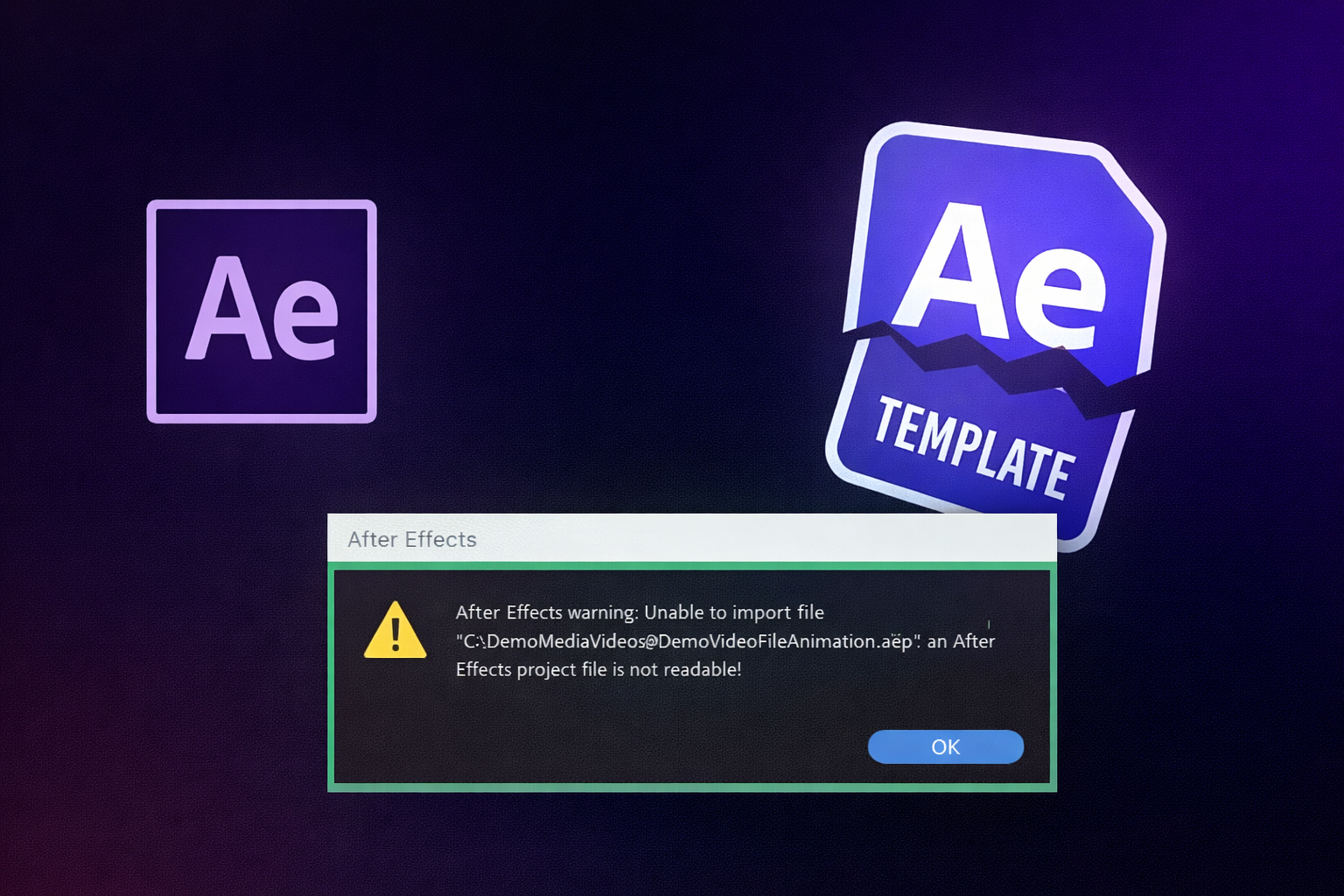
After Effects project files save production time only when they’re opened, customized, and rendered correctly. The most common mistakes, missing file links, plugin errors, disorganized layers, version mismatches, and poor export settings, turn a 30-minute edit into a 3-hour troubleshooting session.
EarnEdits project files are built to eliminate the structural mistakes that plague most downloaded .aep files, labeled layers, native effects, organized compositions, listed dependencies, and consistent naming across every file in the library. But understanding these errors matters regardless of where your files come from. Knowing what goes wrong and why prevents wasted hours on every project.
After Effects project files are not fully backward compatible. A file saved in After Effects 2025 cannot open in After Effects 2023; the software displays an error and refuses to load the project entirely. Forward compatibility works: older files open in newer versions, though deprecated features may behave differently.
Each After Effects release introduces new rendering features, expression syntax, and composition properties. Files using those features contain data that older versions can’t interpret. Unlike Premiere Pro, which handles version differences more gracefully, After Effects enforces strict version boundaries.
Before downloading any project file, check which After Effects version it requires. EarnEdits lists version compatibility for every file; verify before downloading, and you never encounter this error. Keep Creative Cloud up to date with the latest release. If you’re locked to an older version for client or hardware reasons, contact the file creator about a backward-compatible export.
The “Missing Files” dialog appears when After Effects can’t locate footage, images, or audio assets referenced by the project. Instead of the original media, the composition displays colorful placeholder bars across the timeline.
Project files store absolute file paths, the exact folder location on the original creator’s computer. When you download and open the file on your machine, those paths don’t exist. Any project file that includes linked media will trigger this warning unless the creator used Collect Files to package everything together.
Right-click any missing item in the Project panel and select Replace Footage > File. Navigate to the correct file on your drive. After Effects often auto-locates remaining missing files once you point it to the right folder. For project files that arrive as .zip packages, extract the entire archive to a single folder before opening the .aep file. This preserves the relative folder structure the creator intended.
Download project files that package all assets together, or clearly document which external assets you need. EarnEdits files ship with every referenced asset included and organized inside the project folder, no missing file warnings, no broken links, no hunting for assets. The folder structure is built for portability from the start, so the file opens clean on any machine.
For the full packaging workflow, see how editors use project files in client work.
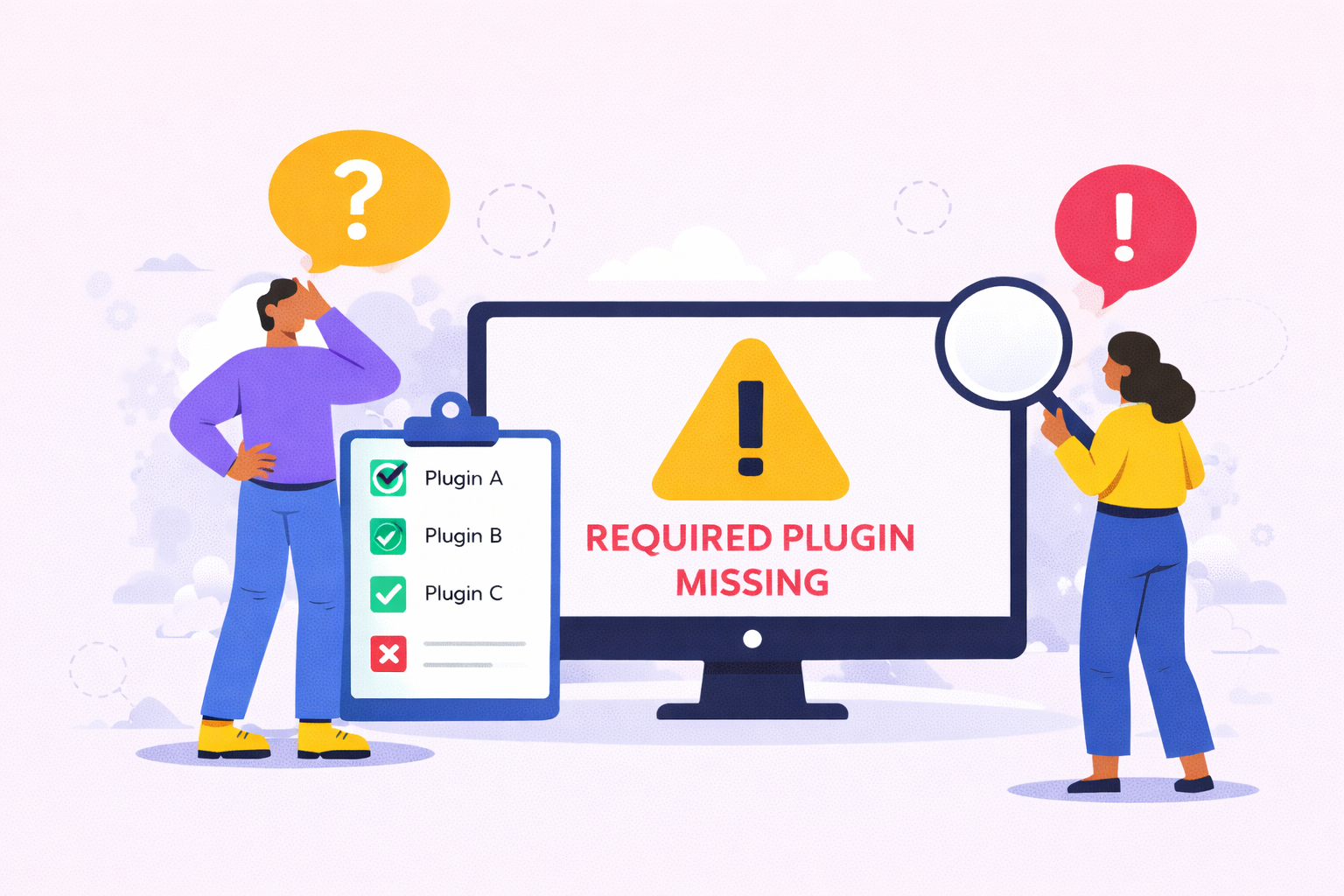
Third-party plugins like Trapcode Particular, Element 3D, Optical Flares, and Animation Composer power many of the effects in downloaded project files. Opening a file that requires a plugin you don’t own produces missing effect warnings, broken compositions, and renders that look nothing like the preview.
Plugin licenses are separate from After Effects. Creators can’t legally include plugin files inside their project downloads. Many marketplace templates rely on $50-$400 plugins without making that dependency obvious in the listing title; the requirement appears only in the description or readme file.
Read the full requirements list before downloading or purchasing any project file. Search for “No Plugins Required” when browsing marketplaces to avoid dependency issues entirely.
EarnEdits builds every .aep file using native After Effects effects, keyframes, masks, shape layers, and built-in effects, specifically to eliminate this entire category of errors. No third-party plugins required on any file in the library. Every effect you see in the preview renders on any standard After Effects installation. This is a deliberate design choice: EarnEdits files work on every editor’s machine without additional software purchases.
Poor layer organization is the most time-consuming mistake when customizing project files. Layers named “Shape Layer 14,” “Comp 3 copy copy,” or “IMG_0847” provide no information about their function. Without descriptive names, color labels, or logical grouping, editors spend more time deciphering the file than editing it.
Many project file creators build files for their own use first and package them for sale as an afterthought. Their internal naming conventions, or lack of them, carry over into the download. Marketplace platforms don’t enforce naming or organizational standards, so file quality varies dramatically across contributors.
Every layer is named by function (Background, Main Text, Transition Overlay, Audio Sync). Compositions grouped by purpose. Color labels distinguish text layers from media layers from adjustment layers. Folders in the Project panel separate footage, compositions, and precomps.
EarnEdits files model this standard consistently across every .aep in the library, “MAIN_COMP,” “TEXT_EDIT,” “COLOR_CONTROL,” “CAMERA_NULL” naming conventions, color-coded layer types, and organized folder hierarchies. After working with 3-5 EarnEdits files, this organizational system becomes second nature for your own projects. When a file adheres to this standard, customization takes minutes rather than hours.
Before editing anything, spend 10 minutes renaming the layers you’ll touch. Color-label the layers by type. Pre-compose groups of related layers to simplify the main timeline. This upfront investment prevents compounding confusion as your edits grow more complex.
For understanding how properly structured files differ from locked templates, read why editable After Effects project files matter.
This mistake affects editors at every experience level. When no layer is selected in the timeline, and you draw with the Pen tool, After Effects creates a new shape layer instead of adding a mask to an existing layer.
After Effects defaults to shape creation mode when the Pen tool is active and no layer is selected. The distinction between “mask mode” and “shape mode” depends entirely on whether a layer is highlighted in the timeline, a subtle interface behavior that catches even experienced editors.
Select the target layer in the timeline first, then draw with the Pen tool. The tool automatically switches to mask mode when a layer is active. If you’ve accidentally created a shape layer, delete it, select the correct layer, and redraw. Check the toolbar at the top of the screen; it displays whether the Pen tool is in “Shape” or “Mask” mode.
Studying how EarnEdits files use masks versus shape layers teaches this distinction faster than reading about it; you see exactly which approach experienced editors chose for each element and why.
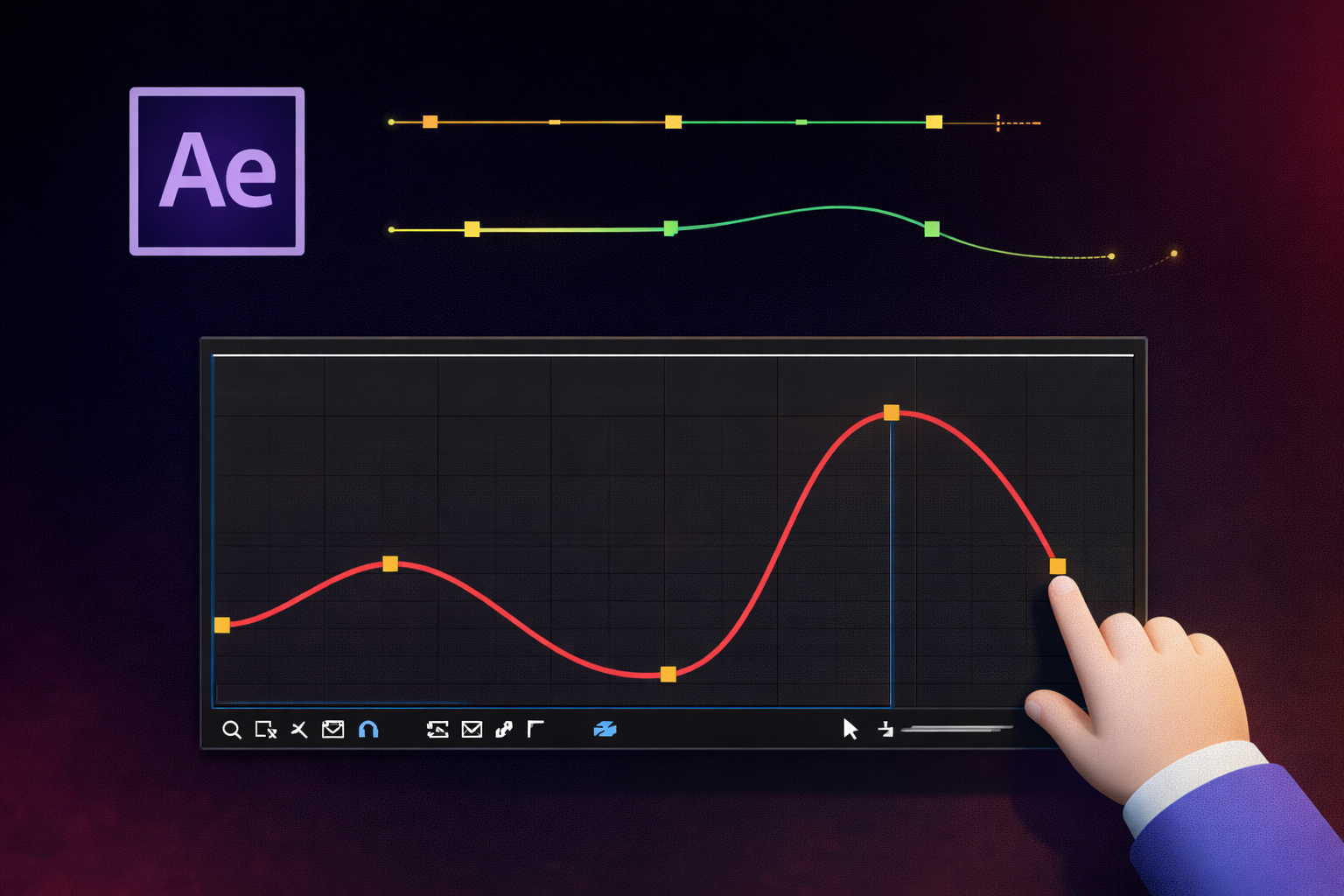
Default keyframes in After Effects use linear interpolation; objects move at constant speed between points, producing mechanical, robotic motion. Editors who never open the Graph Editor produce animations that technically move but feel lifeless compared to professionally eased motion.
Human perception expects acceleration and deceleration in movement. A title that slides in at constant speed and stops abruptly looks amateur. The same title, with ease-in and ease-out curves applied in the Graph Editor, feels polished and intentional. The difference between “student project” and “professional motion graphic” often comes down to keyframe curves, not complexity.
Select keyframes in the timeline, press F9 to apply Easy Ease as a starting point, then open the Graph Editor (graph icon above the timeline) to refine the curves manually. Pull Bezier handles to control acceleration and deceleration. Even a basic Easy Ease on every keyframe dramatically improves animation quality.
One of the fastest ways to understand professional keyframe curves is to open a well-built project file and study its Graph Editor values. Files with fully exposed keyframes let you see exactly how experienced editors shape motion, the speed curves, the hold keyframes, and the overshoot techniques that make animation feel alive.
For editors building these foundations, the courses vs project files comparison explains why studying real project files accelerates learning faster than passive instruction.
Motion blur and frame blending improve final render quality but crush preview performance during editing. Editors who enable these switches at the start of a project work at 2-5 frames per second in RAM preview, turning fluid editing into a slideshow.
Motion blur and frame blending are per-layer switches that remain active during preview unless manually disabled. New editors are enabled early so they can see the final look while working.
Keep motion blur and frame blending switches off on all layers during editing. Work at full speed with clean previews. Enable the switches only when you’re ready to render the final output, or enable them briefly to check a specific section, then disable them immediately. The master motion blur switch at the top of the timeline controls all layers simultaneously, making this toggle fast.
EarnEdits files are built with motion blur disabled by default for exactly this reason: you open the file, customize at full preview speed, then enable blur only for final render. The same discipline applies to every project you build from scratch.
After Effects stores preview frames in disk cache, which grows with every RAM preview you generate. Over days or weeks of editing, this cache consumes tens of gigabytes of disk space, slows previews, triggers “Low Memory” warnings, and occasionally causes application crashes.
Edit > Purge > All Memory & Disk Cache clears the stored data immediately. Set this as a habit at the start of each new project session. In Preferences > Media & Disk Cache, set a cache size limit and location, preferably on an SSD separate from your system drive. Keeping cache on the same drive as your OS and project files creates I/O bottlenecks that slow down every preview and render.
Exporting directly from After Effects with default settings often produces massive, uncompressed files: a 30-second composition renders as a 2-4 GB AVI instead of a manageable 15-50 MB H.264 MP4.
Add your composition to the Render Queue (Composition > Add to Render Queue), but for social media and web delivery, use Adobe Media Encoder instead. File > Export > Add to Adobe Media Encoder Queue. Select H.264 as the format, choose a preset matching your delivery platform (YouTube 1080p, Instagram 1080×1920), and render. Media Encoder handles compression efficiently while After Effects remains available for continued editing.
Open Composition Settings (Ctrl/Cmd + K) and verify resolution, frame rate, and pixel aspect ratio match your delivery requirements. EarnEdits files ship pre-configured at 1080×1920 for vertical social media; the composition settings are already correct for reels and TikTok delivery. When working with project files from other sources where the creator’s settings may not match your delivery specifications, verify these settings before every render.
For editors working on viral content for social media, getting export settings right on the first render prevents re-rendering cycles that eat production time.
Most After Effects project file mistakes fall into two categories: errors you make while editing (keyframe issues, cache management, export settings) and errors caused by how the file was built (missing links, plugin dependencies, poor organization). You control the first category by improving your workflow habits. You control the second by choosing well-structured files from sources that enforce quality standards.
EarnEdits files are built to avoid the structural mistakes covered here, labeled layers, native effects only, organized compositions, and consistent formatting across every .aep in the library. The Stop Starting Every Edit From Zero file is a good example of how a properly structured .aep should look when you open it. Start with the complete guide to After Effects project files for the full technical foundation.
Start with the complete guide to After Effects project files for the full technical foundation, or download your first EarnEdits file and open a project that works correctly from the first click.
Project files store absolute file paths from the creator's computer. Those paths don't exist on your machine. Replace missing footage by right-clicking the item in the Project panel and selecting Replace Footage > File. EarnEdits files package all assets together with correct relative paths, no missing media warnings on any file in the library.
Read the requirements list before downloading. Files that rely on third-party plugins list them in the description or readme. EarnEdits builds every file on native After Effects effects, with zero plugin dependencies across the entire library. Choose files built with native tools if you want to avoid plugin errors entirely.
Version incompatibility, corrupted downloads, and insufficient RAM are the three most common causes. Verify the file was built for your After Effects version. EarnEdits lists version compatibility for every file. Re-download if the file size doesn't match the listed size, and close other applications to free system memory before opening large projects.
Create a dedicated folder for each project. Extract downloaded .zip files into that folder before opening. Use the Collect Files feature (File > Dependencies > Collect Files) after making changes to consolidate all assets into one portable folder. EarnEdits files arrive with this organizational structure already built, extract, open, and work.
Significantly. EarnEdits files with labeled layers, grouped compositions, and consistent naming allow customization in minutes. Files with generic names and no organizational logic require interpretation before any productive editing can begin. The organizational quality of a project file determines its actual production value more than the visual complexity of the motion design.

Explore more guides on After Effects project files and viral editing workflows.
Production-ready edits that teach you how they were built.