Introducing Frame War
Submit your best edit, make it into the Top 3, and compete for the monthly Frame War reward. The winner receives cash plus exposure across EarnEdits community channels.
PRODUCT CATEGORIES
Submit your best edit, make it into the Top 3, and compete for the monthly Frame War reward. The winner receives cash plus exposure across EarnEdits community channels.
 Back
Back

 Jun 02, 2026
 Muhammad Sikandar
After Effects project files are open .aep documents containing the full editing timeline of a real After Effects build. The format holds every composition, layer, keyframe, effect, and reference to linked media inside one editable working document.
Project files expose every layer, keyframe, and effect for direct customization, while templates lock edits to a small set of pre-defined placeholders. Video editors use .aep files for three purposes: studying motion design, recreating proven content for client work, and finishing projects faster.
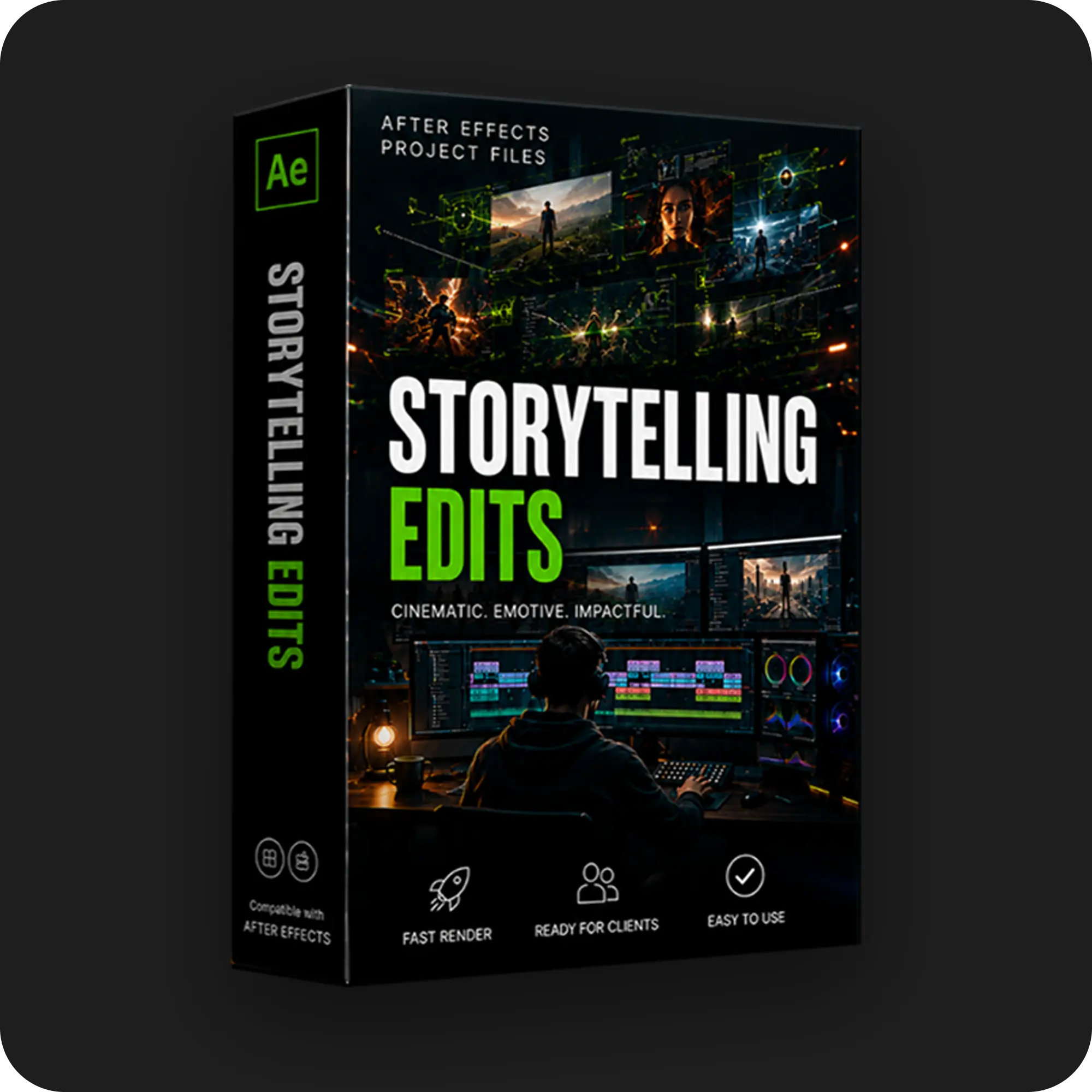
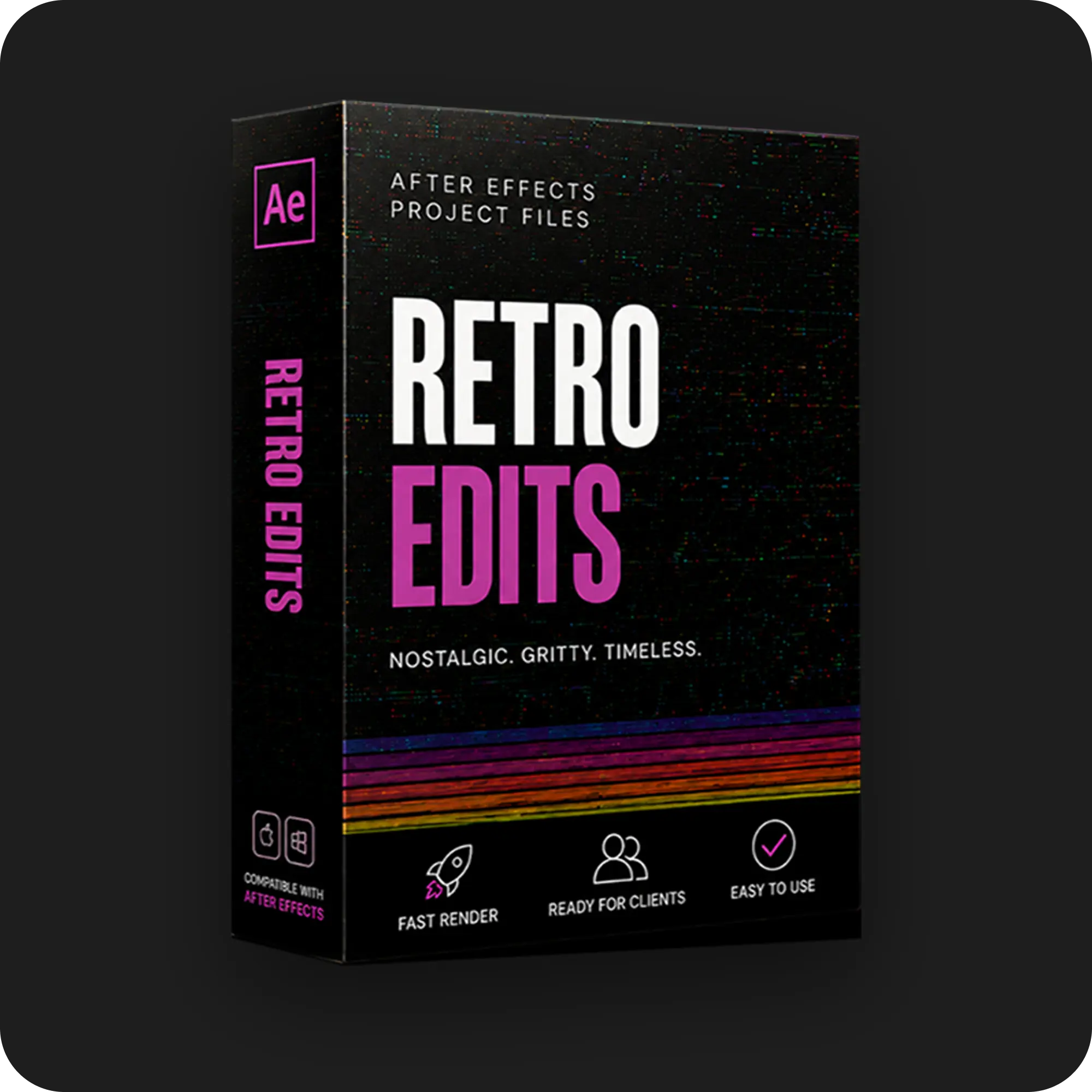
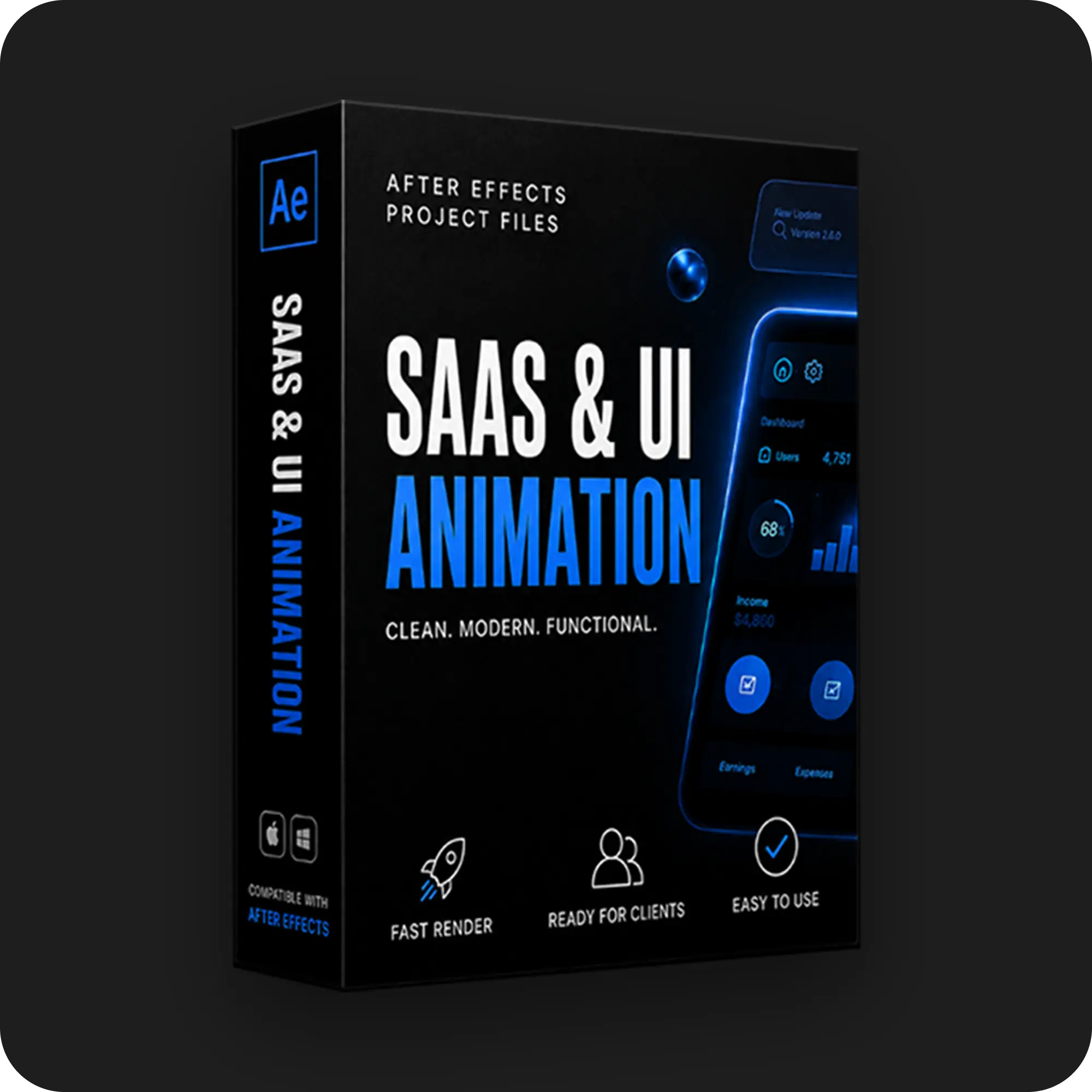
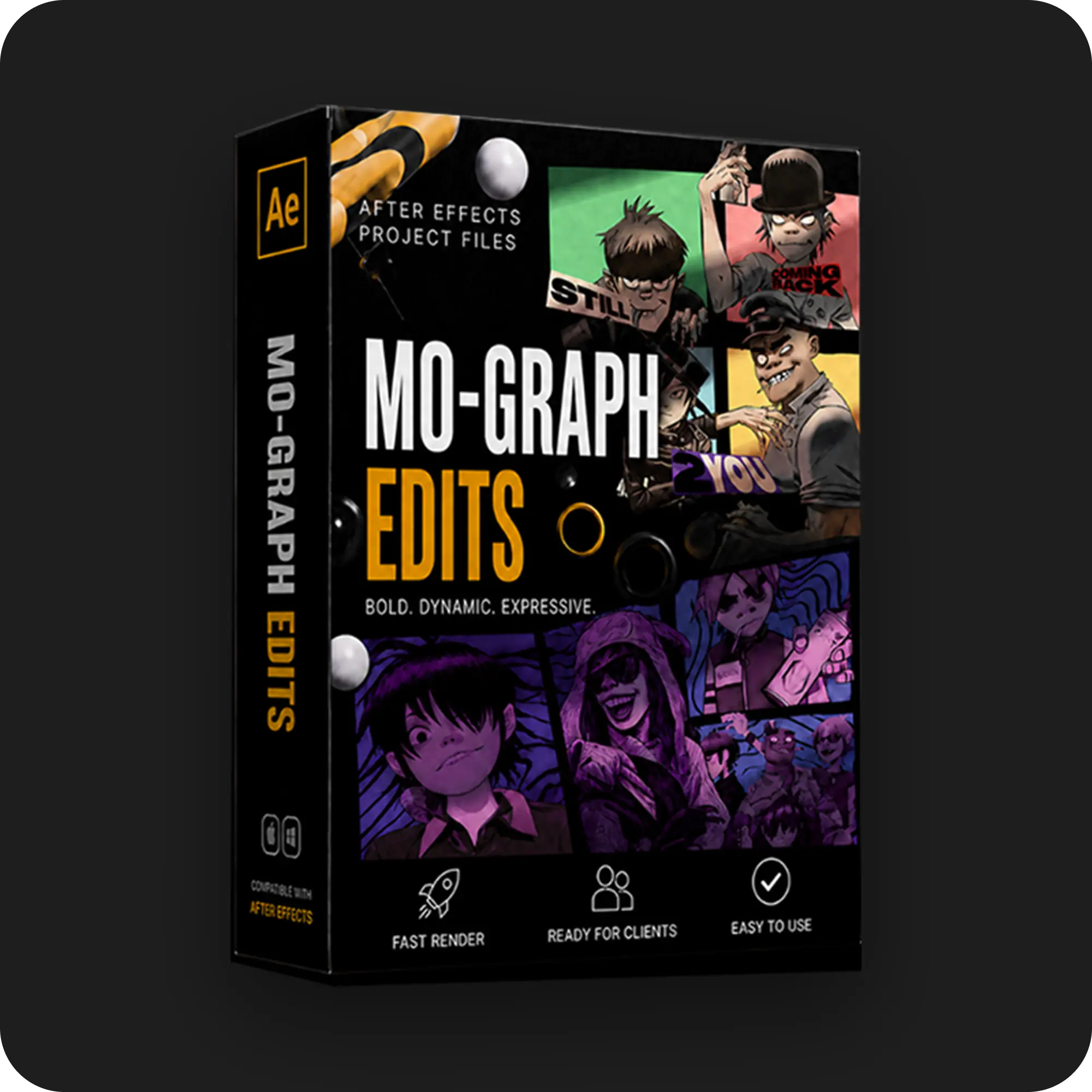
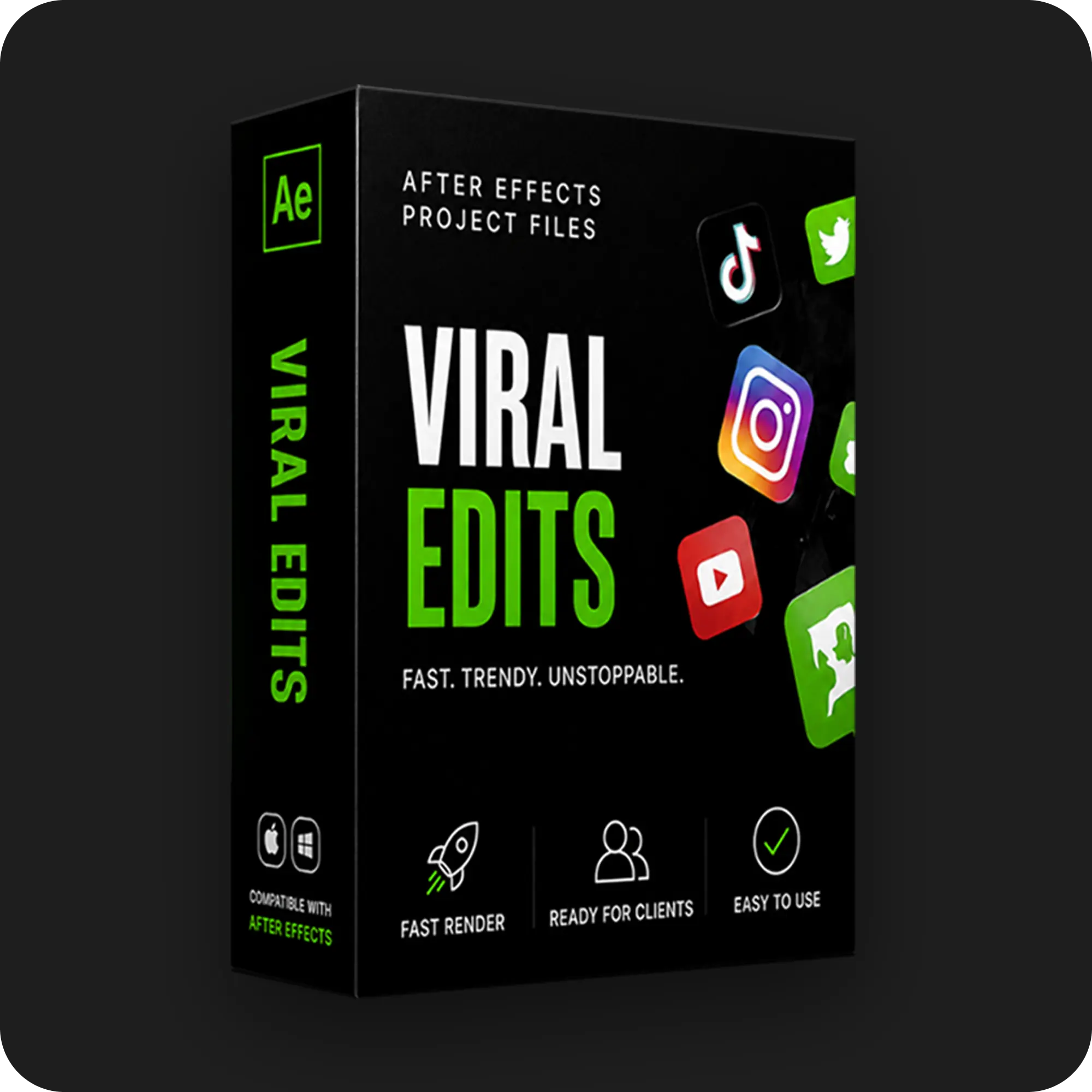
The four main categories of project files are viral edits, mo-graph edits, SaaS and UI animation, and retro edits.
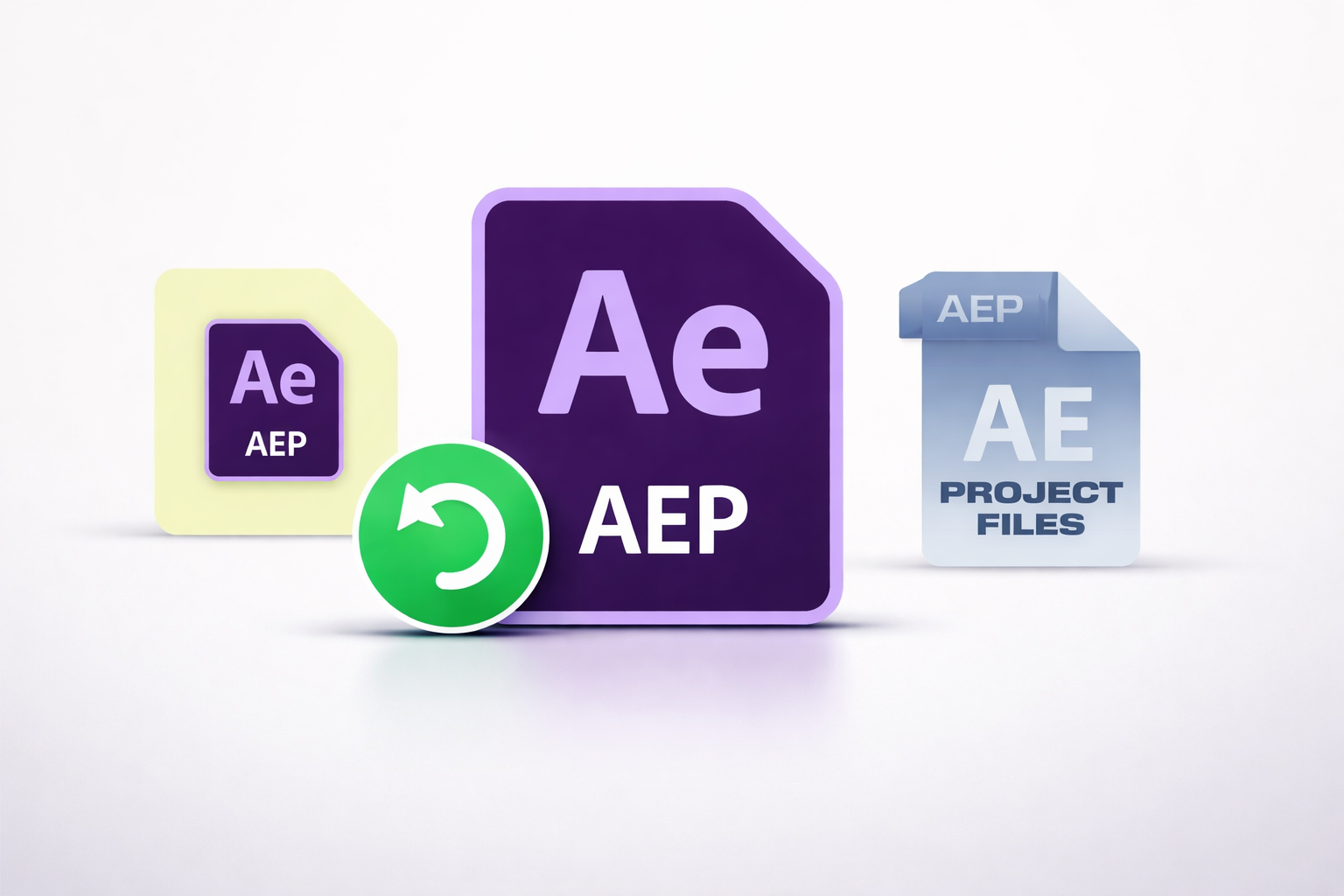
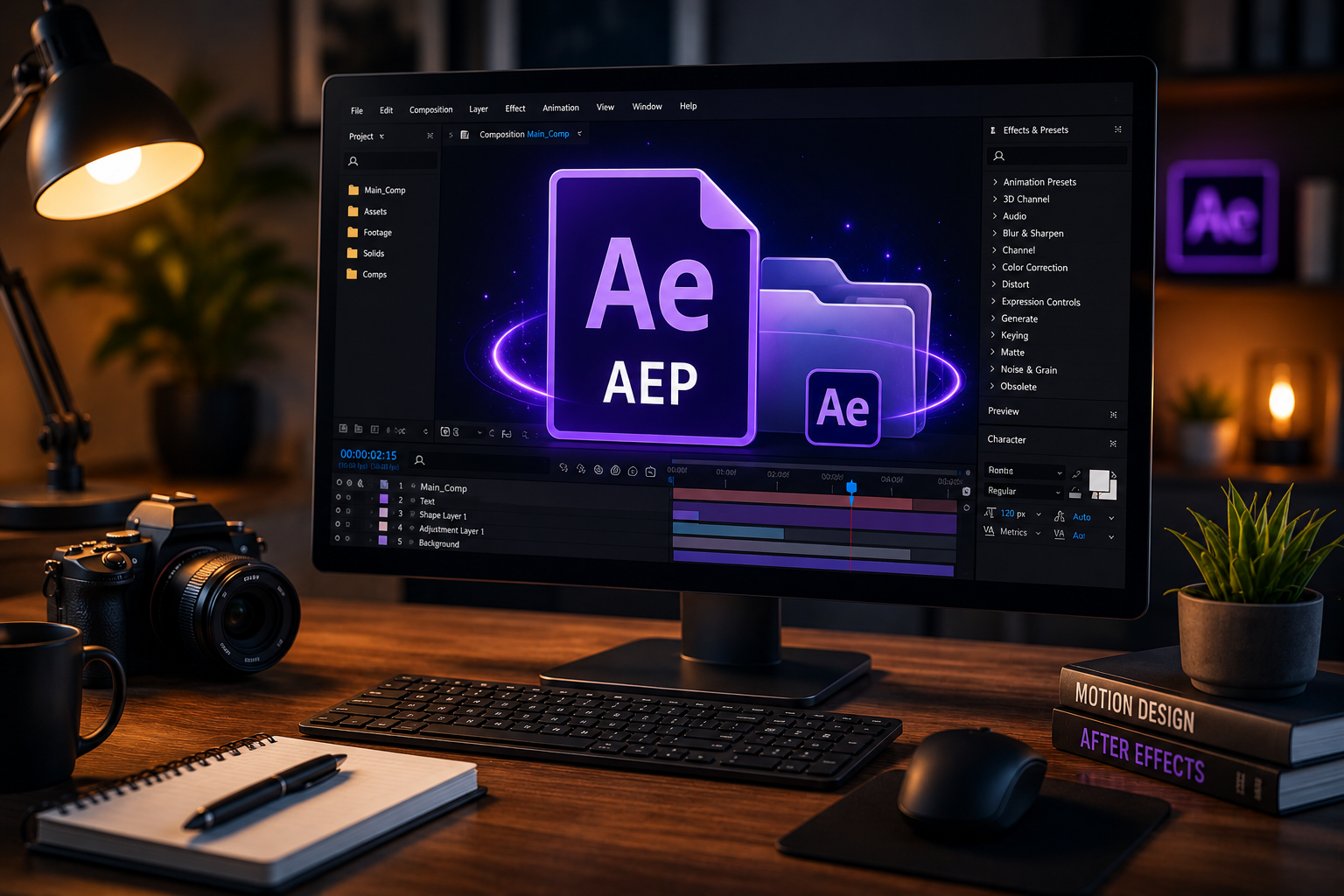
An .aep file is the native Adobe After Effects project document. The file holds the full timeline, compositions, layers, keyframes, and effects of a real After Effects build. The format also stores references to linked media assets such as footage, audio, images, and external scripts.
The .aep stores 7 structural elements of an After Effects project. The elements are compositions and pre-comps, layer hierarchies, keyframes for position, scale, and rotation, applied effects with parameter values, expressions and scripts, project markers, and timing data.
A typical viral edit .aep runs between 2MB and 15MB on its own. The accompanying media folder adds 50MB to 500MB based on footage resolution and length. A SaaS UI animation built on vector assets often comes in under 5MB total.
The .aep and its linked media work as a pair. The .aep carries the editing logic. The media folder carries the source files the .aep points to.
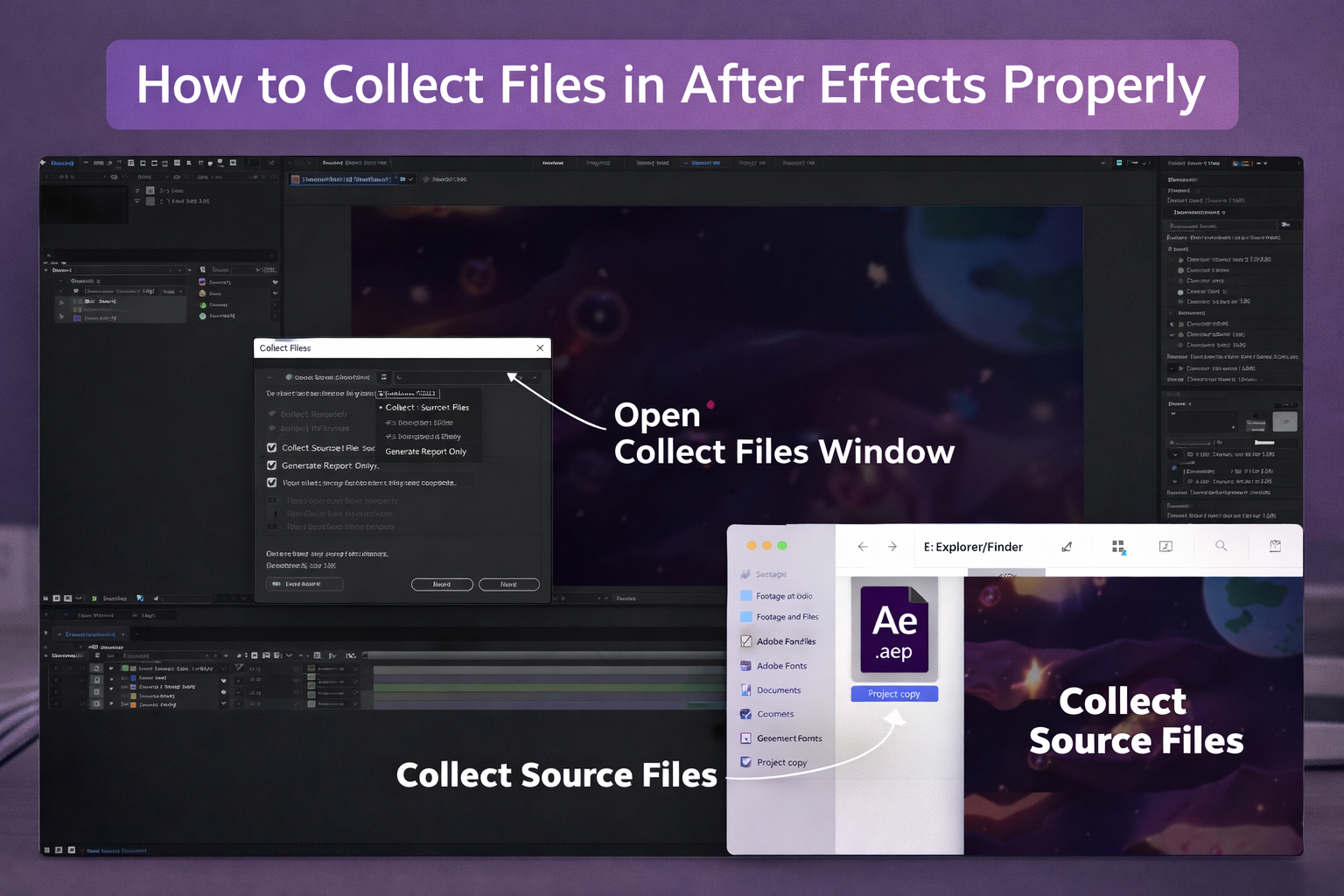
Separating the two breaks the project. After Effects displays every referenced asset as a bars-and-tone placeholder until the path gets restored. The handoff workflow that keeps both parts connected lives in the guide on how to collect files in After Effects for clean delivery
An .aep is the editor’s working document, not the output. Opening the file gives a video editor the same project state the original creator used. Every layer remains named. Every keyframe stays accessible. Every effect responds to adjustment.
The render produces the finished MP4 or MOV through the After Effects render queue or Adobe Media Encoder. The .aep itself stays editable across unlimited render passes.
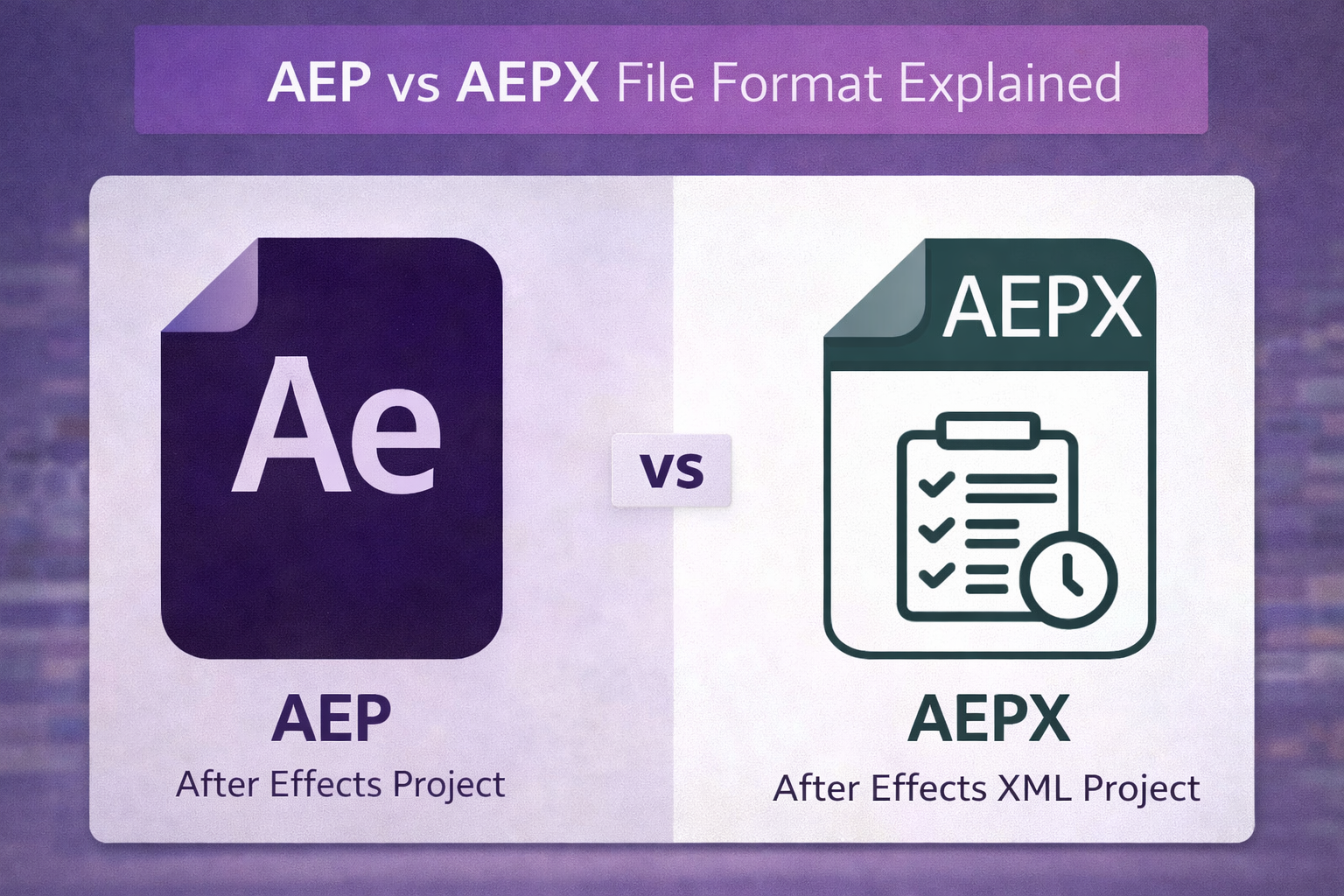
After Effects supports 2 project file extensions: .aep and .aepx. The .aep is the standard binary format used in nearly every project. The .aepx is the XML-based version of the same project, suited for opening in text editors or version-controlling across teams.
A project saved in After Effects 2026 fails to open in After Effects 2022. A project saved in After Effects 2022 opens in After Effects 2026 with a conversion prompt. Reputable sources list the AE version each file was built in.
Project files expose the full timeline for direct customization, while templates lock edits to a small set of pre-defined placeholders. The distinction matters because the two products serve different purposes and produce different outcomes.
A template is a finished project where the creator has hidden the working timeline and exposed only a small set of editable parameters. The editable surface usually includes 4 elements: a text field, a color swatch, a logo placeholder, and a duration slider.
Everything else stays locked. The layer panel sits collapsed inside a control comp. The timeline hides behind master properties. The effects sit behind pre-set parameters the editor cannot adjust.
Templates produce output quickly when the desired result matches the template’s intent exactly. The structure breaks down the moment a client requests an unsupported change. The editor has no access to the underlying build.
A project file ships with the full timeline visible. Every composition stays exposed. Every layer carries a label. Every effect responds to direct adjustment.
The video editor opens the file and sees the project the way the original creator built it. Every keyframe remains editable. Every shape layer can be reshaped. Every text style can be rewritten. Every effect parameter responds to adjustment.
Templates produce output. Project files build skill.
A video editor who opens 20 templates in a year finishes with 20 videos in the same locked style. The editor learns the template’s vocabulary. The editor does not learn how the underlying motion was built.
A video editor who opens 20 project files in the same year finishes with working knowledge across multiple categories. The editor learns how viral kinetic typography gets timed to beats. The editor learns how SaaS UI animations layer interface elements. The editor learns how mo-graph builds rhythm through shape transitions. Each open .aep shows the construction.
Templates limit the editor to the template’s vocabulary. Project files adapt to the client’s.
A client request lands inside the existing build when the editor works from a project file. The change might be a different transition style, a custom caption animation, or a brand-specific color treatment.
The editor working from a template either delivers a near-match or starts over. The breakdown of how editable .aep files change client production lives in the guide on project files for client work
Video editors use project files for 3 connected purposes: studying motion design, recreating proven content, and finishing projects faster. The three uses overlap, though each one carries a different primary value.
Opening an .aep is the fastest method to understand how viral or professional motion was constructed. Every keyframe and effect sits visible in the timeline.
A video editor studying a kinetic typography edit sees the exact easing curves, the text scaling values, the frame timing, and the transition logic. The editor learns the type bounce uses an Easy Ease keyframe with 75% influence, not just that the type bounces. The editor learns the beat-synced cuts land 4 frames before the audio peak, not on it.
The learning value scales with project organization. A disorganized project with unnamed layers teaches the editor little. An organized project with labeled compositions teaches the editor the full method.
Starting from a working structure cuts production time on 4 content types: reels, social posts, explainer videos, and SaaS animations. The editor opens an .aep that already carries the working scaffold of the target style, then customizes for the client.
A client request that requires 6 hours of blank-timeline building completes in 90 minutes of project-file adaptation. The underlying motion logic borrows from a build the editor already studied.
Working from organized .aep files removes the blank-timeline problem that produces inconsistent client deliverables. Each output carries variations in pacing, transition style, and animation quality when the editor builds every project from scratch under different deadline pressures.
The variation moves to the surface content when the editor works from a consistent project file library. The structural integrity stays stable.
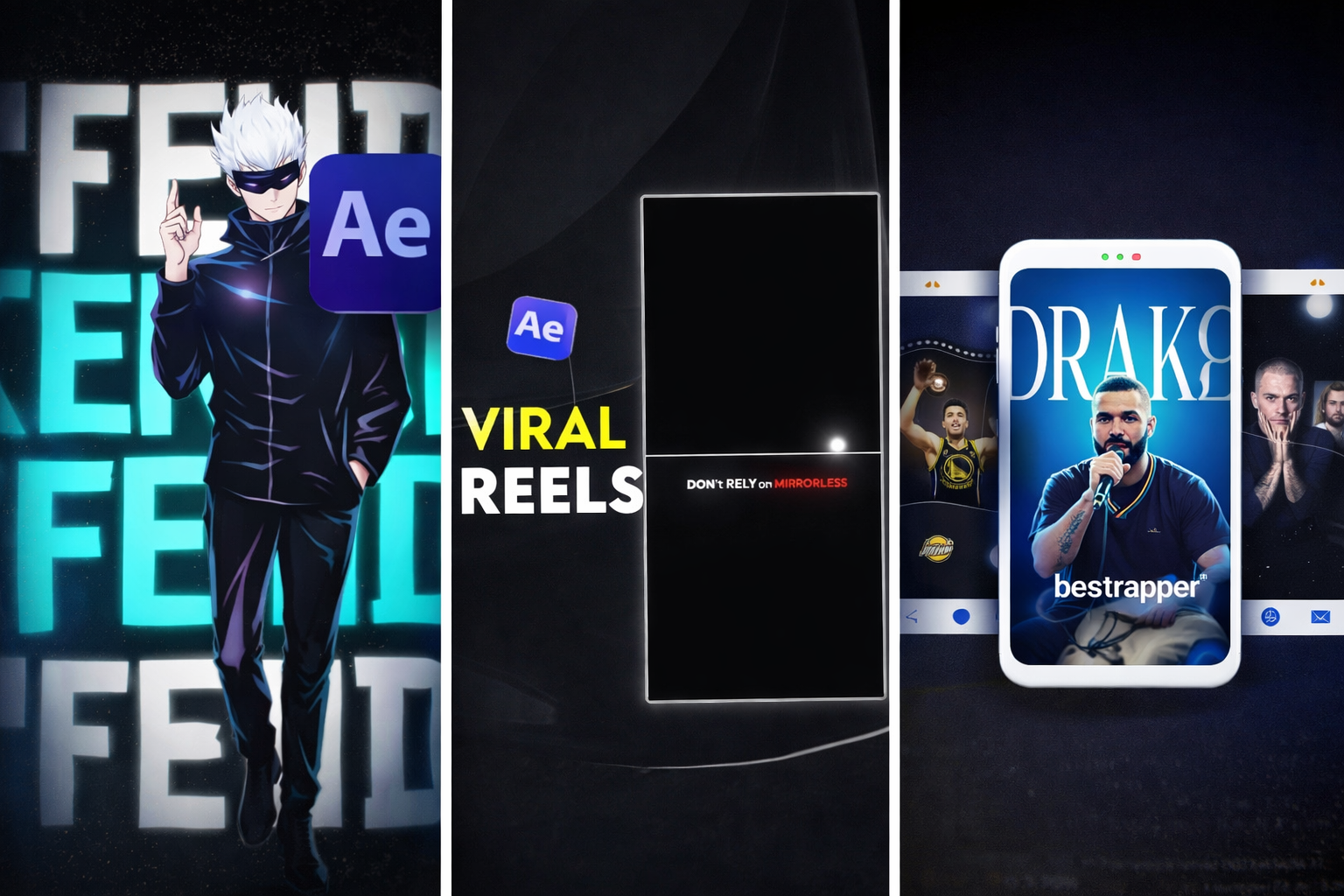
The 4 main categories of After Effects project files are viral edits, mo-graph edits, SaaS and UI animation, and retro edits. Each category targets a different editing context with different pacing, motion logic, and visual standards.
Viral edit project files cover 4 content types: storytelling cuts, beat-synced transitions, kinetic typography, and short-form social content. The builds run at 1080×1920 vertical resolution for reels, TikTok, and YouTube Shorts.
The pacing follows short-form standards. Tight cuts land every 2 to 4 seconds. Motion-text emphasizes key phrases. Layered overlays match beat drops. Most viral edits run between 18 and 35 seconds, which matches the optimal completion-rate window for Reels and TikTok.
The full breakdown of how to recreate viral edits using open .aep files lives at recreating viral edits with open AEP files
Mo-graph project files cover lyric-driven and music-driven motion graphics with 3 core elements: synced text, shape layers, and rhythm-based animation. The builds focus on the relationship between sound and motion.
Type animations get timed to beats. Shape transitions tie to lyrical phrasing. Layered visual elements build energy across the runtime. Mo-graph files typically run 10 to 30 seconds and use a combination of audio waveform analysis and manual keyframe timing.
SaaS and UI animation project files cover product explainer animations with 3 core elements: UI mockups, interface motion, and software walkthroughs. The builds carry interface-grade motion details.
Cursor tracking uses custom easing curves. Button hover and active states animate cleanly. Screen transitions include subtle parallax. Type animates against UI backgrounds with controlled kerning. SaaS files serve video editors working on 4 deliverable types: product launch videos, onboarding sequences, demo reels, and explainer content.
Retro edit project files cover vintage-style storytelling cuts using 4 visual elements: period-appropriate typography, grain overlays, muted color palettes, and slower pacing. The builds lean on the visual language of earlier eras.
Type styles draw from 70s and 80s design references. Grain overlays sit at 8 to 15 percent opacity. Color treatments use muted, desaturated palettes. Editing rhythms favor longer holds and deliberate transitions.
Opening an .aep project file requires 3 things. The first is After Effects installed on the machine. The second is a matching or newer AE version than the file was built in. The third is any third-party plugins listed in the project’s dependency notes. The workflow from download to working timeline runs through 5 steps.
A reputable source delivers the project file as a compressed archive containing the .aep, an assets folder, and a readme noting dependencies. Download size typically runs between 50MB and 500MB based on linked footage.
The sourcing checklist for verifying any project file before purchase lives in the guide on where to download After Effects project files safely
Extract the archive into a dedicated project folder on a local drive. Avoid extracting to the Desktop or inside a cloud-synced directory such as Dropbox, OneDrive, or iCloud Drive. Both locations break the file paths the .aep relies on.
Name the folder with a clear convention such as ClientName_ProjectTitle.
Launch After Effects. Go to File > Open Project. Navigate to the extracted .aep. A version-conversion dialog appears when the file was built in a newer AE version. Clicking OK runs the conversion automatically.
Run File > Save As immediately after opening, with a new name inside the same folder. This action preserves the original file and locks the working project’s paths to the correct extraction location.
Address missing fonts, missing plugins, and missing footage warnings before editing begins. Type “missing” into the Project Panel search bar to filter the panel to items After Effects cannot locate.
Right-click any missing footage item. Select Replace Footage > File. Navigate to the asset inside the extracted folder. The troubleshooting workflow for missing fonts, missing effects, and missing footage lives in the guide on how to fix missing files in After Effects
Read the project structure first. The Project Panel folders, the composition hierarchy, and the layer naming convention reveal how the original creator built the file. Reading before editing prevents the most common beginner mistake.
5 checks before opening any project file confirm the file opens and works on the editor’s machine. The checks take under 5 minutes and prevent the most common reasons downloaded project files fail in production.
A project file saved in a newer AE version fails to open in an older version. Every reputable source lists the AE version each file was built in. Confirm the listed version matches or precedes the version installed locally.
Third-party plugin dependencies are the most common reason downloaded project files fail to open correctly. A project built with 3 common commercial plugins shows missing-effect warnings on any machine without them installed: Trapcode Particular, Element 3D, and Sapphire.
Commercial plugin licenses range from $200 to $1,000. A $30 project file built on Sapphire effects becomes a $1,030 project file in practice for an editor without the plugin.
After Effects does not embed fonts inside project files. A file using uninstalled fonts substitutes system defaults. The substitution breaks text sizing, spacing, and design intent.
Adobe Fonts activated through Creative Cloud bypass this problem for any font in the Adobe library. Custom or commercial typefaces require manual install of the .ttf or .otf files.
An organized project file carries named layers, labeled compositions, and a logical folder hierarchy. The standard structure groups 5 folder types: Comps, Footage, Audio, Images, and Pre-comps.
A file showing “Layer 1, Layer 2, Layer 3” with no folder structure costs significant editing time to navigate. Preview screenshots from the source usually reveal organization quality. The full list of what goes wrong when these checks get skipped lives in the guide on common mistakes when using After Effects project files
The license type determines where the project file can legally be used. Commercial-use rights matter most for video editors working on paid client deliverables. Editorial-only licenses block paid client work entirely.
Licensing terms determine where and how a downloaded project file gets used legally. The 5 license types every video editor encounters break down as follows.
Royalty-free means the file gets paid for once, then used across multiple projects without recurring per-use fees. Royalty-free is not the same as free of cost. The term refers to the absence of ongoing royalties, not the absence of an upfront purchase. Most marketplace project files ship under royalty-free terms.
Commercial-use license explicitly permits use in client deliverables, paid projects, and revenue-generating content. The license type is required for any project file used in paid work. Some free sources restrict files to personal use only, which makes those files unusable in client work.
Editorial-use-only restricts the file to non-commercial, informational, or educational contexts. Editorial licenses block use in 3 contexts: advertising, promotional content, and client deliverables.
Attribution-required licenses permit use only when the original creator gets credited in the output. Client deliverables rarely accommodate attribution in the final video, which makes attribution-required licenses unsuitable for most paid work.
Extended license covers use cases beyond standard licensing. The category typically includes 4 use cases: merchandise, resale products, broadcast television, and physical product packaging. Standard licenses generally cover web and social media use. Broadcast deliverables require an extended license check before production starts.
Beginners benefit most from project files with 4 properties: labeled layers, named compositions, minimal plugin dependencies, and short font lists. The first project file a beginner opens shapes the editor’s relationship with project files going forward.
Beginner-friendly project files share 4 characteristics. The layers carry descriptive names. The compositions sit grouped inside labeled folders. The effects use native After Effects functionality where possible. The font list stays short, with system fonts or freely available alternatives preferred over license-restricted typefaces.
The correct learning approach with a project file is to study the timeline before changing anything. Beginners who open a file and start editing immediately tend to break the underlying motion logic without understanding what changed.
The faster path runs in reverse. Open the file. Watch the preview render. Read the Project Panel folder structure from top to bottom. Click through each composition to see how it nests. Read the layer panel inside the main comp from top to bottom. The customization comes after the reading is finished.
The recommended starter selection for first-time users lives at best After Effects project files for beginners
An .aep file is the native project document for Adobe After Effects. The file holds the full timeline, layers, keyframes, effects, and references to linked media assets. The format carries the working build of an After Effects project.
A .aep file is the standard binary format. An .aepx file is the XML-based version of the same project. The .aepx format suits projects that open in text editors or get version-controlled across teams. Both file types open the same project in After Effects.
No. The .aep format is proprietary to Adobe After Effects and requires the application installed to open. A small set of viewer tools extracts limited metadata from .aep files. None of them open the project for editing.
No. A template locks the timeline behind pre-defined placeholders and limits edits to a small set of swappable parameters. A project file exposes the full timeline, every layer, every keyframe, and every effect for direct adjustment.
Yes, when the project file ships with a commercial-use license. Free sources sometimes restrict files to personal use, which blocks client deliverables. Paid sources with commercial-use licensing cover paid client work across reels, social posts, explainer videos, and SaaS animations.
The required plugins depend on the project. Reputable sources list every third-party plugin a project file uses, along with version numbers. Project files built on native After Effects effects require no additional plugins beyond the AE installation.
The .aep itself runs between 2MB and 15MB. The accompanying media folder adds 50MB to 500MB based on footage resolution and length. SaaS UI animations built on vector assets come in under 5MB total.
Safe sources vet uploads before listing them, state clear licensing terms, and deliver organized files with properly linked assets. Paid marketplaces, curated free libraries, and direct creator sites that publish AE version and plugin requirements upfront fit this standard.

Explore more guides on After Effects project files and viral editing workflows.
Production-ready edits that teach you how they were built.