Back
Back

 Feb 27, 2026
 Muhammad Sikandar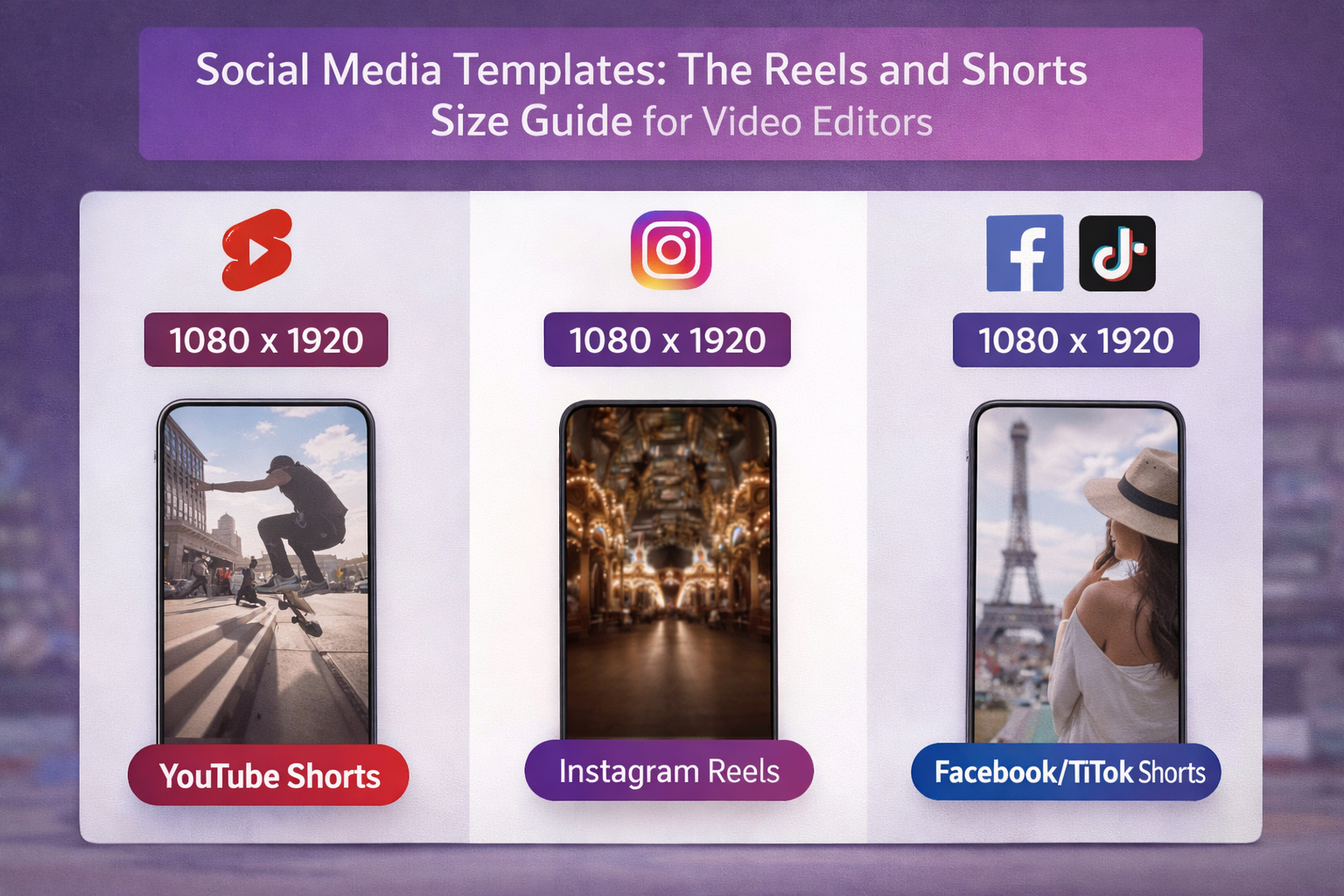
Every social media size guide on the internet was written for social media managers resizing Canva graphics. Not for video editors working in After Effects or Premiere Pro.
Editors building motion graphics for Reels, Shorts, and TikTok need safe zone measurements, composition setup instructions, frame rate guidance, and export settings that prevent re-compression from destroying render quality. This is the guide.
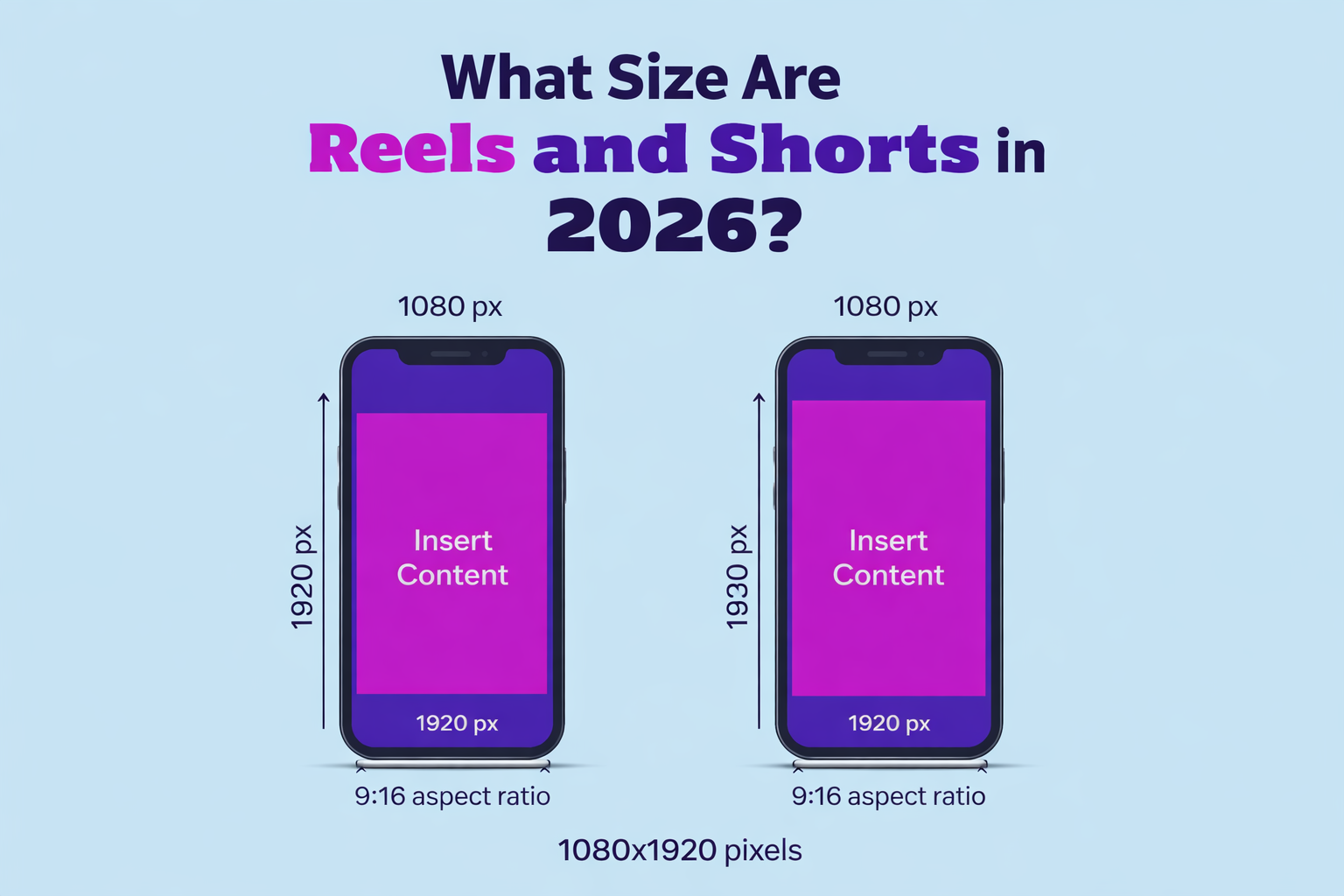
Instagram Reels, YouTube Shorts, TikTok, and Facebook Reels all share the same base format: 1080 pixels wide by 1920 pixels tall, at a 9:16 aspect ratio. This vertical video standard replaced 16:9 widescreen as the dominant format for social content because over 90% of short-form content is consumed on phones held vertically.
The 1080×1920 resolution hits the sweet spot between visual clarity and file size. It fills a mobile screen edge-to-edge without requiring 4K render times. The minimum viable resolution across platforms is 720×1280, but anything below 1080p gets visibly compressed on newer phone displays. If you are building social media templates in After Effects, always start at 1080×1920.
These platforms do not scale up. Upload a 720p file, and it stays 720p. Upload a 1080p file, and it may get slightly compressed during processing, but it starts from a higher baseline. Start higher, lose less.
Every major short-form platform uses the same resolution and aspect ratio, but duration limits, file size caps, and frame rate handling differ, affecting how you build and export your projects.
| Spec | Instagram Reels | YouTube Shorts | TikTok | Facebook Reels |
| Resolution | 1080×1920 | 1080×1920 | 1080×1920 | 1080×1920 |
| Aspect Ratio | 9:16 | 9:16 | 9:16 | 9:16 |
| Max Duration | 90 seconds | 60 seconds | 60 seconds | 90 seconds |
| File Format | MP4 / MOV | MP4 / MOV | MP4 / MOV | MP4 / MOV |
| Max File Size | 4GB | 2GB | 4GB | 4GB |
| Min Frame Rate | 30fps | 30fps | 30fps | 30fps |
A few things to note from this table. YouTube Shorts has the smallest maximum file size at 2GB, which rarely matters at 1080p but can become a factor with high-bitrate exports. All four platforms accept both MP4 and MOV containers, but MP4 with H.264 encoding produces the most consistent results across the board.
Frame rate matters more than most editors realize. 30fps is the minimum and works for talking-head content and simple text overlays. For fast transitions, motion graphics, and beat-synced edits, 60 fps delivers noticeably smoother playback.
Platform UI elements cover roughly 35 to 40 percent of the 1080×1920 canvas, and any text, logo, or critical visual element that falls within those areas is partially or fully hidden.
Here is the breakdown of what gets covered on each side of the frame:
Top zone (approximately 250 to 290 pixels): Platform header, “Following” and “For You” tabs on TikTok, camera icons on Instagram, and the search icon on YouTube Shorts. The title text placed here will be partially covered.
Bottom zone (approximately 340 to 480 pixels): The most crowded area of the screen. It holds the caption text, username, audio credits, like and comment counts, and the playback progress bar. TikTok stacks the most UI elements here.
Right side (approximately 10% of the width): Like, Comment, Share, and Bookmark buttons sit along the right edge on all platforms.
The working safe zone is a centered box roughly 1080 pixels wide by 1150 pixels tall. All text, logos, titles, and call-to-action overlays should stay inside this area to remain visible across all four platforms.
For editors building motion graphics, this safe zone is critical in a way it is not for static content. A text animation that starts in the safe zone but slides downward into the bottom 400 pixels gets cut off mid-animation by the caption overlay. Lower thirds that sit too close to the bottom edge, or title cards placed too high, will disappear behind the UI.
When setting up social media templates in After Effects, add guide layers at 250 pixels from the top and 480 pixels from the bottom. These boundaries prevent animated elements from landing where they disappear. If you regularly run into this problem with downloaded files, the common mistakes editors make with project files guide covers this and other frequent issues.
A 16:9 widescreen After Effects template cropped to 9:16 vertical does not produce usable social content. The logic of composition between horizontal and vertical formats is fundamentally different.
Here is why. A 16:9 composition places subjects and text across a horizontal plane. A 9:16 composition stacks elements vertically, top to bottom. When you crop a 1920×1080 widescreen project into a 1080×1920 vertical frame, you lose over 75% of the original canvas. Text falls outside the visible area, and transition animations designed for horizontal motion look cramped.
Pacing is the other issue. Widescreen templates are built for 30 to 60-second corporate timelines with slow reveals. Social video operates on a 1 to 2 second hook window. Templates built vertically from the start account for this in their keyframe structure and transition speed.
If you are sourcing After Effects templates for social content, check the composition dimensions before downloading. A file built at 1080×1920 natively will always outperform a 1920×1080 file that was resized after the fact.
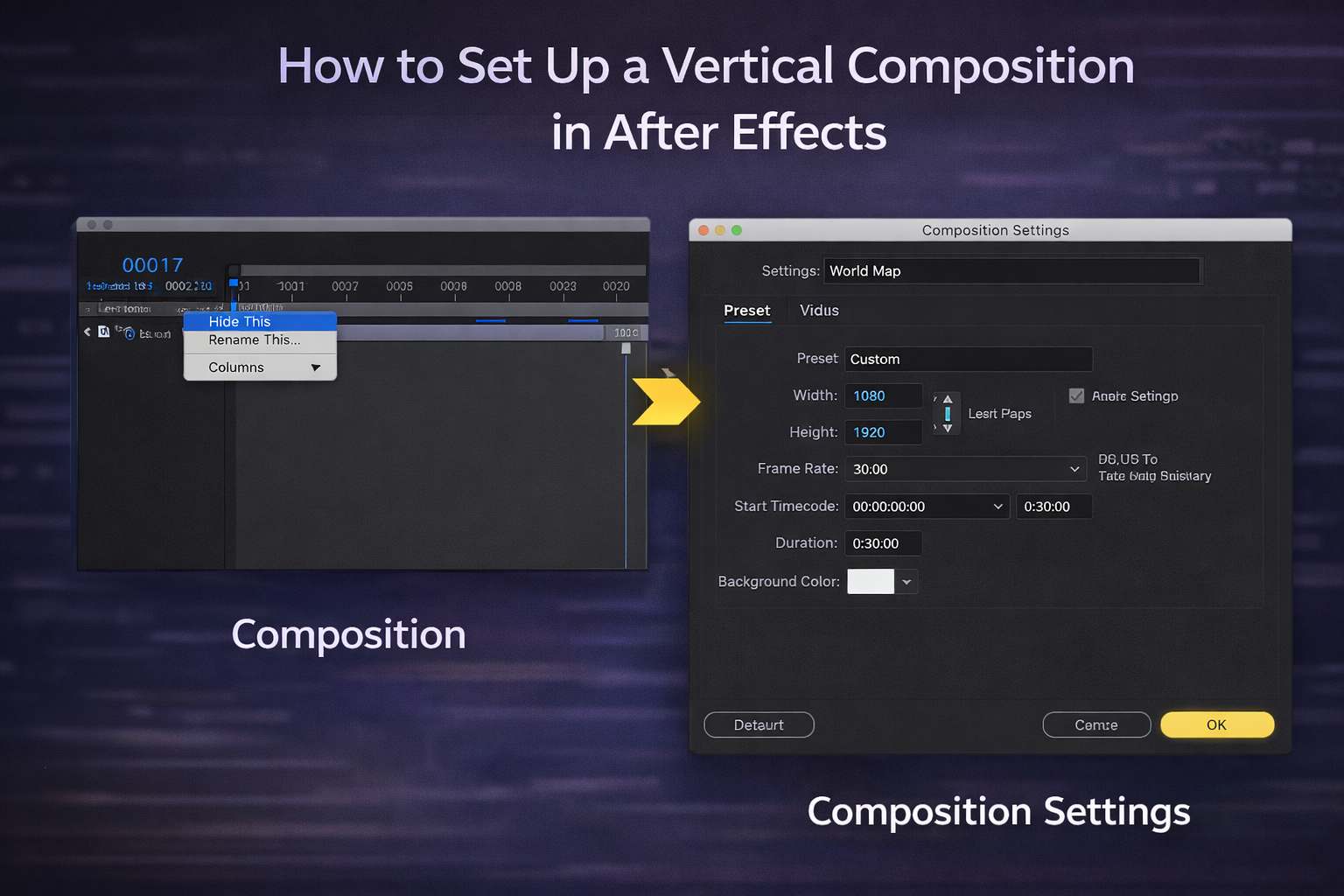
Creating a 9:16 composition in After Effects requires one settings change in the Composition panel. Set the width to 1080, the height to 1920, the pixel aspect ratio to Square Pixels (1.0), and the frame rate to 30 or 60, depending on your content style.
For duration, set your composition length to match the platform maximum you are targeting: 90 seconds for Reels, 60 seconds for Shorts and TikTok. You can always trim shorter, but extending a composition after building animations creates alignment problems.
Once the comp is created, add two guide layers to mark the safe zone boundaries. Place one solid at 250 pixels from the top edge and another at 480 pixels from the bottom. Set both to Guide Layer so they remain visible during editing, but render invisible. Every text layer, title animation, and lower third you build should sit between these two markers.
For export, use Adobe Media Encoder with the H.264 preset. Match the source resolution (1080×1920), set the target bitrate to 10-20 Mbps, and use AAC audio at 48kHz stereo. Save this composition as a preset template so every new vertical project starts correctly.
Instagram crops every Reel to a 3:4 ratio (1080×1440 pixels) on your profile grid, cutting approximately 240 pixels from both the top and bottom of your 9:16 video.
This means the hero moment of your video, whether it is a title card, a product shot, or a face, needs to sit in the vertical center of the frame. If your opening title animation is positioned in the top 300 pixels of the composition, it will not appear on the grid thumbnail at all.
Instagram also allows custom cover photos for Reels, recommended at 420×654 pixels. If you design a cover, keep important elements inside a centered 1080×1440 area of the full canvas, then export a cropped version for upload.
The Reels tab on your profile displays the full 9:16 ratio, so the thumbnail crop only affects the main grid view. But since the grid is the first thing visitors see, design for both formats from the start.
EarnEdits project files are not locked, Canva graphics or closed template packs. They are fully editable .AEP files with exposed layers, labeled compositions, and control parameters you can study and rebuild. Every file is built at 1080×1920 for these platforms.
Study the structure. Swap footage. Adjust timing. See how editors use project files in client work while producing publish-ready content.
9:16 vertical, which translates to 1080 pixels wide by 1920 pixels tall. Instagram Reels, YouTube Shorts, TikTok, and Facebook Reels all use this as the standard for full-screen mobile video.
You can upload it, but the platform adds black bars above and below, and the content appears small on mobile. For full-screen impact, produce at 9:16 natively rather than cropping a widescreen source.
Keep text and critical elements within a centered area of approximately 1080 by 1150 pixels. The top 250 pixels and bottom 480 pixels are covered by platform UI, including headers, captions, and navigation buttons.
30fps is the minimum. 60fps produces smoother motion for fast transitions and beat-synced edits. Both are supported on all four major platforms.
No. All four platforms use identical 1080x1920 dimensions at 9:16. One correctly sized After Effects composition works everywhere. Only duration limits differ: 90 seconds for Reels and Facebook, 60 seconds for Shorts and TikTok.

Explore more guides on After Effects project files and viral editing workflows.
Production-ready edits that teach you how they were built.