Back
Back

 Apr 25, 2026
 Muhammad Sikandar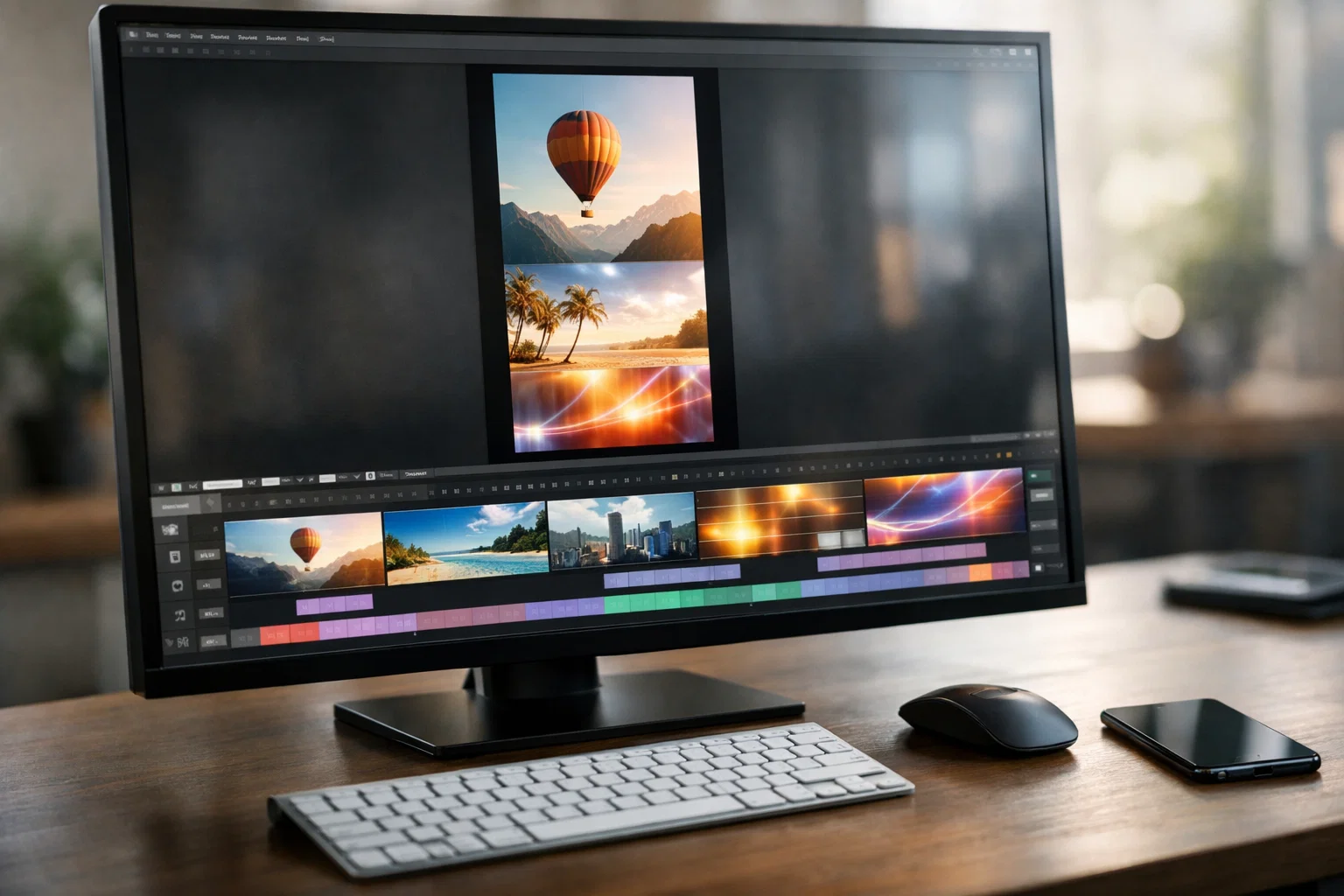
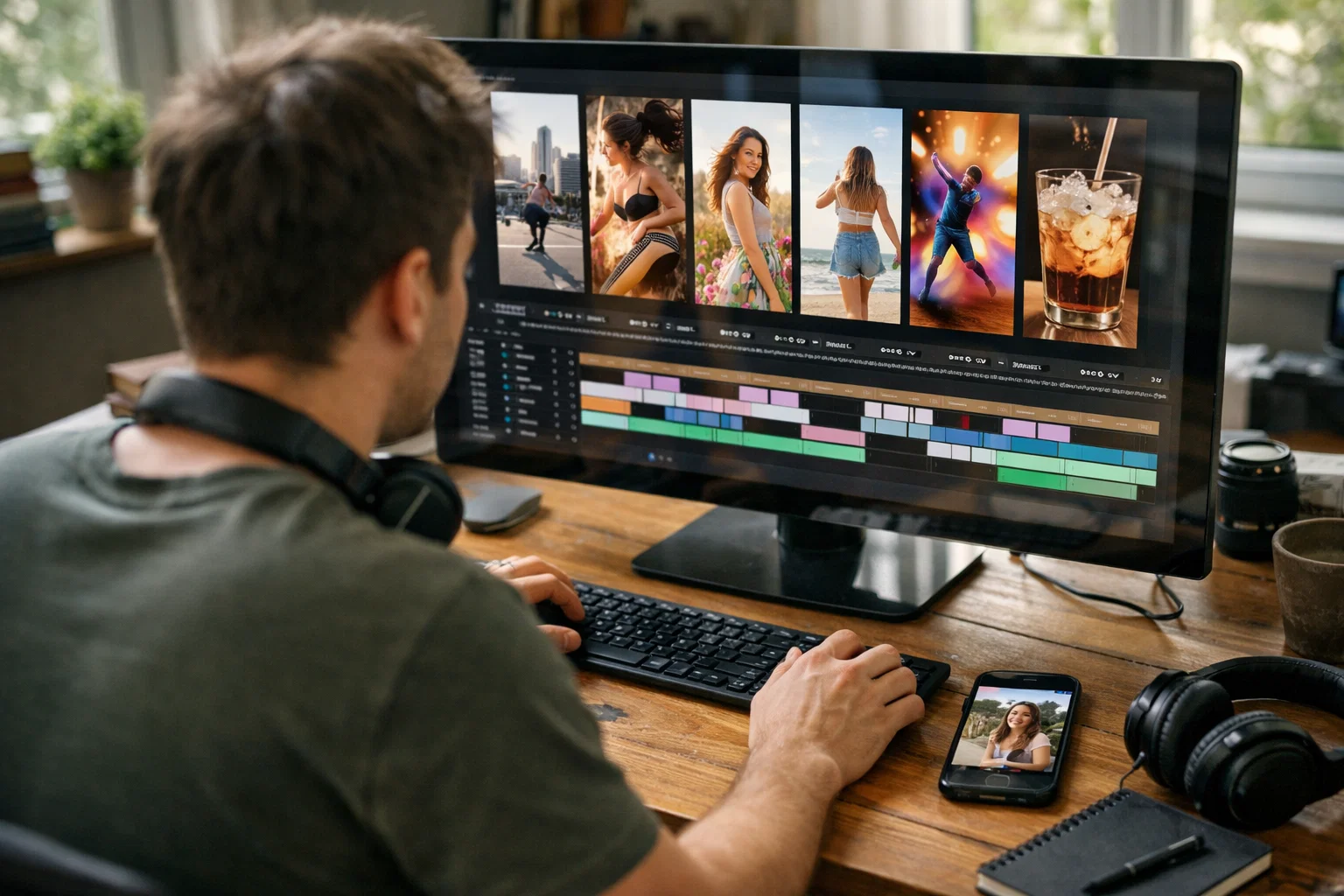
After Effects slideshow templates are multi-scene project files with sequential media placeholders, pre-animated transitions, and timing structures that produce viral-ready content when customized for vertical social platforms. The slideshow format maps directly to the most common viral reel structures: brand story recaps, comparison montages, data-driven countdowns, and product showcases. Adapting a slideshow template for viral performance requires vertical framing at 1080×1920, slide durations of 2 to 5 seconds, and transitions synced to trending audio beats.

Most viral reels follow a multi-scene sequential structure, which is the exact format an After Effects slideshow template is built to produce. Editors associate slideshow templates with weddings, portfolios, and corporate presentations. That association misses the bigger picture.
The same sequential pattern that drives a photo montage (scene 1, transition, scene 2, transition, scene 3) powers the highest-performing content on Instagram Reels and TikTok. A brand story reel is a slideshow. A comparison montage is a slideshow. A countdown reel is a slideshow. The format is identical. The content and pacing are different.
Multi-scene slideshow content creates visual change every 2 to 3 seconds, which signals engagement to platform algorithms. Slideshow templates with a clean final-to-first scene transition create continuous loops that increase algorithmic watch time by 1.5 to 2x per impression.
Four content types use this slideshow structure to consistently perform on social platforms.

Customizing an After Effects slideshow template for a viral video follows five steps, from vertical adaptation through audio synchronization.
Step 1: Set the composition to vertical
If the template is built at 1920×1080 (horizontal), open Composition > Composition Settings and change the dimensions to 1080×1920. Reposition media placeholders and text layers to fit the vertical frame. Templates already built at 1080×1920 skip this step entirely. For detailed platform dimension specifications, read the social media templates size and format guide.
Step 2: Remove excess scenes
Most slideshow templates include 10 to 25 placeholder slides. Viral short-form content performs best at 12 to 22 seconds total. Delete or disable scenes until the total duration fits that range. A 15-second reel at 2 seconds per slide uses 7 to 8 scenes. A 22-second narrative at 4 seconds per slide uses 5 to 6 scenes.
Step 3: Replace placeholder media
Open each slide composition and drag your photos or video clips into the placeholder layers. Press Ctrl+Alt+F (Cmd+Opt+F on Mac) to fit the media to the composition frame. Scale and reposition as needed using S for scale and P for position.
Step 4: Customize text, colors, and fonts
Edit text layers with your own copy. Use the Color Controller layer (if included) to match your brand palette across all scenes at once. Replace default fonts with bold, readable sans-serif typefaces that stay legible on mobile phone screens.
Step 5: Sync transitions to audio
Import your audio track onto the timeline. Press L twice on the audio layer to display the waveform. Shift the keyframes on transition layers so each scene change lands on a beat. This single adjustment is the difference between a slideshow that feels like a photo album and one that feels like a viral reel.
For the complete After Effects template editing workflow, including export settings and render configuration, follow the step-by-step workflow for editing viral reels with AE templates.
The duration of each slide and the speed of each transition directly control whether a viewer watches the full reel or scrolls past after 3 seconds.
High-energy content like countdowns, comparisons, and announcements performs best with 1.5 to 2.5 seconds per slide, fast cut- or stomp-style transitions, and a total duration of 12 to 18 seconds. Every scene change should land on an audio beat.
Narrative content like brand stories, behind-the-scenes montages, and product showcases performs best with 3 to 5 seconds per slide, cinematic or parallax transitions, and a total duration between 18 and 30 seconds.
The first slide must be the most visually striking scene in the entire slideshow. Move your strongest visual or boldest text to slide 1. Viewers decide whether to keep watching within 3 seconds, and a weak opening loses them regardless of how strong the rest of the content is.
If the template’s final transition can connect back to the first slide without a visible cut, enable this loop. Continuous looping increases algorithmic watch time by 1.5-2x per impression. Toggle motion blur on all animated layers in every scene for a professional finish that sets template-edited content apart from amateur slideshows.
Slideshow templates are built for multi-scene sequential content, and they become the wrong tool when the video requires a single continuous shot or a focused single-message delivery.
A 15-second product animation with one continuous camera movement needs an intro or logo reveal template, not a multi-scene slideshow. The slideshow structure fragments continuous motion into disconnected scenes.
Talking-head or interview content with a speaker on screen needs lower thirds and text overlays, not scene-to-scene transitions. Slideshow transitions interrupt the speaker’s delivery.
Content shorter than 8 seconds does not benefit from multiple slides. A single-scene promo template built for fast promotional impact delivers a focused message faster than a compressed slideshow.
Yes. A slideshow template set to 1080x1920 at 30fps exports correctly for Instagram Reels, TikTok, and YouTube Shorts without resizing.
High-energy slideshow reels perform best between 12 and 18 seconds. Narrative slideshows perform well up to 30 seconds. Anything longer loses retention unless the hook is exceptionally strong.
Basic familiarity with the After Effects interface is enough. Slideshow templates contain pre-built transitions and organized placeholders. Editors only need to replace media, update text, and adjust timing.
Free templates work for basic practice. Professionally built templates with organized layers, controller layers, and no required third-party plugins produce stronger results and faster customization.
A slideshow template is structured around sequential media placeholders with transitions between scenes. Regular After Effects templates cover intros, logo reveals, lower thirds, text animations, and single-scene motion graphics.

Explore more guides on After Effects project files and viral editing workflows.
Production-ready edits that teach you how they were built.