Introducing Frame War
Submit your best edit, make it into the Top 3, and compete for the monthly Frame War reward. The winner receives cash plus exposure across EarnEdits community channels.

PRODUCT CATEGORIES
Submit your best edit, make it into the Top 3, and compete for the monthly Frame War reward. The winner receives cash plus exposure across EarnEdits community channels.
 Back
Back

 Apr 25, 2026
 Muhammad Sikandar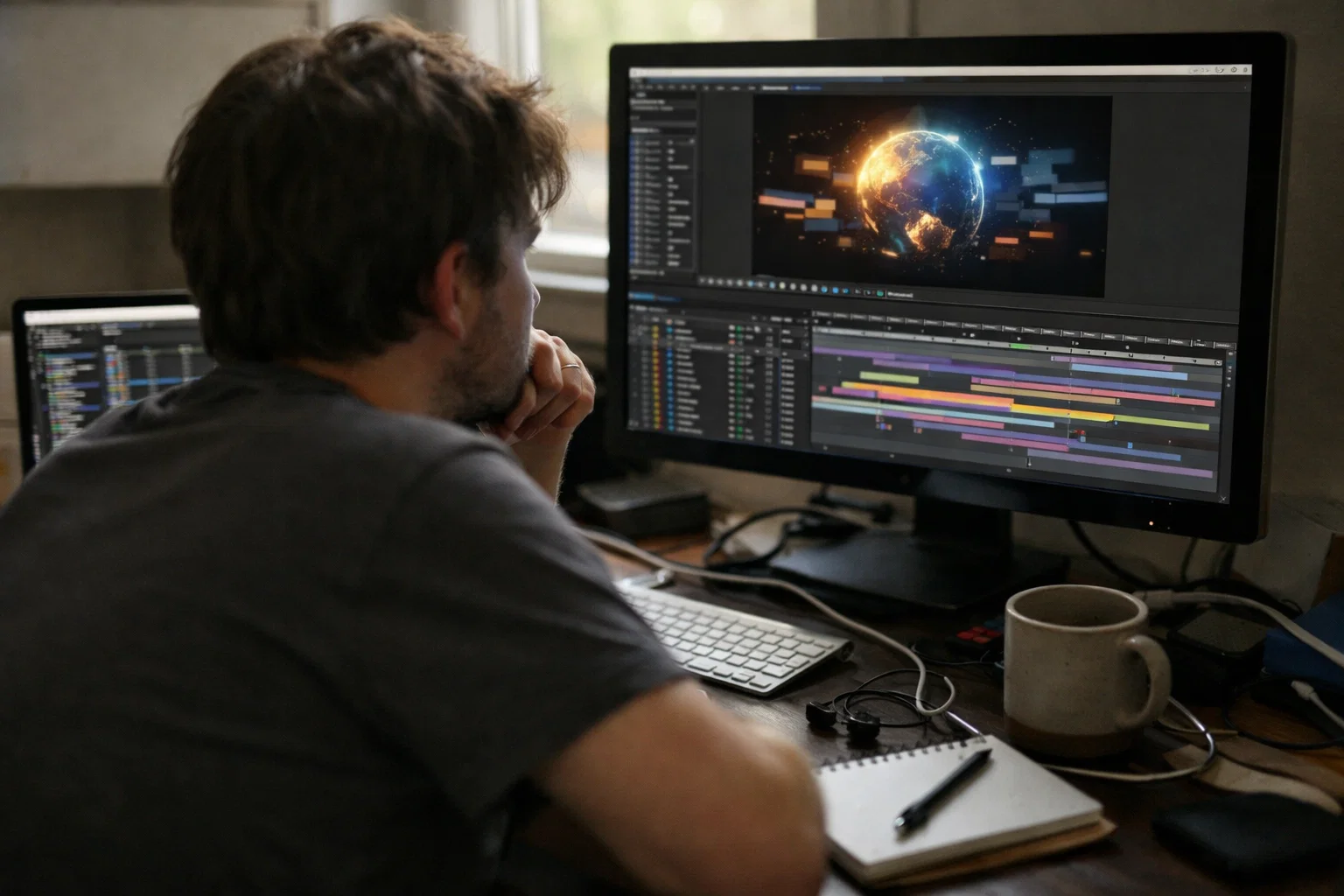
Studying open AE projects teaches editing faster than watching tutorials because project files expose every keyframe, effect, and structural decision behind a finished animation. A structured inspection method turns any After Effects project file into a learning resource by focusing on five elements: keyframe timing, effect chains, layer hierarchy, expressions, and project organization.

Studying an open AE project file exposes the complete decision-making behind a finished animation, something tutorials can only reveal one step at a time. A tutorial is linear and real-time: 20 minutes to learn how a 2-second effect was built. An AE project file is instant and holistic. You open the file and see every layer, every keyframe, and every parameter value at once.
Tutorials show what the instructor chose to demonstrate. Project files reveal everything, including the decisions never mentioned: the easing curve that makes a transition feel weighted, the effect order that produces a specific color shift, the expression that automates a rotation. Tutorial learning is passive. Project file study is active. You toggle layers, adjust values, and see results immediately.
Editors frustrated with tutorial-hopping find that studying one well-built project file teaches more in 30 minutes than a 3-hour course module. For a deeper look at what AE project files contain, read the after effects project files complete guide.
The method works when you know what to inspect. Five elements inside any AE project file contain the most transferable editing knowledge.
Every AE project file contains the same five categories of creative decisions. Inspecting them in order turns any project into a structured learning session.
Keyframe Timing and Easing Curves
Keyframe placement and easing curves control how every animation feels, from the speed of a text reveal to the weight of a camera movement. Select any animated layer and press U to reveal its keyframes. Open the Graph Editor to see the easing curves behind each motion.
Professionals rarely use linear keyframes. Studying their shaped curves reveals why some animations feel snappy while others feel smooth. The influence handles on each keyframe control acceleration and deceleration, and a manually shaped curve produces fundamentally different motion than a default Easy Ease.
Effect Chain Order and Parameter Values
The order effects are stacked on a layer changes the visual output. Professional AE projects reveal combinations that look complex but use only 3 to 4 basic effects layered together. Select a layer and open the Effects Controls panel. Read the effect stack from top to bottom.
A polished look often comes from stacking a blur, a color correction, and an overlay in a specific sequence. A Gaussian Blur at 12 pixels followed by Curves and a grain overlay at 8% opacity produces a completely different result than the same effects in reverse order. Noting these combinations builds a reference library for your own work.
Layer Structure and Composition Hierarchy
Professional AE projects organize hundreds of elements into nested compositions that keep the main timeline clean and editable. Toggle layer visibility from the bottom up to see each element’s role: backgrounds first, then midground assets, then text layers, and finally adjustment layers at the top.
Double-click any pre-composition to open its internal structure. Understanding why a creator nested specific layers into a pre-comp reveals the logic behind complex animations. Learning when to pre-compose for efficiency vs. when to keep layers flat is a workflow skill that tutorials rarely address.
Expressions and Property Relationships
Expressions are code snippets that automate animation behavior, and they appear as red-colored values inside the timeline. Press E twice on any layer to reveal all expressions. Alt-click the stopwatch on any property to read or edit the expression code.
Common expressions like wiggle(), loopOut(“cycle”), and time-linked rotations (time*50) automate motion that would require dozens of manual keyframes. Copying useful expressions into a personal library saves hours across future projects.
Project Organization and Naming Conventions
How a project file is organized reveals as much about professional workflow as the animation itself. Expand the Project panel and study the folder structure, layer names, and color-coding system.
Professional editors label layers with functional names: “CTRL_Camera_Master,” “BG_Gradient,” “TXT_Hook.” They organize assets into Media, Audio, Text, and Render folders and color-code layers by scene. Adopting these conventions eliminates the “Layer 54” problem and makes your own projects scalable and shareable.
For a deeper look at this inspection process, read about studying AE project files efficiently.
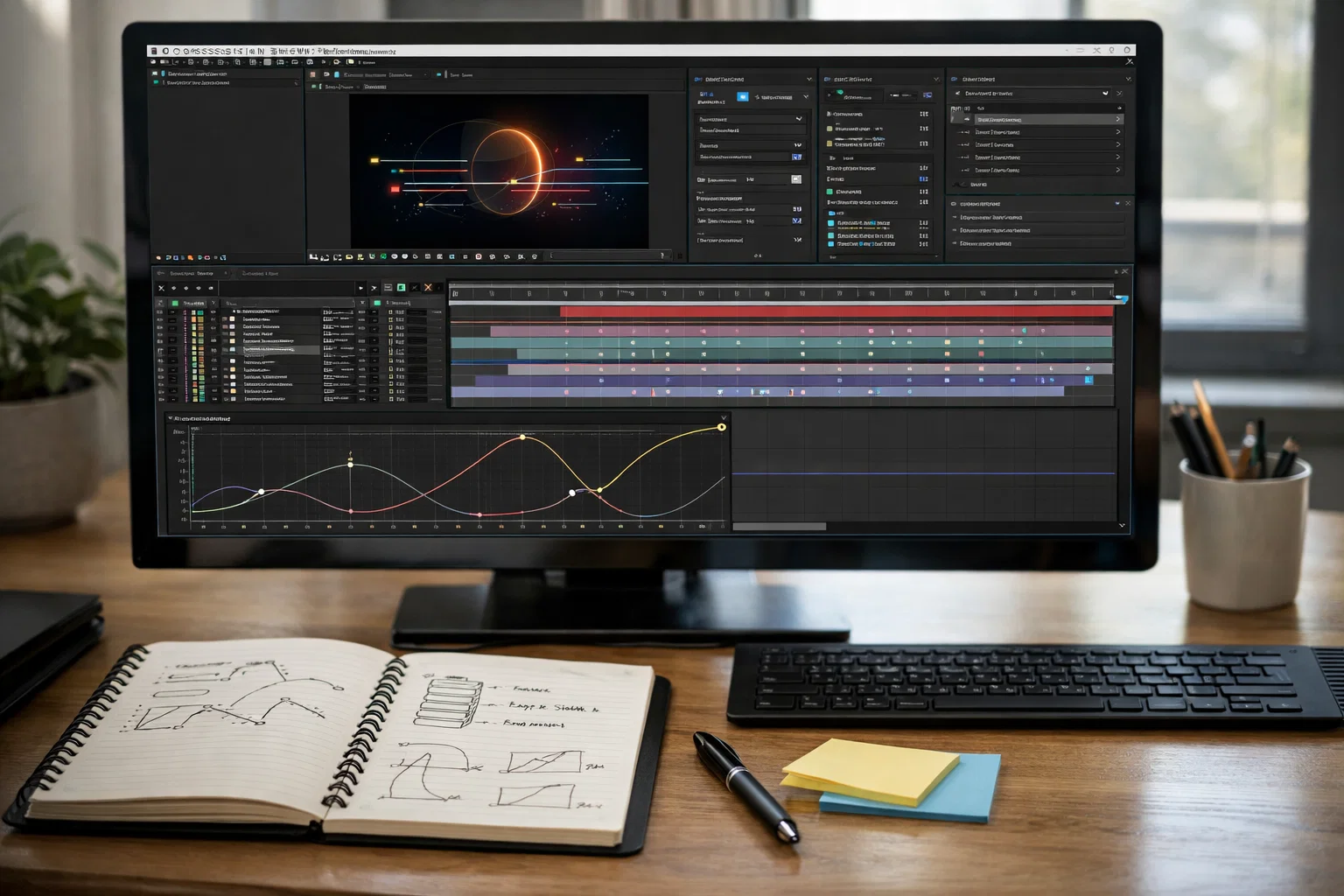
A repeatable 6-step process turns any AE project file into a structured learning session.
Step 1: Save a duplicate through File > Save As before making any changes. This preserves the reference version.
Step 2: Mute all layers, then toggle visibility from the bottom up, one at a time. Note what each layer contributes to the final composition.
Step 3: Select animated layers and press U to reveal keyframes. Open the Graph Editor and study the easing curves. Note which keyframes use linear motion vs. shaped easing.
Step 4: Open the Effects Controls panel on key layers. Read the effect chain top to bottom. Write down effect names and parameter values that produce the results you see.
Step 5: Press E twice on layers with red-colored values to reveal expressions. Read the code. Copy any reusable expression into a notes file or expression library.
Step 6: Recreate one element from the project in a blank composition using only what you observed. This converts passive observation into active skill.
Repeating this process across 3 to 5 different project files per week builds more usable editing skill than months of tutorial watching. Project files like the Learn After Effects With Real Project Files viral edit are structured for exactly this kind of study.
The goal of studying AE projects is not to replicate them but to extract techniques you apply to your own original compositions. After inspecting a project, isolate one technique and apply it to a completely different context.
If a project uses a 3-layer effect stack (blur, curves, grain) for a glow transition, test that same stack on your own footage with your own colors and timing. If an expression automates a time-linked rotation, apply it to a different layer in your own project. The technique transfers. The content stays original.
Over time, the techniques you repeatedly extract and apply become your default editing approach. The easing curves you gravitate toward, the effect combinations you reach for, and the organizational patterns you adopt form a personal style built on professional foundations.
Tutorials stop accelerating skill growth once you can follow instructions but cannot yet make independent creative decisions. After 50 or more tutorials, most editors replicate specific steps easily. The struggle begins when they build original work, because they only learned WHAT to do, not WHY.
Project files break this plateau by exposing the WHY. The easing curve shape explains the motion feel. The effect order explains the visual result. The layer naming explains the workflow logic. Each new project file introduces new decision patterns, so the learning curve never flattens.
For a detailed comparison, read about comparing After Effects courses with project files for learning.
Not every AE project file is worth studying. Three indicators separate a learning-quality project from one that wastes your time.
The first is organized layers with clear names. If layers are labeled “Layer 1, Layer 2, Layer 3,” the project teaches poor habits. A project worth studying uses functional names that describe what each layer does.
The second is fully editable effects with no pre-rendering. Pre-rendered video elements are baked footage that cannot be deconstructed. Every effect in a learning-quality project should be live and editable.
The third is no required paid plugins. A project that breaks without expensive third-party plugins limits what you can inspect and modify. Read more about why fully editable After Effects project files matter for real skill development.
EarnEdits project files are organized, fully editable, and built with no required third-party plugins.
Yes. Studying professional AE project files teaches motion design through direct inspection of finished work. Courses cover theory and interface basics. Project files teach creative decision-making through hands-on deconstruction.
Pressing U on a selected layer reveals all keyframed properties. Pressing UU reveals all modified properties, including those changed from defaults without keyframes. Both shortcuts are essential for inspecting how an animation was built.
Studying 3 to 5 AE project files per week, focusing on one inspection element per session, produces noticeable skill growth within 2 to 4 weeks. Consistency matters more than volume.
Free files work for basic practice. Professionally built project files with organized layers, labeled compositions, and fully editable effects teach stronger workflow habits and expose more advanced techniques.
Studying extracts the technique: an easing curve, an effect chain, an expression. Copying duplicates the content. The goal is to understand WHY a decision was made and apply that reasoning to original work.

Explore more guides on After Effects project files and viral editing workflows.
Production-ready edits that teach you how they were built.